First, test the connection using an Ethernet cable at the router, then check the Wi-Fi where you’ll be watching. A new router won’t fix a shortfall in your provider’s connection. Keep your existing router if that connection is good and the Wi-Fi is strong enough where you’ll be watching. Choose a cable or wired access point if you can install one easily, or several mesh units if distance and walls limit coverage in different areas. If you’re using Google Cast, also check that your phone and screen can find each other on the network.
Who is this advice for?
Organiser using a shared screen
Wants to work out before the concert why the picture is stuttering, and whether a phone or laptop can connect to the screen over the home network. For Google Cast, Google recommends using a compatible Wi-Fi network that lets the phone and screen find each other.
Housemate dealing with a Wi-Fi dead spot
Watches in a bedroom or shared space where distance and obstacles may weaken the signal. Testing with a cable and checking the connection where you’ll be watching helps you assess different parts of the connection, as recommended by the Consumers’ Association (Consumentenbond).
Shared network administrator
Wants to know which devices housemates connect, and who is responsible for managing settings and updates. ACM ConsuWijzer explains your freedom to choose a router, while VeiligInternetten advises updating your router when possible.
What should you consider when choosing?
Keep or reposition your existing router
Choose this if: the wired connection is good and moving the router could improve Wi-Fi by the screen.
Trade-off: the modem’s location and available cables may make moving it difficult.
Cable or wired access point
Choose this if: Wi-Fi by the screen is weak and you can run an Ethernet cable to the screen or to a better position for the access point.
Trade-off: you’ll need a suitable cable route and, if required, a spare network port.
A standalone Wi-Fi router
Choose this if: one well-positioned access point can reach your viewing spot and the rooms you use, and you need a different router.
Trade-off: check the connections and operating mode. The advertised Wi-Fi speed doesn’t guarantee coverage through walls or floors.
Mesh with several Wi-Fi points
Choose this if: coverage is poor in several places and the mesh points can connect reliably to one another.
Trade-off: you’ll need extra devices and power sockets. Obstacles can also affect the wireless connection between mesh points.
| Concern |
What to check before buying |
Who is this most relevant to? |
| Reliable connection |
Compare a wired test at the router with the connection where you’ll be watching; if possible, try connecting the screen with a cable. |
If I don’t want to miss a live concert, I first need to know whether the provider’s connection or the Wi-Fi where I’ll be watching is the weak link. Around 36% of consumers put reliability at the top of their list when buying. |
| Coverage in several areas |
Test the connection where you’ll be watching, then compare moving the router with adding a wired access point or several mesh points. |
If bedrooms or the shared space have weak Wi-Fi, I want to know where an extra access point might be needed. Around 29% of consumers put coverage first. |
| Using several devices at once |
Make a note of which devices will be in use during the concert, and check the ports and features of the exact model. |
If housemates are streaming or using other devices at the same time, I don’t want to confuse router features with the capacity of my broadband package. Around 21% of consumers make simultaneous use their main buying concern. |
| Casting and management |
For Google Cast, check that your phone and screen are on a compatible network and can communicate with each other; agree on who will manage updates and settings. |
If I want to cast from a phone to the shared screen, the devices need to be able to find each other on the network. Around 14% of consumers give casting settings and shared management top priority. |
Common pitfalls
-
Assuming a high Wi-Fi speed guarantees uninterrupted live video
A wired speed test and Wi-Fi where you’ll be watching assess different parts of the connection. A router can’t fix a shortfall in your provider’s connection.
First, test the connection using a cable at the router, then check it where you’ll be watching.
-
Buying one more powerful router for rooms behind several walls
Distance and obstacles can weaken the signal. With wireless mesh, the connection between the points also needs to be good enough.
Compare the position of your existing router with running a cable to the screen, adding a wired access point or using mesh points.
An extra access point or mesh point needs a suitable location and a power socket; wired backhaul also requires a cable route.
-
Using an isolated guest network for the device casting to the TV
With Google Cast, AP isolation may stop your phone and screen from finding each other. This applies to that casting setup, not necessarily to every livestream.
Check the network name and isolation settings for the devices you want to connect. Don’t change security settings for your whole home without considering the implications.
-
Choosing mesh points without checking the problem areas
More points can help if Wi-Fi is weak in several areas, but only if you can position them suitably and they can maintain a connection to one another.
First, check where coverage is poor, then work out how many points you need and where to put them.
Extra points need suitable locations and power sockets. So, don’t just compare the number of devices; consider where they can go in your home.
Relevant brands to consider
TP-Link
The Archer AX55 is a standalone router, while the Deco X50 is a mesh range designed to cover several areas.
- TP-Link lists Wi-Fi 6 and OFDMA for the Archer AX55, and optional Ethernet backhaul for the Deco X50.
- These are model specifications and manufacturer claims, not performance test results from a student house. Check the number of units and hardware version when buying the Deco X50.
ASUS
According to ASUS, the RT-AX57 can also operate in access point or AiMesh node mode.
- ASUS lists four Gigabit LAN ports and one Gigabit WAN port for this model.
- Check that the mode you want is compatible with your provider’s setup; the ports alone say nothing about coverage by the screen.
FRITZ!
The FRITZ!Box 4060 is a standalone network router designed for use behind an existing modem, and can be expanded as part of FRITZ! Mesh.
- FRITZ! lists one 2.5 Gigabit WAN port and three Gigabit LAN ports.
- The product information describes features, not independent performance results for this student house.
NETGEAR
The Nighthawk RAX10 is an example of a standalone Wi-Fi 6 router with wired connections.
- NETGEAR’s data sheet lists four Gigabit LAN ports and one Gigabit WAN port.
- Advertised capacity and coverage don’t guarantee a signal in a specific location, at a distance or through walls.
Products on Joybuy
This selection includes mesh systems for Wi-Fi in several areas and one standalone router for situations where a single access point is enough. First, check where coverage is poor and make sure the product variant suits the setup you want.
 No image available
TP-Link Deco BE68 2-Pack
A mesh system for situations where you want Wi-Fi in several areas.
Pack size: 2-Pack.
Joybuy
 No image available
TP-Link Deco PX10 Dual-band Wi-Fi 6
A mesh product to consider if you want to extend Wi-Fi to several areas.
Dual-band (2,4 GHz / 5 GHz); Wi-Fi 6 (802.11ax).
Joybuy
 No image available
ASUS RT-AX52 AX1800 AiMesh router
A standalone router to consider if a single access point is enough and you’re looking for an AiMesh model.
AX1800; dual-band (2,4 GHz / 5 GHz); Gigabit Ethernet.
Joybuy
 No image available
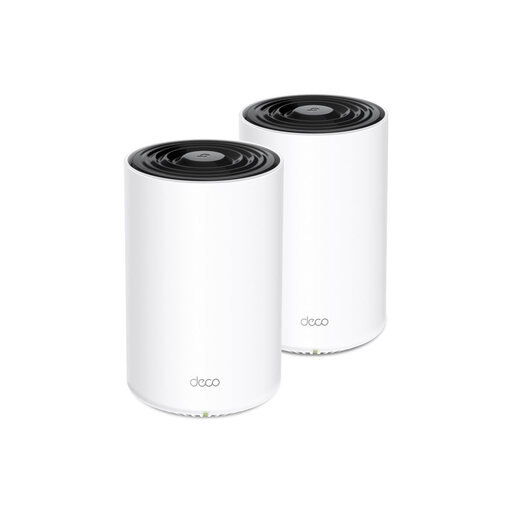
TP-Link Deco X50 3-Pack
A mesh system to consider if you need Wi-Fi in several areas.
Set of 3; dual-band (2,4 GHz / 5 GHz); Wi-Fi 6 (802.11ax).
Joybuy
 No image available
Huawei eKit OptiX FG736 BE3600
A mesh router to consider if you want Wi-Fi in several areas.
Dual-band; Wi-Fi 7.
Joybuy
Frequently asked questions
Do you need a new router just for one livestream?
No, not necessarily. First, test the connection using a cable at your existing router, then check the Wi-Fi by the screen. If the provider’s connection itself is the problem, a new Wi-Fi router won’t make it faster.
Why doesn’t the shared screen appear in Google Cast?
Check that your phone and screen are on a compatible Wi-Fi network, and that AP or client isolation isn’t blocking communication between them. Google describes this as a requirement for that casting setup, not for every livestream.
Who should update a personally owned router?
Agree on who will manage the router and install firmware updates. Set up automatic updates if the model supports them; ACM ConsuWijzer also recommends updates when you use your own device.
Can you use your own router in the Netherlands?
In principle, yes: ACM ConsuWijzer explains your freedom to choose a router, although this doesn’t apply to every connection in every case. Ask your provider which settings you need for your connection.
Is the manufacturer’s warranty the only warranty on a router?
No. According to ACM ConsuWijzer, your statutory rights exist alongside any manufacturer’s or seller’s warranty. If a router doesn’t work as it should under normal use, ask the seller what suitable solution they can offer.


