
Viewers with a narrow hallway
You want to stream the concert somewhere with a weak router signal and need to find a place for an extender that won’t obstruct the walkway.


A wireless extender is only a good option for streaming a live concert beyond a narrow hallway if it can still receive a usable connection from the router where you place it. The Dutch Consumers' Association recommends positioning Wi-Fi access points with as few obstacles between them as possible. If the signal in the hallway is weak, a wired access point could be an alternative, provided you can run a cable to it. Also check that it’s compatible with your router’s mesh system and that it won’t obstruct the walkway.
You want to stream the concert somewhere with a weak router signal and need to find a place for an extender that won’t obstruct the walkway.
You can run a network cable to your viewing spot or a suitable Wi-Fi access point, and don’t want to rely on a weak wireless connection through the hallway.
You want an additional Wi-Fi access point to work with your current router, so you’ll need to check that the specific devices are mesh-compatible.
A good choice if: there’s a socket outside the walkway and the extender can still receive a usable connection from the router there.
Bear in mind: obstacles and a weak router signal can limit the connection. The advertised speed won’t tell you how well it will stream at your viewing spot.
A good choice if: you can run a network cable to a better-positioned Wi-Fi access point.
Bear in mind: you’ll need a suitable cable route and a device with the right connection or access point mode.
A good choice if: you want to use several Wi-Fi access points as a connected network and have checked that they’re compatible with your router.
Bear in mind: mesh features vary between combinations. A wireless mesh access point also needs a usable connection to the network.
When buying Wi-Fi radio equipment in the Netherlands, check that the CE mark is shown for the specific version being offered. The Dutch Authority for Digital Infrastructure states that this mark is mandatory; a mark shown for a different version is not sufficient.
| What to consider | What should you check? | Who is this important for? |
|---|---|---|
| Positioning in the hallway | Check that the socket remains accessible, the device won’t obstruct the walkway and there are as few obstacles as possible between the router and the Wi-Fi access point. | If I use a socket in the narrow hallway, I want to leave enough room to walk through. Around 36% of consumers say positioning is their top priority when buying. |
| Stable live stream | Test the connection at the final viewing spot and take into account the requirements of your chosen streaming service and picture quality. | When I want to watch the concert live, I focus on the connection at the playback device. Around 29% of consumers give streaming stability top priority. |
| Cable route | Check whether it’s practical to run a cable to a better-positioned Wi-Fi access point and whether the device has a suitable Ethernet connection or access point function. | If the wireless connection through the hallway is weak, I want the option of running a cable to a better spot. Around 21% of consumers say a wired connection is their top priority. |
| Mesh compatibility | Check the exact router model and whether the mesh features you want will work with the device you’ve chosen. | If I already have a mesh network, I want to know whether the additional access point will work with my router. Around 14% of consumers prioritise compatibility with their existing mesh network. |
A wireless Wi-Fi access point relies on its own connection to the network. Obstacles in the hallway can weaken that connection.
You can test possible socket locations before choosing a model, then check the connection at your final viewing spot.
If wireless positioning doesn’t work, you may need to try another location or run a cable.
A model’s stated speed doesn’t measure the connection at your playback device. The internet speed you need also depends on your streaming service and picture quality.
Check your streaming service’s requirements and test the connection at your viewing spot.
Manufacturers specify which combinations support mesh features. General Wi-Fi extension doesn’t automatically mean that all mesh features will work together.
Check your exact router model and the mesh features it supports before relying on them to work together.
You may need different or additional network equipment for the mesh features you want.
The RE705X is a dual-band Wi-Fi 6 extender with a gigabit Ethernet port and access point mode. It’s worth considering if you’re comparing wireless positioning with a wired connection.
The FRITZ!Repeater 1200 AX is an option for extending a FRITZ!Box network and has a gigabit LAN connection.
The WiFi 6 Repeater 3000 is a wireless repeater option; devolo lists it as compatible with routers.
NETGEAR describes the EAX15 as a dual-band Wi-Fi 6 plug-in extender, with internal antennas and a gigabit Ethernet port.
This selection includes mesh expansion, access points for a wired Wi-Fi connection and Wi-Fi repeaters. Choose based on your cable route, where you want to position the device and the connection it can receive there.
 No image available
An option if you’re looking for a mesh setup with several access points.
2-pack.
 No image available
An option if you want to use an access point somewhere with a wired network connection.
2976 Mbit/s; white; Power over Ethernet (PoE).
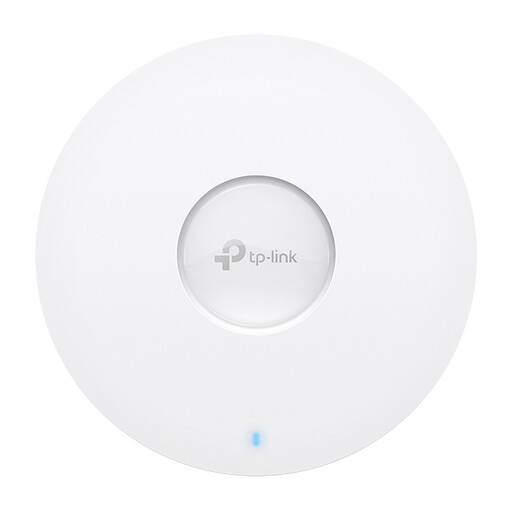 No image available
An option if you want to use an access point somewhere with a wired network connection.
1775 Mbps; white; Power over Ethernet (PoE).
 No image available
An option if you want to use a wireless repeater in a suitable spot in or near the hallway.
 No image available
An option if you can run a wired connection to the device and the mode you need suits your setup.
N up to 300 Mbps; 2 antennas; WPS; Passive PoE.
First, find a spot where the Wi-Fi access point can still get a usable connection from the router, with as few obstacles between them as possible. The Dutch Consumers' Association recommends positioning Wi-Fi access points so they can see each other. Then check the connection at your viewing spot and make sure the device won’t obstruct the walkway.
Not necessarily: an extender won’t automatically improve a slow connection from your provider. The Dutch Consumers' Association recommends running a speed test on a computer connected to your home network by a network cable. This helps you distinguish an internet connection issue from a local Wi-Fi problem.
According to the Dutch Authority for Digital Infrastructure, you don’t need a permit, notification or registration for ordinary Wi-Fi use, as long as you comply with the conditions of use. Radio equipment sold in the Netherlands must also display the CE mark for the specific version being offered.
Check the software support available for the exact model and the stated warranty period. Also decide in advance whether you’ll need a cable route or an additional Wi-Fi access point, so you can factor in these practical requirements.