For a standard Linux desktop, a compact PC with support for the specific hardware and distribution you need is the most straightforward option. An upgradeable desktop is a better fit if you want to change components, while a Raspberry Pi is best suited to Arm and hardware projects. None of these form factors is automatically quiet: check the configuration, how the cooling performs during your intended use and which components are included.
Who are these options for?
Linux beginner with a quiet desk
This user wants to install a standard Linux desktop and hear as little fan noise as possible while studying. That’s why they compare support for the specific hardware and noise levels during use, rather than looking at size alone. Canonical lists specific desktop configurations in its Ubuntu overview.
VM and distro explorer
This user wants to try out several systems or keep their existing files, so they pay attention to memory, storage and a safe installation process. Canonical recommends making a backup before installation, while Oracle VirtualBox explains how to configure virtual machines.
Arm and hardware tinkerer
This user wants to learn Linux on a Raspberry Pi and takes into account the differences in architecture, power supply, storage and cooling compared with a complete x86 desktop. Raspberry Pi describes the Pi 5 as having an Arm Cortex-A76 processor, and lists accessories such as a case with a fan and a power supply.
What should you look for when buying?
Compact x86 mini PC
Best for: a small desk and anyone wanting to install a mainstream x86 Linux desktop directly.
Bear in mind: a small form factor says nothing about noise; check the specific hardware, distribution and cooling.
Upgradeable desktop
Best for: anyone who wants to modify or replace components and has space on their desk.
Bear in mind: check Linux support, cooling and connections for each configuration; a larger case doesn’t guarantee quieter operation.
Raspberry Pi 5
Best for: anyone who wants to learn Arm Linux or work on hardware projects that are compatible with the software.
Bear in mind: this Arm computer isn’t a direct replacement for an x86 PC; cooling and the parts you’ll need require separate consideration.
| Consideration |
What should you check? |
Who is this important for? |
| Linux compatibility |
Compare the full model and installed hardware with the support available for your distribution. Also check whether the PC comes with Linux, Windows or no operating system. |
If I want to install Linux without unnecessary hassle, I check the exact configuration and distribution. Around 29% of consumers prioritise Linux compatibility. |
| Quiet while studying |
Ask for noise data for the specific configuration and assess the cooling during the tasks you plan to do; don’t assume a device is quiet based on its size. |
If I work in a quiet study, I want to know how much noise the cooling system makes during my usual use. Around 29% of consumers put quiet operation first. |
| Room to experiment |
Check the available memory and free storage for the way you plan to use it. Back up your files before changing an existing installation. |
If I want to try out distributions or virtual machines, I look at memory, storage and a safe installation process. Around 24% of consumers prioritise experimenting. |
| Complete setup |
Check which power supply, storage, case, monitor and input devices are included before comparing deals. |
If I need a desktop that’s ready to use, I want to know in advance which components I’ll need to arrange myself. Around 18% of consumers focus mainly on the complete setup. |
Common pitfalls
-
Assuming certification for a product family applies to every configuration
Canonical lists specific desktop configurations. Hardware and the included operating system can vary within a model name, so a listing doesn’t automatically apply to every configuration.
Before buying, compare the full model, hardware and version of the Linux distribution you want to use.
Resolving potential hardware or driver issues could take extra time.
-
Assuming a mini PC or Raspberry Pi will automatically be quiet
A compact case doesn’t tell you how much noise the cooling system makes. For example, the official Raspberry Pi 5 case has a fan, but this doesn’t tell you how noisy your setup will be.
Ask for data on the specific configuration and check how the cooling performs during the tasks you want to carry out.
-
Budgeting for a computer board or barebone as if it were a complete desktop
A barebone or computer board isn’t necessarily a ready-to-use setup. You may need to source a power supply, storage, case, monitor or input devices separately.
Check what’s included with each offer and which components you’ll still need for your setup.
Brands to consider
Lenovo
The ThinkCentre M70q Gen 5 is a compact desktop range. Canonical lists the product family in its Ubuntu overview, but this doesn’t automatically confirm support for every configuration.
- Lenovo lists Windows 11 Pro, expandable memory and expandable storage for the 12TD0017MH configuration.
- According to Lenovo, a monitor, wireless keyboard and mouse are sold separately. Check Linux support and noise levels for the specific configuration.
Dell
The Dell Pro Micro QCM1250 is a compact desktop range. Canonical lists certain QCM1250 configurations, but this doesn’t automatically apply to every configuration.
- Its compact size could suit a desk where space is limited.
- Compare the processor and other hardware with the specific Canonical listing; it isn’t a general guarantee for every configuration or its noise level.
HP
HP describes the Pro Mini 400 G9 as a compact business desktop for smaller workspaces.
- Its small size could suit a desk with limited space.
- Check Linux support and noise levels during use for the specific configuration.
ASUS
ASUS lists Ubuntu 24.04 LTS for specific NUC barebones; this support doesn’t automatically apply to every NUC model or configuration.
- Information about supported operating systems can help you check a specific barebone.
- ASUS describes Linux support for validated distributions as “Best-Effort”. Check the exact model and configuration details.
Raspberry Pi
The Raspberry Pi 5 is an Arm computer board for Linux and hardware projects; it’s a different type of product from a complete x86 mini PC.
- Raspberry Pi lists an Arm Cortex-A76 processor and accessories such as a power supply and a case with a fan.
- Check that your software is compatible with the architecture and find out which parts you’ll need for a complete setup; having a fan doesn’t tell you how noisy it will be.
Joybuy product picks
Joybuy product picks for desktop computers to help you learn Linux. For each specific configuration, check that the hardware and operating system suit your distribution and intended use.
 No image available
SOYO Y5Pro Mini PC
The mini PC form factor could suit a compact setup; check Linux support for the specific hardware before buying.
Intel Core i5 8250U/8350U, 8 GB DDR4, 256 GB SATA SSD, Wi-Fi 5, Bluetooth 5.2 and Windows 11.
View at Joybuy
 No image available
RGB Gaming PC, RTX 5060, Ryzen 5
If you’re also looking for a gaming PC alongside your Linux projects, check that the hardware and operating system configuration suit your plans.
RTX 5060, Ryzen 5, 16 GB RAM, 480 GB SSD and Windows 11 (not activated).
View at Joybuy
 No image available
NVIDIA DGX Spark Founders Edition
The product name lists NVIDIA DGX OS; check that this operating system is suitable for the Linux distribution and tools you want to learn to use.
NVIDIA GB10, 128 GB RAM and 4 TB SSD.
View at Joybuy
 No image available
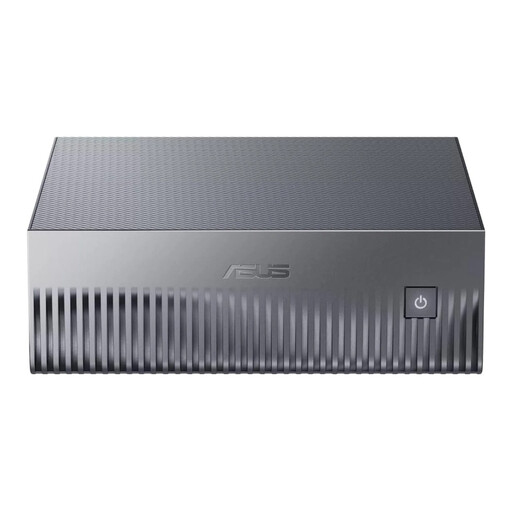
ASUS Ascent GX10 GX10-GG0003BN
This mini PC could be an option for a compact setup; check support for the specific hardware and Linux distribution you want to use.
GB10, 128 GB LPDDR5x, 1 TB SSD and Wi-Fi 7.
View at Joybuy
 No image available
FIREBAT R3 Mini PC
The mini PC form factor could suit a compact learning setup; check Linux support for the specific configuration before buying.
AMD Ryzen 5 7430U, 16 GB RAM, 512 GB SSD, Wi-Fi 6, Bluetooth 5.2 and 4K Triple Display.
View at Joybuy
Frequently asked questions
Does Linux need to be pre-installed on the desktop?
No, you can install Linux from a bootable USB stick. Before you start, check that the specific hardware is compatible with the distribution you want to use, and back up your files before changing an existing installation. Canonical explains this installation process.
Can you install Linux alongside Windows without preparing first?
Make a backup first and check how the drive is protected. Canonical specifically warns about situations involving BitLocker, where the installer can’t safely partition the data.
What can you do if the computer turns out to be faulty after purchase?
According to ACM ConsuWijzer, if a product is faulty, the seller must offer a solution under the terms of the statutory guarantee. Online consumer purchases also generally come with a statutory 14-day cancellation period after delivery; check the applicable terms and exceptions.
Which product regulations apply to a desktop in the Netherlands?
Applicable EU product rules apply to electrical and electronic equipment; CE marking is required where the relevant legislation says so. Check the information for the complete PC and any power supply: a claim of Linux support doesn’t prove that a product complies with regulations.


