
Linux beginner with an extra monitor
You want to install or try Linux and use the laptop screen alongside one monitor. Before buying, check that the exact hardware is compatible with your chosen distribution.


Start by deciding whether you want to use the laptop screen alongside one external monitor, or two external monitors. Lenovo specifies support for up to four independent displays on the ThinkPad T14 Gen 6 (AMD): the built-in screen and three external monitors. Canonical lists a configuration with AMD Ryzen AI 7 PRO 350. Also check that Linux support applies to the exact processor, generation and distribution you plan to buy.
You want to install or try Linux and use the laptop screen alongside one monitor. Before buying, check that the exact hardware is compatible with your chosen distribution.
For example, you might want to have instructions on one external screen and a terminal on the other. Check how many independent displays the exact configuration supports at the same time.
You pay attention to installation guides, components and ports, and bear in mind that Linux support can vary by generation and distribution.
First, decide which screens need to be on at the same time. Then compare the video outputs on the exact laptop configuration with your monitors’ inputs, and check Linux support for that same model.
| What to consider | What should you check? | Who is this important for? |
|---|---|---|
| Number of screens and ports | Note whether you want to use the laptop screen plus one monitor, or two external monitors. Check the stated number of independent displays and the video outputs on the exact model. | If I want to spread my work across two screens, I need to know that they’ll work at the same time and can actually be connected. Around 31% of consumers give the number of screens and ports their highest priority. |
| Linux compatibility | Compare the full processor and model specification with the certification or compatibility information for your distribution. A live USB can help you try Linux first. | If I’m learning to use Linux, I want to avoid assuming that certification for a different model applies to my laptop. Around 31% of consumers prioritise support for their chosen Linux version. |
| Purchase and connection requirements | Check your monitors’ inputs and find out which cables, adapters or expansion cards you’ll need for your setup. | If I’m buying the laptop and screens together, I want to know in advance which connections I’ll still need. Around 23% of consumers consider the total purchase and required connections their main concern. |
| Portability and customisation | Consider how often you’ll use the laptop away from your usual monitor setup, and whether repair or replacement guides matter to you. | If I use the laptop away from my desk or want to upgrade components later, portability and access to documentation are important. Around 15% of consumers prioritise mobile use or customisability. |
Linux certification may apply to a specific configuration. The processor in the version sold in a shop may not match the one covered by the compatibility information.
Before buying, compare the full specification, including the processor, with the relevant compatibility information.
A listed port does not, by itself, tell you how many screens will work at the same time. The video output, monitor connection and cable must also be compatible. For example, Framework states that its DisplayPort card does not support a passive DisplayPort-to-HDMI connection.
Check the laptop’s display limit and make sure the output, monitor connection and cable type all work together.
Installing an operating system can affect files on your existing storage.
Canonical recommends backing up your files before installation. You can also try Ubuntu first using a bootable USB stick.
The ThinkPad T14 Gen 6 (AMD) is worth considering if you’re looking for an explicitly stated limit for multiple displays. Lenovo lists the built-in screen plus three external monitors; Canonical names a configuration with AMD Ryzen AI 7 PRO 350.
The Framework Laptop 13 is worth considering if documented Linux support and customisable ports matter to you.
The Latitude 5450 is a business laptop range worth comparing. Canonical lists specific processor configurations as certified separately.
The EliteBook 660 G11 is a business laptop range worth comparing with other models. Canonical lists, among others, a configuration with the Core Ultra 7 155U.
These Joybuy product picks are intended for use with the laptop screen alongside one external monitor. For your chosen Linux version and full monitor setup, check which ports and display support are available on the exact model.
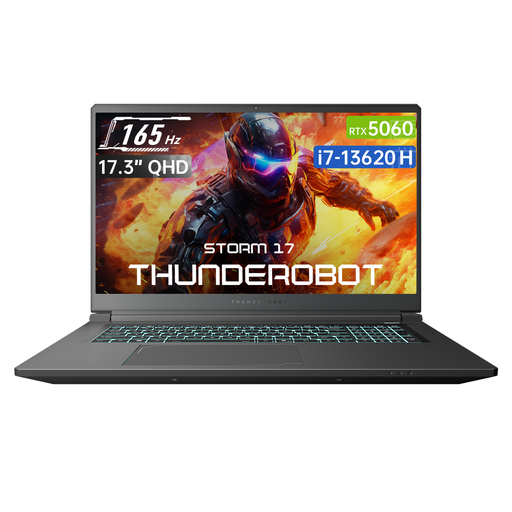 No image available
HDMI is listed in the product title. Check that this connection is right for your monitor and intended Linux setup.
17.3-inch QHD 165Hz screen, Core i7-13620H, GeForce RTX 5060, 16GB DDR5 RAM, 1TB SSD, HDMI.
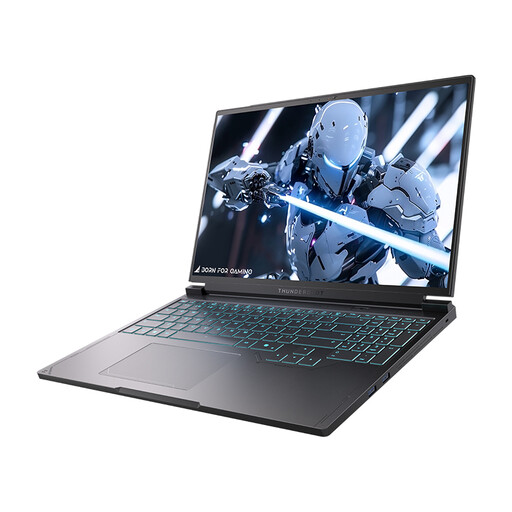 No image available
HDMI and Mini DP are listed for connecting external screens. Check they’re compatible with your monitors and intended Linux setup.
16-inch QHD+ 240Hz screen, Core i7-13650HX, NVIDIA GeForce RTX 5060, 16GB DDR5 RAM, 1TB SSD, HDMI and Mini DP.
No. Using the laptop screen plus one external monitor is different from using two external monitors. Note which screens need to be on at the same time, then check the display limit and ports on the exact model.
Canonical describes how to use a bootable USB stick to try Ubuntu before changing your existing computer setup. Back up important files before installing it later.
No. This depends, among other things, on the type of dock and the software it requires. If the dock uses DisplayLink, check the installation instructions and display settings for the Ubuntu environment you’re using.
When you buy as a consumer, the product must be of satisfactory quality, and the seller is your point of contact if something is wrong. According to the Dutch government, there is no fixed statutory warranty period in the Netherlands. Any manufacturer’s warranty is separate from this.
For distance purchases from a business, you’ll often have a 14-day cooling-off period. The Dutch government lists some exceptions and distinguishes between buying from a business and buying from a private seller, so check the terms that apply to your purchase.