
Linux installation beginner
You want to install Linux yourself and check that the hardware works. Matching the exact configuration to an Ubuntu certification, or trying it from a USB stick, can help you decide.


If you mainly want to get started with Linux straight away, consider a mini PC set up with Linux. If you want to learn how to install it, compare the full hardware configuration and, where possible, try Linux from a USB stick. If you plan to run several virtual machines, pay close attention to the available and upgradeable memory and storage. Also consider any items not supplied with the PC, such as a monitor or other peripherals.
You want to install Linux yourself and check that the hardware works. Matching the exact configuration to an Ubuntu certification, or trying it from a USB stick, can help you decide.
You’re looking for a desktop that fits in your room, so you’ll want to check its dimensions, monitor connections and which items are supplied with the PC.
You want to use guest operating systems alongside Linux, so you’ll need to consider the hardware resources available and whether they can be upgraded.
Best if: you want to start using Linux straight away and would value help with the installation.
Check: which processor, memory capacity, SSD and Linux distribution are included in the configuration you choose.
Best if: you want to practise installing Linux and checking the hardware yourself.
Check: certification for one configuration doesn’t automatically confirm that every variant or Linux distribution will work.
Best if: you regularly want to use Linux and guest operating systems at the same time.
Check: guest operating systems share hardware resources with the host, so decide what you’ll use them for before choosing the capacity you need.
| What to consider | What to look for | Who should pay particular attention? |
|---|---|---|
| Linux compatibility | Compare the exact processor and network adapter with the certified configuration. Where possible, try Linux from a USB stick before changing the drive. | If you want to install Linux yourself, you’ll want to know whether your exact configuration is compatible with the version you plan to use. Around 33% of consumers prioritise compatibility. |
| Complete set-up | Check whether memory, SSD, operating system, monitor, keyboard and mouse are included. | If you still need to set up your student room, you’ll want to know in advance what else you’ll need. Around 27% of consumers focus primarily on the total budget. |
| Size and placement | Compare the dimensions and port locations, and check for VESA mounting and the upgrade options available for the configuration you choose. | If your desk has limited space, you’ll want to know where the PC can go and how to connect it to your monitor. Around 20% of consumers prioritise saving space. |
| Virtual machines | Decide how many guest systems you want to run at once, then check the installed and upgradeable memory and storage capacity. | If you want to use several guest operating systems alongside Linux, you’ll want to choose a capacity that suits your projects. Around 20% of consumers mainly want to use virtual machines. |
A certification listing may apply to a specific configuration. Canonical lists a version of the Lenovo ThinkCentre M75q Gen 5 with a Ryzen 5 PRO 8500GE, while Lenovo Netherlands describes a version with a Ryzen 7 PRO 8700GE. The model name alone doesn’t show that the configuration on offer is the same one.
Before you buy, compare the processor and other components with the configuration listed. Where possible, try Linux from a USB stick first.
If the configuration differs, you may need extra time to check the hardware or troubleshoot any issues.
A mini PC may be configured without certain hardware or an operating system. You may then need additional items before you have a complete study set-up.
Check what’s included with the configuration you choose, then work out which items you’ll need to source yourself.
Guest operating systems use hardware resources alongside those of the Linux host. So, checking that a desktop can run Linux alone won’t tell you how much capacity will be left for your projects.
Decide which systems you want to use at the same time, then check whether the memory and storage in the configuration you choose are suitable and upgradeable.
The ThinkCentre M75q Gen 5 Tiny is a compact business desktop. Canonical lists an Ubuntu-certified version with a Ryzen 5 PRO 8500GE.
The OptiPlex Micro range includes compact desktops. Canonical specifically lists the OptiPlex Micro 7020 with an i5-14600T.
The Elite Mini 800 G9 is a compact business desktop. Canonical lists a version with an i5-14600T.
The ExpertCenter PN54-S1 is a mini PC. ASUS lists connections including HDMI, DisplayPort and USB4.
These product picks are mini PCs for a compact desktop set-up. Check the listed components for each version and make sure the configuration suits the Linux distribution and tasks you have in mind.
 No image available
Could suit a small workspace. Before you buy, check which processor variant is included in the version you choose and whether it works with Linux.
The product title lists an Intel Core i5 8250U/8350U, 8 GB DDR4, a 256 GB SATA SSD and Windows 11.
 No image available
A mini desktop worth comparing if desk space is limited. Check Linux compatibility for this exact configuration.
The product title lists an Intel Core Ultra 5 325, 16 GB LPDDR5X, a 512 GB PCIe 4.0 SSD and Windows 11 Home.
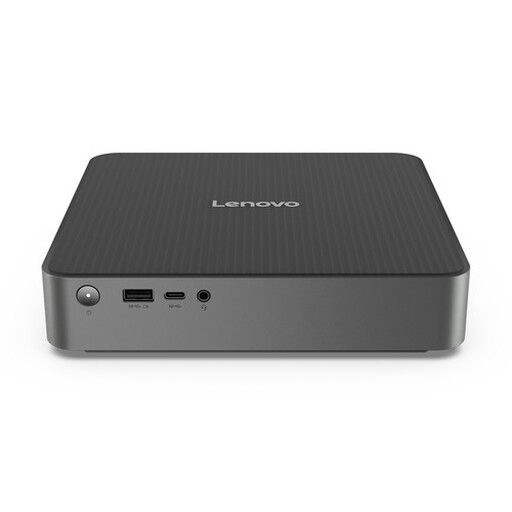 No image available
A mini PC to compare if you’re looking for a compact desktop. Before choosing, check the full configuration, included items and Linux compatibility.
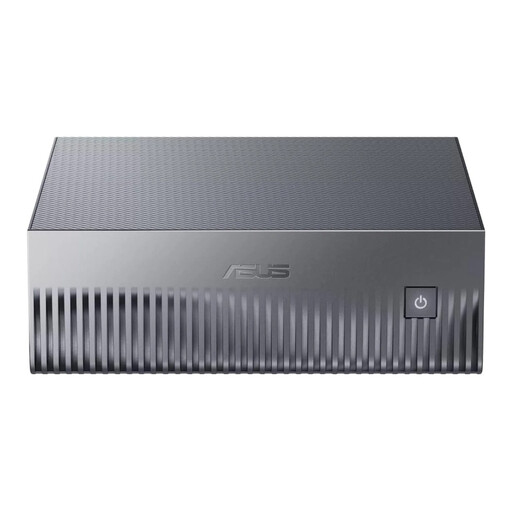 No image available
An option to compare if the listed memory and storage capacity suit your projects. Check that the configuration and Linux support meet your needs.
The product title lists 128 GB LPDDR5x memory and a 1 TB SSD.
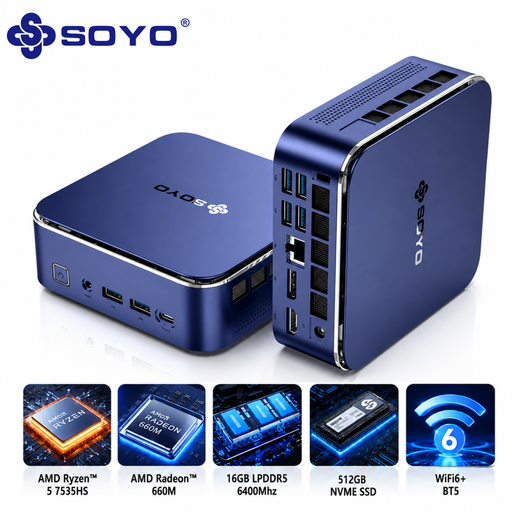 No image available
Could suit a small workspace. Check Linux compatibility for the version you choose before installing the operating system.
The product title lists an AMD Ryzen 5 7535HS, 16 GB LPDDR5, a 512 GB NVMe SSD and Windows 11 Pro.
Compare the exact hardware configuration with Canonical’s Ubuntu certification listing. If your version isn’t listed, Canonical says you can try Ubuntu from a USB stick without installing it straight away. Check that the features you need work as expected.
Back up any files on a PC you’ve already used, and remember that the USB stick you use as installation media will be erased. Ubuntu’s installation guide warns that the contents of the stick will be wiped.
For Ubuntu Desktop 26.04.1 LTS, Canonical lists a 2 GHz or faster dual-core processor, 6 GB of system memory and 25 GB of free disk space. These system requirements apply to that version; they aren’t a general benchmark for every Linux distribution or for virtual machines.
When you buy as a consumer, you’re entitled to a product that meets reasonable expectations, and you can contact the seller if something is wrong. According to the Dutch government, the Netherlands has no fixed statutory warranty period; any manufacturer’s warranty doesn’t replace this right.
According to the Dutch government, distance purchases usually come with a 14-day cooling-off period. Check the seller’s information about your specific order and its returns process.