
Linux beginner with one spare socket
Wants to set up a desktop without needing two mains sockets for the computer and screen. So they are comparing an all-in-one PC with the specific combination of a Raspberry Pi 500 and Raspberry Pi Monitor.


If you want an x86 desktop and a single mains socket for your computer and screen, consider an all-in-one PC and check that the exact configuration is compatible with your Linux distribution. Canonical lists specific configurations of the Dell Pro 24 All-in-One QC24251. A mini PC is an option if you already have a screen or want to replace your computer and screen separately, but each device may need its own power supply. According to Raspberry Pi, the Raspberry Pi 500 and Raspberry Pi Monitor can use a single mains socket, but the computer uses Arm and the monitor’s brightness and volume are then limited.
Wants to set up a desktop without needing two mains sockets for the computer and screen. So they are comparing an all-in-one PC with the specific combination of a Raspberry Pi 500 and Raspberry Pi Monitor.
Wants to practise using Linux with software or course instructions designed for a standard x86 PC, so checks the exact hardware configuration and Linux support.
Already has a monitor and wants to choose or replace the computer, screen and storage separately. Checks which power supply and components are included with the chosen mini PC.
A good fit if: you want the computer and screen in one unit and are looking for an x86 Linux desktop.
Bear in mind: you’ll be relying on the built-in screen; certification applies only to the listed configuration.
A good fit if: you already have a monitor or want to replace the computer and screen separately.
Bear in mind: a separate screen usually needs its own power supply; also check which components are included with the mini PC.
A good fit if: you want to explore Raspberry Pi OS and Arm, and a single mains socket is important to you.
Bear in mind: when the monitor is powered by the Pi, brightness and volume are limited; check that your course materials and software work on Arm.
| What to consider | What to check before buying | Who this matters to |
|---|---|---|
| Mains sockets | Check the power requirements for both the computer and screen. A Raspberry Pi Monitor can be powered by the Pi 500, but brightness and volume are limited. | If I have only a few spare sockets, I want to know whether the screen can use one of them too. Around 36% of consumers prioritise the number of mains sockets. |
| Linux and software compatibility | Check the processor architecture, distribution and exact PC configuration; a listing for a different version does not prove compatibility. | If my course software expects an x86 PC, I want to check in advance that my chosen computer is suitable. Around 29% of consumers put compatibility with their Linux lessons first. |
| Replacing components separately | For a mini PC, check which memory, storage and operating system options are available with the version you choose. | If I want to keep using my existing screen and replace only the computer later, I look at the individual components. Around 21% of consumers give replaceability top priority. |
| Complete setup | Check whether the screen, power supply, cables, input devices, memory and storage are included with your chosen configuration. | If I want to put together a complete workstation, I want to know in advance which components I’ll still need. Around 14% of consumers prioritise having a complete setup. |
The computer is small, but the separate screen usually needs its own power supply. A configurable mini PC may also be sold without the memory or storage configuration you want.
Map out the complete setup before you buy and check exactly which components are included with that specific version.
Canonical lists specific processor configurations of the Dell Pro 24 All-in-One QC24251. Certification for one configuration does not automatically apply to every version.
Check the full model, processor and Ubuntu version you want before assessing compatibility.
The Raspberry Pi 500 uses Arm. The Raspberry Pi Monitor can be powered by the Pi, but Raspberry Pi specifies a maximum brightness of 60% and maximum volume of 50% in this setup.
Check your course’s architecture requirements and decide whether those screen settings will work for you.
These examples relate to specific product ranges and configurations. A brand name alone tells you nothing about whether a particular version is available.
The Pi 500 is a keyboard computer designed for Raspberry Pi OS. Paired with the separate Raspberry Pi Monitor, it could make a single-socket setup possible.
The Pro 24 All-in-One QC24251 combines the computer and screen. Canonical lists specific versions in its Ubuntu certification catalogue.
NUC mini PCs are designed to be used with a separate screen; check Linux support for each model.
The ONE is a compact mini PC with a separate screen, for anyone considering a configurable desktop setup.
This selection includes all-in-one PCs and mini PCs for a Linux desktop setup. Check Linux compatibility, screen power requirements and included components for each version. Also check the relevant EU product documentation for the specific computer and supplied power supply; documentation for a different version is not sufficient.
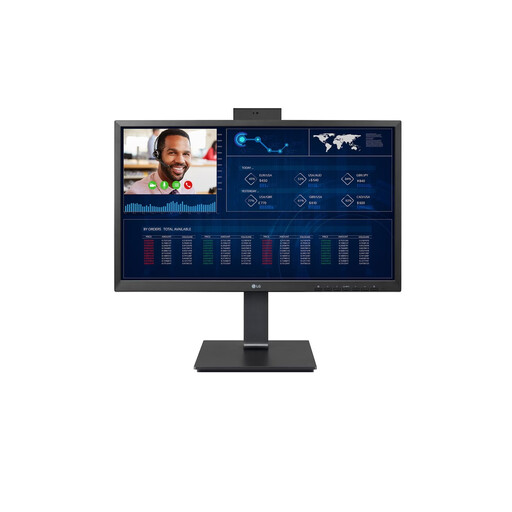 Image unavailable
A good fit if you want the computer and screen in one unit; the product description positions this model as a thin client for cloud and VDI use.
The product information lists 8 GB DDR4 memory, SSD storage and a 24-inch Full HD IPS screen. Check which operating system and Linux environment suit your needs.
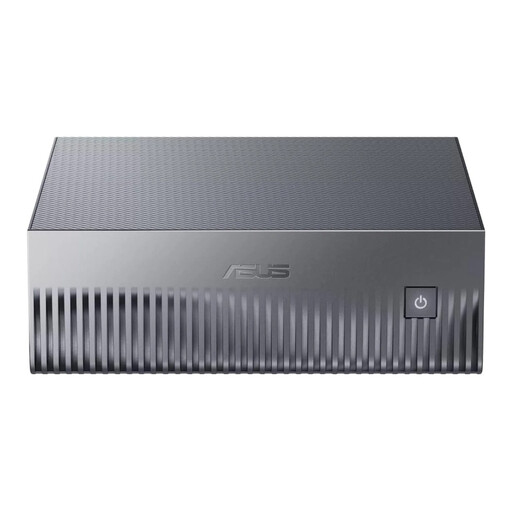 Image unavailable
A good fit if you already have a screen and want to add a separate computer. Check in advance that your preferred Linux distribution works with this exact version.
The product title lists 128 GB LPDDR5x memory and a 1 TB SSD. You’ll need a separate screen, which may require its own mains socket.
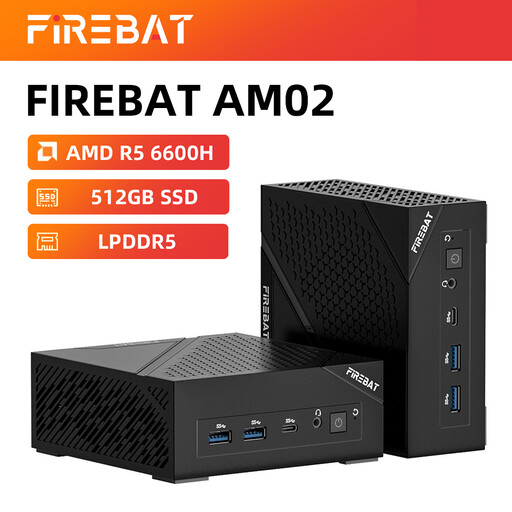 Image unavailable
Could suit anyone looking for a mini PC for studying or everyday browsing who already has a screen. The listed Windows installation does not confirm that Linux comes pre-installed.
The product title lists 16 GB LPDDR5 memory, 512 GB NVMe storage, HDMI 2.1 and DisplayPort 1.4. Check Linux compatibility for the version you choose.
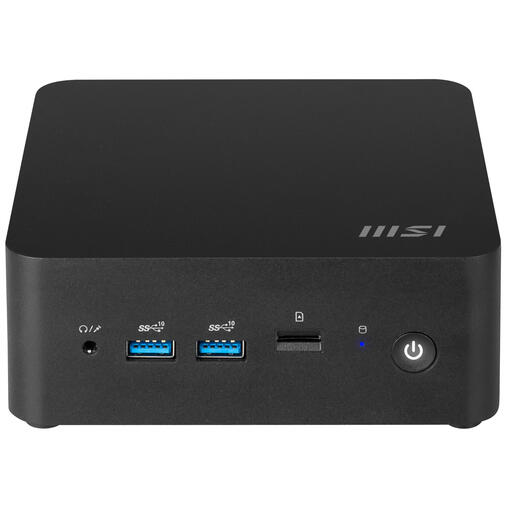 Image unavailable
A good fit if you want to choose the computer and screen separately and are happy to configure the system yourself. Before buying, check which components you’ll need and which Linux installation suits your needs.
The product information lists an Intel Core 7 150U and support for up to 64 GB DDR5 memory. As a barebone model, it needs components such as an operating system to be configured.
According to Raspberry Pi, the separate Raspberry Pi Monitor can be powered through a USB port on the Pi 500. Brightness is then limited to 60% and volume to 50%; the manufacturer specifies a separate power supply for access to the full range of settings.
First, check that your hardware is compatible and back up any files you want to keep. Canonical’s desktop installation guide specifies at least 25 GB of storage for a PC installation and recommends a USB stick of 8 GB or more. Creating the installation stick will erase its contents.
When you buy online from a business, you generally have a 14-day cooling-off period, subject to exceptions, according to the Government of the Netherlands. If a product is faulty, the seller is your point of contact. Dutch statutory warranty is the right to receive a product that works properly, and there is no fixed statutory time limit.
Yes. Electrical equipment may be subject to applicable EU rules on CE marking. The Netherlands Enterprise Agency lists electrical and electronic equipment among the product groups covered. Check the documentation for the specific computer and supplied power supply; CE marking says nothing about Linux compatibility.
The Dutch Fire Service advises against connecting extension leads to one another and warns about overloading them. First, work out which devices need a power supply and choose a safe connection; this advice does not set a legal maximum number of PC devices.