The right desktop for learning Linux depends mainly on how you want to practise: installing it directly on the PC, alongside an existing operating system or in a virtual machine. Canonical publishes Ubuntu certifications for specific configurations and versions; a certification does not automatically apply to every variant or Linux distribution. So compare the exact hardware, available storage and connections, and, where possible, try Linux from a USB stick first.
Who is this relevant to?
Beginner who wants to use Linux directly
You want to choose a desktop that works with your preferred Linux installation and essential devices. Compare the exact configuration with the certification for your intended Ubuntu version; Canonical also lets you try Ubuntu from USB first.
Home worker with limited desk space
You’re looking for a compact desktop, but also want to check in advance that the model you choose has the display, network and other connections you need. For example, TUXEDO says the Nano Pro Gen14 comes with a VESA mount; check that it’s suitable for the model you choose.
Experimenter using virtual machines
You want to try Linux while keeping your existing operating system running. Oracle VirtualBox recommends allowing for free storage space for virtual machines and snapshots; available memory is shared with the host system while they’re in use.
What should you look for when choosing?
| Concern | What to look for when buying | Which consumers |
|---|
| Linux compatibility |
Compare the full configuration with the certification for your preferred Ubuntu version. Also check the distribution, network connectivity and display connections. |
I mainly want to use Linux directly and need to know whether my chosen hardware is suitable for the installation. Around 36% of consumers make compatibility their top priority. |
| Desk space and connections |
Count the display, USB and network connections you need. If you’re mounting the PC behind a screen, check whether the mount is included and suitable. |
A compact computer needs to fit my home workspace without leaving me short of connections for my displays and peripherals. Around 29% of consumers make desk space their top priority. |
| Virtual machines |
Decide whether Linux needs to run alongside the host system. Check the available memory and free storage space for virtual machines and snapshots. |
I want to try Linux without replacing my existing system straight away, so I need to allow for shared memory and storage space. Around 21% of consumers prioritise virtual machines. |
| Reusing existing equipment |
Try Linux from USB on a desktop you already have. For Linux Mint, compare the stated system requirements with the available memory and free storage space. |
If I already have a desktop, I want to check whether it’s suitable for my learning goals before buying another one. Around 14% of consumers make reusing equipment and cost their top priorities. |
Things to consider when buying and installing
-
Assuming a shared model name means every Linux configuration is supported
An Ubuntu certification applies to the configuration and version listed; it doesn’t automatically confirm support for other variants or distributions.
Compare the full configuration with the certification listing and, where possible, try your preferred distribution from USB.
-
Accidentally wiping your existing drive during installation
Choosing to install an operating system alongside your existing system is different from choosing to wipe the entire drive. The latter can delete your existing data.
Back up your data first, then check the selected drive and partition option before confirming the installation.
-
Only allowing for the storage needed for a single Linux installation
A virtual machine and any snapshots take up storage space in addition to that used by the host system. Oracle VirtualBox recommends setting aside enough space for the VM folder in advance.
If you want to keep several virtual machines or snapshots, allow for extra storage space.
Decide in advance whether you’ll install Linux directly or keep several virtual machines.
-
Confusing an additional warranty with your statutory rights
According to the Government of the Netherlands, an additional warranty is on top of your statutory protection; it doesn’t replace those rights.
Read the terms of the additional warranty and compare them with your statutory rights. If there’s a problem with a product you’ve bought, the retailer is your point of contact.
Brands to compare
Dell
OptiPlex Micro and SFF models are worth comparing if you’re looking for a business desktop configuration with a specific Ubuntu certification.
- Canonical lists the Dell OptiPlex Micro 7020 with i5-14600T as certified for Ubuntu 22.04 LTS.
- This listing doesn’t confirm support for every OptiPlex model, other Linux distributions or the availability of a specific configuration.
Lenovo
ThinkCentre M70q mini PCs and larger ThinkCentre models offer different form factors to compare for the same Linux learning goals.
- Canonical lists the ThinkCentre M70q Gen 5 as a certified desktop.
- Check the Ubuntu version and the exact model variant separately.
HP
Pro Mini 400 G9 configurations are a compact option to consider alongside other desktop form factors.
- Canonical lists specific Pro Mini 400 G9 processor types in its certification list.
- A listing for one processor type doesn’t confirm support for another configuration or for Linux Mint.
TUXEDO
According to the manufacturer, the Nano Pro Gen14 is a compact mini PC offered for Linux.
- TUXEDO says the memory and SSD are upgradeable and that a VESA mount is included.
- These manufacturer specifications aren’t an independent performance test; also check your chosen configuration and connections.
Slimbook
The ONE is a compact desktop range to compare if connections and configuration matter to you.
- The manufacturer lists two SSD slots and two 2.5GbE connections.
- Check the operating system, chosen model and delivery terms; this listing isn’t an independent Linux compatibility test.
Desktop PCs at Joybuy
This selection includes compact desktops and larger desktop PCs for a home workspace. For each exact configuration, check that the Linux distribution, connections and storage meet your needs.
 No image available
SOYO Y5Pro Mini PC
A compact mini PC to consider if you’re short on desk space. Before buying, check which processor variant is included and whether it works with your chosen Linux distribution.
The product name lists Intel Core i5 8250U/8350U, 8 GB DDR4, 256 GB SATA SSD, Windows 11, Bluetooth 5.2 and Wi-Fi 5. The description mentions two HDMI outputs, a Type-C video output, four USB ports and Gigabit Ethernet.
View at Joybuy
 No image available
RGB Gaming PC, RTX 5060
A larger desktop to compare if you’d rather try Linux on a desktop PC than a mini PC. Check the Linux compatibility of the exact configuration.
The product description lists a Ryzen 5 5500, 16 GB RAM, a 480 GB SSD and an included USB Wi-Fi adapter.
View at Joybuy
 No image available
Panoramic Gaming PC, AMD Ryzen 7 5700X
This desktop PC is worth comparing if you’re considering a larger case for Linux practice. Check in advance that all the components are compatible with your preferred distribution.
The product name lists an RTX 5060 Ti with 8 GB, 16 GB DDR4 RAM and a 480 GB NVMe SSD. The description mentions an included USB Wi-Fi adapter.
View at Joybuy
 No image available
Lenovo Yoga Mini 01IPH11 Copilot+ PC
A compact desktop to consider for a workspace with limited room. The product listing specifies Windows 11 Home, so check that your preferred Linux installation is suitable for this exact configuration.
The product name lists Intel Core Ultra 5 325, 16 GB LPDDR5X and a 512 GB PCIe 4.0 SSD. The description mentions Thunderbolt 4, HDMI 2.1, DisplayPort and support for up to four independent displays.
View at Joybuy
 No image available
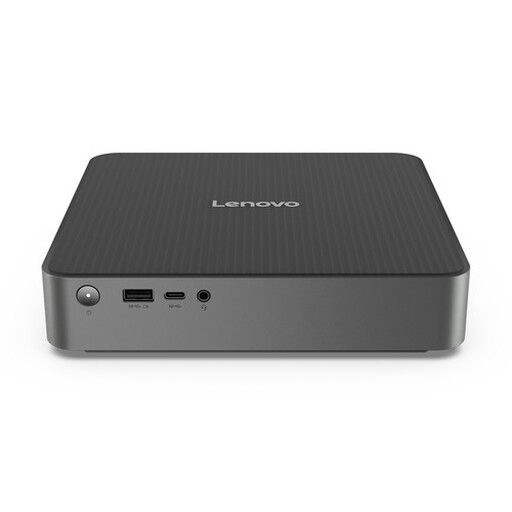
Lenovo IdeaCentre Mini
A compact desktop to compare if you want to save desk space. Check the Linux compatibility and connections of the exact model.
The product description lists 16 GB DDR5 memory, a 512 GB PCIe 4.0 NVMe SSD, Thunderbolt 4, HDMI 2.1, DisplayPort, Gigabit Ethernet and support for up to three independent displays.
View at Joybuy
Frequently asked questions
Can I try Linux without wiping my current operating system?
Yes. Canonical offers a live Ubuntu session from USB, and a virtual machine is another way to try Linux. If you install it later, don’t choose to wipe the entire drive if you want to keep your existing data.
How much memory and storage does Linux Mint need?
Linux Mint lists 2 GB RAM and 20 GB of disk space as the minimum, and recommends 4 GB RAM and 100 GB of disk space. For a virtual machine, you’ll also need to allow for the resources used by the host system; these figures aren’t the requirements for every Linux distribution.
What should I check before installing Linux?
If you’re using a PC that’s been used before, back up your data first and check the selected drive and partition option. Linux Mint also recommends checking the integrity and authenticity of the downloaded installation file.
Do I always get a two-year statutory warranty when buying a desktop online in the Netherlands?
No. According to the Government of the Netherlands, there’s no fixed statutory warranty period in the Netherlands: the product must meet what you can reasonably expect from it. A manufacturer’s or additional warranty is on top of your statutory rights.
Can I return a desktop I bought online?
For distance purchases from a retailer, you’ll often have a 14-day cooling-off period, according to the Government of the Netherlands. Check the applicable terms and exceptions; an online purchase from a private seller isn’t automatically covered by the same rules.


