Start with your workspace: position your line of sight parallel to the window and use blinds or curtains to reduce direct reflections if needed; Arboportaal recommends this setup for screen-based workstations. Then compare the screen finish and typical brightness, the colour modes that suit your workflow, and the combination of resolution and refresh rate. A higher refresh rate is most relevant if you regularly test movement, but it won’t automatically make a monitor better suited to long hours of editing.
Who is this guide for?
Level designer dealing with window reflections
You work next to a bright window during the day and want to read your editor panels without distracting reflections. Your screen position and the direction of the daylight should therefore also factor into your choice; Arboportaal recommends positioning your line of sight parallel to the window.
Designer who assesses colour
You check materials and lighting, and want to match the available colour modes and specified colour spaces to your workflow. Remember to take the lighting in your workspace into account too.
Designer who tests scenes too
You switch between editor windows and tests involving movement. It’s important to weigh up whether you need more pixels or a higher refresh rate.
What should you look for?
Matte or anti-reflective 4K IPS monitor
A good fit if: editor panels, text and colour checking matter more to you than fast movement tests.
Trade-off: the ASUS PA279CRV and BenQ PD2706UA models mentioned are specified at up to 60 Hz; a matte finish won’t automatically prevent glare from direct sunlight.
IPS monitor for design and motion
A good fit if: you regularly assess moving scenes and want to consider a high resolution for editing too.
Trade-off: Dell specifies 4K and 120 Hz for the U2725QE; ASUS specifies 144 Hz for the QHD PA278CGRV. Resolution and refresh rate therefore vary by model.
OLED gaming monitor
A good fit if: moving scenes and dark images matter more to you than working with fixed editor panels for long periods.
Trade-off: ASUS notes that its OLED monitors may be at risk of image retention or burn-in when displaying static images for long periods. Check the information for the exact model.
| Consideration |
What to look for |
Who should pay extra attention? |
| Visibility beside the window |
Check the finish and specified typical brightness of the exact model. Consider the position of the window too; don’t judge suitability for direct sunlight based only on a peak HDR figure. |
If I work beside the window during the day, I want to be able to read my editor panels without distracting reflections. Around 36% of consumers rank visibility as their top priority. |
| Colour checking |
Check which colour space and colour mode suit your workflow. Specified colour coverage isn’t an independent measurement of the accuracy of your individual unit. |
When I assess materials and lighting, I want to know whether the available colour modes suit my work. Around 29% of consumers put colour checking first. |
| Editor windows and detail |
Compare 27-inch 4K with 27-inch QHD in terms of your window layout and viewing distance. Also check whether you find the text scaling comfortable. |
If I have a scene and several editor panels open at once, the available workspace matters a lot to me. Around 21% of consumers give editor space top priority. |
| Testing movement |
Compare the specified refresh rates in Hz at the resolution you use, and check that your computer and connection support that combination. |
When I regularly assess moving scenes, I want a refresh rate that suits those tests. Around 14% of consumers prioritise movement tests. |
Common pitfalls
-
Assuming peak HDR brightness means the screen will be easy to read in direct sunlight
A peak HDR figure and the specified typical brightness describe different conditions. The position of the window and the use of blinds or curtains also affect distracting reflections.
Reduce direct reflections by adjusting your setup or using blinds or curtains, then compare the finish and typical brightness of the exact model.
You may need to change the position of your desk or use blinds or curtains.
-
Choosing a fast OLED gaming monitor just because you work on games
ASUS notes that its OLED monitors may be at risk of image retention or burn-in when high-contrast static elements are displayed for long periods.
Think about how much time you spend working with fixed editor panels, and check the protective features and terms for the exact model.
This means long periods of use with static editor panels may be an important factor to consider.
-
Assuming paid-for extra cover is the same as your statutory guarantee
According to ACM ConsuWijzer, your statutory guarantee is separate from any retailer or manufacturer guarantee. The terms aren’t automatically the same.
Check who the seller is and which situations are actually covered by any additional protection.
Brands to consider
ASUS
The ProArt models mentioned offer different combinations of resolution and refresh rate for design work.
- ASUS specifies an anti-reflective 27-inch 4K screen with a maximum refresh rate of 60 Hz for the PA279CRV; the 27-inch PA278CGRV is QHD and specified at up to 144 Hz.
- The PA278CGRV’s higher refresh rate comes with a lower resolution than 4K. A specified screen finish doesn’t prove that direct sunlight won’t cause glare.
Dell
According to Dell, the UltraSharp U2725QE combines 27-inch 4K resolution with 120 Hz and a Thunderbolt hub.
- That combination may be useful if you switch between editing and movement tests.
- Check the screen finish and make sure the connections suit your computer and workspace.
BenQ
The Creative Pro PD2706UA is a 27-inch 4K design monitor with a matte finish.
- BenQ specifies colour coverage for sRGB, Rec.709 and P3, typical brightness of 350 nits and 90 W USB-C power delivery.
- The specified refresh rate is 60 Hz. Check that the cables and ergonomic arm suit the version you’re considering and your desk.
LG
The UltraFine 27U730A-B is an anti-reflective 27-inch 4K IPS monitor.
- LG specifies typical brightness of 300 nits and 90 W USB-C for this model.
- These specifications apply to the UltraFine version mentioned; don’t assume they apply to other LG monitor ranges.
Joybuy products for level design and scene assessment
These Joybuy monitors offer a range of screen sizes, resolutions and refresh rates for editing and assessing movement. If you plan to use one beside a bright window, also check the screen finish and make sure the connections are suitable for your computer.
 No image available
AOC Gaming Q27G42XNE
Worth considering if you’re looking for a QHD screen with a high specified refresh rate for movement tests.
27 inch; 2560 × 1440; 180 Hz; 1 ms.
Joybuy
 No image available
LG UltraWide 34U601B-B
Worth considering if you want to use several editor windows side by side; check that a 34-inch screen will fit on your desk.
34 inch; WQHD; 120 Hz; 1800R curved screen.
Joybuy
 No image available
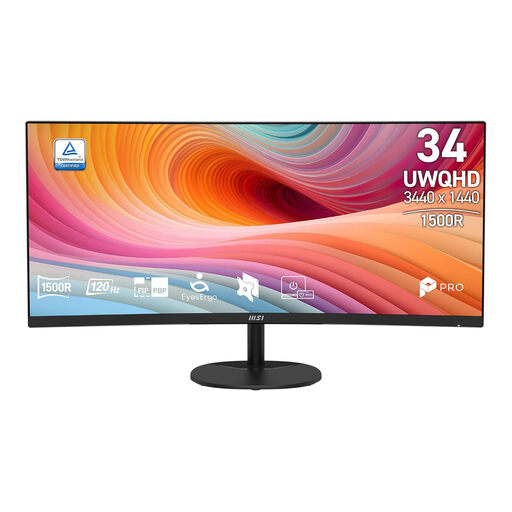
MSI Pro MP341CQ E12
Worth considering if you want a wide screen for several windows alongside a specified refresh rate of 120 Hz.
34 inch; UWQHD; 120 Hz; curved VA screen.
Joybuy
 No image available
LG UltraFine 27U711B-B
Worth considering if you want to assess fine details on a 27-inch screen; check the finish if you plan to use it beside a bright window.
27 inch; 4K; IPS.
Joybuy
 No image available
Dell UltraSharp U3226Q
Worth considering if you want to combine 4K with a specified refresh rate of 120 Hz; check the information for this model if you plan to use it for long periods with fixed editor panels.
32 inch; 4K UHD; 120 Hz; QD-OLED.
Joybuy
Frequently asked questions
Should my monitor be directly in front of or beside the window?
For screen-based workstations, Arboportaal recommends positioning your line of sight parallel to the window and using suitable blinds or curtains if daylight causes reflections. Move your desk if needed; a matte finish alone can’t guarantee protection from direct light.
Is 4K always better than QHD for level design?
No, it depends on how much space your editor needs and how often you test movement. ASUS specifies 3840 × 2160 at up to 60 Hz for the PA279CRV and 2560 × 1440 at up to 144 Hz for the PA278CGRV.
What should I check when buying a USB-C monitor?
Check whether your computer supports video over USB-C and how much charging power it needs. BenQ specifies USB-C with DisplayPort Alt Mode and 90 W power delivery for the PD2706UA; also check that the cable and version suit your equipment.
What should I bear in mind when using OLED for editing?
Consider how long static elements will remain on screen and check the information for the exact model. ASUS notes that its OLED monitors may be at risk of image retention or burn-in when displaying high-contrast static images for long periods.
Does the statutory guarantee in the Netherlands always end after two years?
No. ACM ConsuWijzer explains that, with normal use, a product must do what you could reasonably expect it to do. If it develops a fault too soon, the seller is responsible for providing an appropriate solution; a separate manufacturer’s guarantee may have different terms.


