What should you consider when choosing?
Compact Windows desktop with separate monitor
A good fit if: you use Windows programmes or accounts and want to choose the monitor separately, or already have one.
Bear in mind: the monitor and sometimes the input devices are separate items; a compact case alone says nothing about whether the computer is suitable for demanding video editing.
All-in-one with built-in screen
A good fit if: you want a tidy, all-in-one workspace and the built-in screen suits the different users.
Bear in mind: the screen and computer are linked; the MSI model reviewed has 8 GB of memory, below Adobe’s 16 GB recommendation for HD in Premiere version 26.
Mac mini with external monitor
A good fit if: the teaching and management software you use, and the way everyone works, are suited to macOS.
Bear in mind: you choose the monitor and input devices separately; check that the internal storage is sufficient for lesson media stored locally.
Desktop for more demanding video projects
A good fit if: your software, resolution and effects demand more than your chosen compact configuration can offer.
Bear in mind: compare the exact configuration with the system requirements. For Premiere version 26 on Windows, Adobe recommends 16 GB of RAM for HD and 32 GB or more for 4K.
| What to consider |
What to look for when buying |
Who is this important for? |
| Separate user access |
Check user accounts, access for your organisation and an agreed location for shared lesson files. |
I want colleagues using the same computer to keep out of one another’s personal files and settings. Around 33% of consumers give separate access top priority. |
| Video editing |
Make a note of the software, version, resolution and effects; then compare the exact configuration with the system requirements. |
When I edit lesson videos, I want memory and graphics performance to suit my own projects, not just the computer’s description. Around 27% of consumers put video editing first. |
| Text and assignments |
Check which programmes you use, your screen setup, and whether the necessary ports and input devices are included. |
For written or interactive assignments, I want a workspace that suits the existing software and the people using it. Around 20% of consumers make text and assignments their top priority. |
| Voice and audio |
Check connections for your equipment, file formats and whether projects can be stored locally. |
When I edit voice or listening materials, I want to know that my equipment and project files suit the way I work. Around 20% of consumers give audio top priority. |
The percentages help compare the different priorities in this guide; they do not represent Dutch market or survey results. For Adobe Premiere version 26 on Windows, Adobe recommends 16 GB of RAM for HD and 32 GB or more for 4K. These figures do not automatically apply to text work, audio or other editing software.
Joybuy products for this workspace
These models show a range of options for a shared lesson workspace: all-in-ones with built-in screens, a Mac mini and compact desktops with separate monitors.
 No image available
MSI Modern AM273Q AI 1UM-058EU
An all-in-one with a built-in screen for anyone who wants an integrated workspace; check that the screen suits everyone who will use it.
The product name lists a 27-inch screen, WQHD resolution, 32 GB of DDR5 memory and a 1 TB SSD. The 32 GB matches Adobe’s recommendation for 4K in Premiere version 26, but that alone doesn’t determine whether a complete project is suitable for this configuration.
Windows 11 Pro and Wi-Fi 6E are also listed in the product name.
View at Joybuy
 No image available
Apple Mac mini M6, 24 GB, 512 GB SSD
A compact desktop for a workspace with a separate screen, provided the teaching and management software you use is suited to macOS.
The product name lists an M6 chip, a 12-core CPU, a 12-core GPU, 24 GB of memory and a 512 GB SSD.
You choose the monitor and input devices separately; check in advance that the workflow and peripherals are suitable for everyone who will use them.
View at Joybuy
 No image available
Acer Aspire C24-A WI5418 NL
An all-in-one for anyone looking for an integrated screen and included input devices in a single workspace setup.
The product name lists a 23.8-inch Full HD IPS screen, Intel Core 5 120U, 16 GB of DDR5 memory and a 1 TB SSD. The 16 GB matches Adobe’s recommendation for HD in Premiere version 26; other tasks are subject to their own software requirements.
This configuration lists Windows 11 Home. The screen is integrated, so you can’t choose it separately from the computer.
View at Joybuy
 No image available
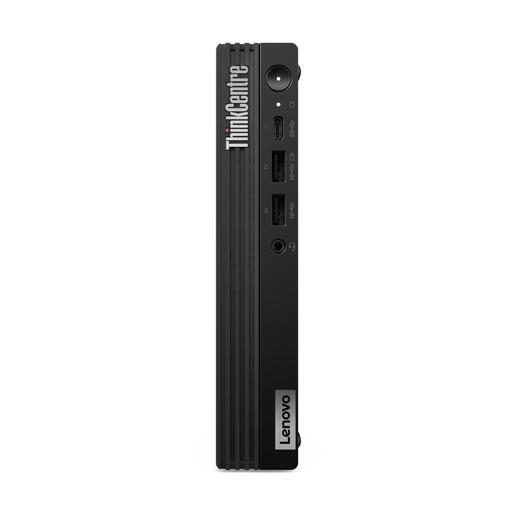
Lenovo ThinkCentre M70q Gen 5, Core i7-14700T
A compact Windows desktop for anyone who wants to choose a separate monitor for a shared workspace.
The product name lists an Intel Core i7-14700T, 16 GB of DDR5 memory, a 512 GB SSD and Windows 11 Pro.
This mini PC needs a separate monitor. The product description says that the power adapter must be purchased separately.
View at Joybuy
 No image available
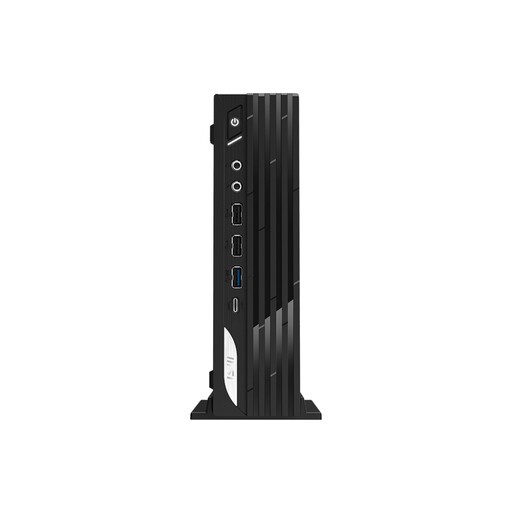
MSI Pro DP21 14M-1042EU, Core i7-14700
A mini desktop for a shared workspace where you want to choose the monitor and input devices separately.
The product name lists an Intel Core i7-14700, 16 GB of DDR5 memory, a 1 TB SSD and Windows 11 Pro.
Check that the necessary connections and a suitable monitor are included in your complete workspace setup.
View at Joybuy
Frequently asked questions
Are separate accounts useful when colleagues share a PC?
Yes. Separate Windows accounts can keep each user’s personal files and settings apart. You should also agree how colleagues will access shared lesson files; the education provider must be able to demonstrate that it has taken appropriate measures when handling pupil data.
Is 8 GB of memory enough for lesson videos?
It depends on the editing app and resolution. For Premiere version 26 on Windows, Adobe recommends 16 GB of RAM for HD and 32 GB or more for 4K; don’t automatically apply these figures to text work, audio or other video software.
Where should you store an audio project on a shared computer?
Agree who can access the files and where the final lesson files should be kept. Audacity requires fast, uninterrupted access to a drive or SSD and warns that network storage, consumer external drives and USB sticks can be unreliable while you’re working.
What’s the difference between a mini PC and an all-in-one for a shared workspace?
An all-in-one has a built-in screen, while you choose the screen separately with a mini PC. For either option, check what’s included and whether the complete workspace is suitable for everyone who will use it.
What should you consider for a workspace used for prolonged screen work?
Assess the workspace setup and who will be using the computer. Arboportaal states that for employees who work at a screen for more than two hours a day, the screen and keyboard must not be attached to one another; this isn’t a universal product specification for every buyer.


