
Recording archivist
You collect lecture recordings over time and occasionally revisit older ones. Storage capacity and a separate backup are your priorities.


If your lecture recordings will usually stay in one place, an external HDD is a good choice for building an archive. If you often carry the drive with you or regularly transfer files between computers, an external SSD may be more suitable. Check the storage capacity you need, your device connections and the file system your devices support. Also keep a separate copy that you can access and check: a single drive is not a backup on its own.
You collect lecture recordings over time and occasionally revisit older ones. Storage capacity and a separate backup are your priorities.
You regularly take the drive with you and transfer recordings between computers. Portability, connections and the file system all play a part in your choice.
You store material in which people can be identified, and check which security and usage requirements apply to your situation as well as considering storage.
Start with how you’ll use it: will your archive usually stay in one place, or will you regularly take the drive with you and transfer files between computers?
| What to consider | What should you look for? | Who is this most relevant to? |
|---|---|---|
| Room for a growing archive | Add up your current files, allow for new recordings and set aside space for a separate copy. | I keep lectures from several semesters and want to leave room for new recordings. Around 31% of consumers give archive storage the highest priority. |
| Large files and different computers | Check the size of your largest file, the drive format and the operating systems you use. Microsoft Learn states that FAT32 has a maximum file size of 4 GiB; Apple says exFAT is compatible with Windows. | I want to store large individual recordings and open them on the computers I use. Around 25% of consumers prioritise file compatibility. |
| A separate backup | Check where your original files are stored, how you’ll make a recent copy and whether you can retrieve files from it. | I want to avoid keeping my archive in just one place, where it could become unusable if that copy fails. Around 19% of consumers give a separate backup the highest priority. |
| Carrying and transferring files | Check the ports on your devices and which cables are included with the model you choose. | I take my recordings between study locations and want to be able to transfer them there. Around 19% of consumers give portability and file transfer the highest priority. |
| Identifiable people in recordings | Check your educational institution’s requirements and whether the security features you choose will work with your devices. The Dutch Data Protection Authority considers identifiable people in audio recordings to be personal data. | I manage recordings in which people can be identified and want appropriate safeguards and procedures in place. Around 6% of consumers prioritise protecting identifiable people. |
Having plenty of storage doesn’t give you a second copy if the drive or its files become unusable.
Plan where you’ll keep a recent backup too, and check that you can retrieve files from it.
A separate storage location requires extra capacity and management.
Microsoft Learn states that FAT32 has a maximum file size of 4 GiB. Formatting a drive erases its existing files.
Check the size of your largest individual file and the current drive format before moving files or reformatting the drive.
Model codes, colours, cables and features can vary between versions.
Compare the full model code and the specifications of the exact version before ordering.
My Passport is a range of portable HDDs. The black version mentioned here has 2 TB of storage.
Expansion Portable is a range of portable HDDs. Seagate’s data sheet covers the black 2 TB STKM2000400.
The portable SSD T7 is an SSD option if you take recordings with you or transfer them between devices. The version mentioned here is grey and has 1 TB of storage.
The X9 is a range of portable USB-C SSDs; the version mentioned here is the 1 TB CT1000X9SSD9.
The Portable SSD is a range of portable SSDs. The manufacturer version mentioned here has 1 TB of storage and updated firmware.
This selection includes portable HDDs for archive storage and portable SSDs for anyone who regularly takes recordings with them or transfers files.
 No image available
A portable SSD option for storing and carrying lecture recordings.
The product description lists read speeds of up to 800 MB/s and drop protection from heights of up to 2 metres.
 No image available
A portable HDD for an archive you want to carry with you, with the listed storage capacity.
The product description lists 6 TB, USB 3.0, password protection with 256-bit AES hardware encryption and software for scheduled backups. A backup feature doesn’t replace checking your backup.
 No image available
A portable HDD option for storing lecture files. Check that the connection is compatible with your devices.
The title lists 2 TB and USB-C. The product description says it works with Windows and Mac computers.
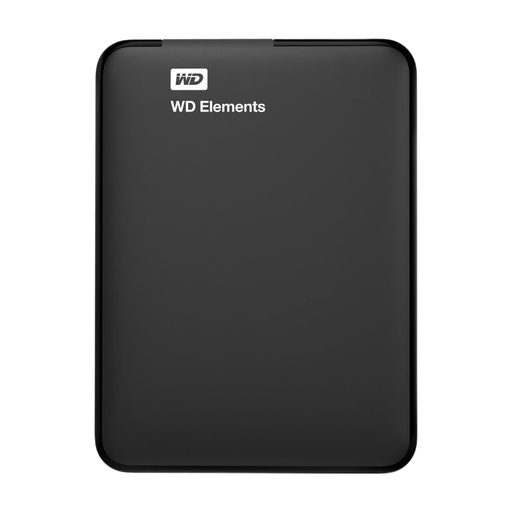 No image available
A portable HDD option for storing and transferring files.
The product description lists USB 3.0 and an included cable. Formatting may be required to use it with a Mac; formatting erases the data on the drive.
 No image available
A portable SSD option for storing and regularly transferring recordings.
The product description lists USB-C, USB 3.2 Gen 2 and read speeds of up to 1.000 MB/s. Formatting may be required for use with Windows; first make a copy of any files you want to keep.
First, consider the total size of your files and how much that’s likely to grow. An HDD is a good choice if you’re looking for capacity for an archive that will usually stay in one place. If you often carry the drive with you or transfer files, an SSD may be more suitable. Keep a separate backup too.
This depends, among other things, on the size of each individual file and the file system. Microsoft Learn states that FAT32 has a maximum file size of 4 GiB; Apple says exFAT is compatible with Windows. Check your devices’ requirements and make a copy first, as formatting erases the data on the drive.
No, not if your files are stored only on that drive. Keep a recent copy somewhere else too, and check that you can retrieve files from it. VeiligInternetten lists an external drive and the cloud as possible places to store a backup.
There’s no fixed period of legal guarantee that applies to every external drive. ACM ConsuWijzer explains that, with normal use, a product must do what you can reasonably expect of it, and that the seller is your point of contact for the legal guarantee.