
Users of a shared printer
You want to print from the devices used at the same desk. So check which connections each model supports; Brother and Canon list different options for their specific models.


Printing mainly text? A monochrome laser printer is the obvious choice. Choose a multifunction model if you also need to scan or copy paper logs, and a colour printer if you need to retain colour-coded or other coloured elements. At a shared desk, check each model’s connections too, and consider how to keep printouts containing personal data out of sight of others.
You want to print from the devices used at the same desk. So check which connections each model supports; Brother and Canon list different options for their specific models.
You mainly print monochrome reading logs and want to choose a printer that suits your print volume. Consumentenbond also recommends considering consumables when printing regularly, not just the printer itself.
You may also need to scan or copy completed logs. If they contain personal data, the Dutch Data Protection Authority says that an appropriate security approach depends on the risks and the circumstances.
Start with the tasks the printer actually needs to handle: shared printing, working with paper logs or retaining colour.
Choose this option: if the logs are mainly text and paper copies do not need to be digitised.
Bear in mind: this type cannot scan or copy, and does not print in colour.
Choose this option: if users also want to scan or copy paper reading logs; Brother describes the DCP-L2627DWE as a model with scanning functions.
Check: automatic double-sided printing does not necessarily mean the model can scan both sides automatically too.
Choose this option: if colour coding or other coloured elements need to appear in the printed log; HP lists the Color LaserJet Pro 3202dw as a colour model.
Bear in mind: check which toner cartridges the exact version uses. HP notes that the models mentioned are subject to restrictions due to dynamic cartridge security.
| What to consider | What should you check? | Who is this important for? |
|---|---|---|
| Access from shared devices | Check Wi-Fi, ethernet or USB for each model, and make sure the connection suits the devices and network at your workplace. | If several people print from their own computer or phone, you’ll want to know whether the printer works with those devices. Around 28% of consumers say shared access is their top priority. |
| Toner and print volume | Check the toner code for the exact version and compare the stated yield with your expected usage. | If you print regularly, you’ll want to know which toner fits the model and what yield is stated. Around 22% of consumers put ongoing printing needs first. |
| Space and paper use | Measure the space, including the paper input and output areas; check the paper tray and automatic double-sided A4 printing. | If desk space is limited or logs run to several pages, you’ll want to plan the setup and paper feed in advance. Around 22% of consumers say space and paper use are their top priority. |
| Printout confidentiality | Consider who can see the output tray and which access or print settings are suitable for the exact model and network. | If logs contain personal data, you’ll want to stop printed copies being left where others can see them. Around 17% of consumers prioritise keeping logs confidential. |
| Scanning or copying | Check whether the model has a scanner, and look at its scanning functions separately from automatic double-sided printing. | If you need digital copies of completed paper logs later, you’ll want to be able to handle them with the same device. Around 11% of consumers say scanning or copying as well as printing is their top priority. |
A toner code that does not match the exact printer version won’t help you plan for regular printing.
Before buying, check the toner code and stated yield for the model you’ve chosen.
A printer can print on both sides automatically without that proving it can also scan both sides automatically.
Check the two functions separately if you’re digitising paper logs.
If the required scanning function is missing, digitising may involve extra steps or require another device.
HP says that dynamic security on the LaserJet M209dw and Color LaserJet Pro 3202dw may block cartridges without a suitable HP chip or circuitry.
Check the cartridge requirements for the exact HP model variant before choosing a toner; this information does not automatically apply to other models.
A printout containing personal data may be visible to others if it is left at a shared printer.
Decide whether the logs contain personal data and, if necessary, agree who will collect the printouts and which security measures are appropriate. The Dutch Data Protection Authority emphasises that organisations should tailor their measures to the risks.
The Dutch models mentioned include both a monochrome printer without a scanner and a multifunction version.
The Dutch models covered here are the monochrome LaserJet M209dw and the colour printer Color LaserJet Pro 3202dw.
The i-SENSYS LBP122dw is a monochrome A4 printer with printing functionality.
According to Lexmark, the B2236dw is a monochrome laser printer with automatic double-sided printing for shared use.
This selection features monochrome A4 laser printers for text logs at a shared desk. Check that the connection options on your chosen model suit the devices and network at your workplace.
 No image available
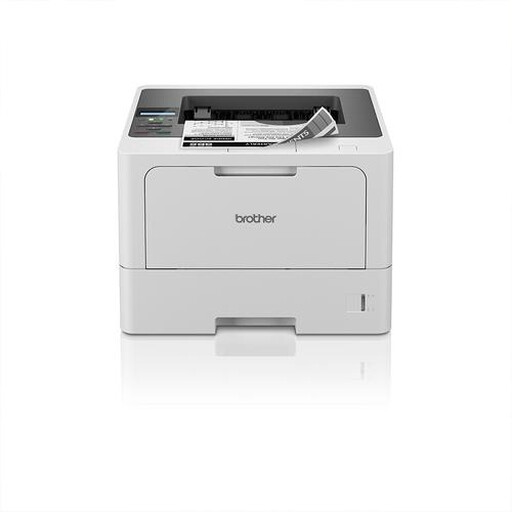
Suitable for shared printing of monochrome A4 text logs when both wireless and wired connections are useful.
Specifications: Wi-Fi, ethernet and USB; automatic double-sided printing.
 No image available
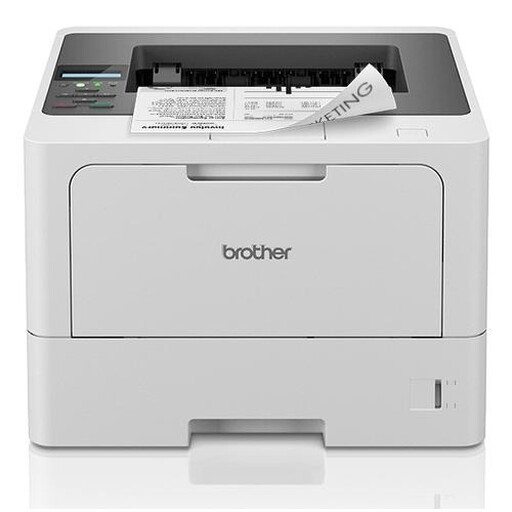
Suitable for a shared workspace where printing is done over a wired LAN connection.
Specifications: A4, monochrome printing, wired LAN connectivity and 1200 x 1200 DPI.
The presence of Wi-Fi alone does not tell you. Check which connections and printing methods the exact model supports, and whether they suit the devices and network at your workplace. For example, Canon also lists ethernet and USB for the i-SENSYS LBP122dw.
No, you do not need a scanner for printing alone. A multifunction model is useful if you also want to scan or copy paper logs; check scanning functions separately from automatic double-sided printing.
Yes. Automatic double-sided printing does not prove that the scanner can automatically process both sides too. Check both functions separately in the specifications for the exact version.
Not necessarily for the HP models mentioned. HP lists dynamic security for the LaserJet M209dw and Color LaserJet Pro 3202dw, which may block cartridges without a suitable HP chip or circuitry. Check the requirements for the exact version; this restriction does not automatically apply to other models.
Consider who can collect or view printouts and which security measures are appropriate for the circumstances. The Dutch Data Protection Authority says organisations should tailor their measures to the risks; it does not prescribe one specific printer function for every shared workplace.