
Grid creators
You want small numbers, lines and boxes to be legible on your chosen paper size. Check the page settings and print a test copy; Microsoft Support explains that fitting a worksheet to one page can reduce its contents in size.


For grids containing only black numbers and lines, a mono laser printer is the obvious choice. Choose colour if you need colour coding and a black-and-white proof does not communicate the information clearly. Before you decide, check a test print on your intended paper size, the connection options for studio users and the toner that fits the exact model. A printer’s stated speed alone does not tell you whether small numbers will remain legible on a scaled-down grid.
You want small numbers, lines and boxes to be legible on your chosen paper size. Check the page settings and print a test copy; Microsoft Support explains that fitting a worksheet to one page can reduce its contents in size.
Several people need to be able to print from their own devices. Compare the models’ network connections and agree who will collect printouts; Brother and Xerox list different connection options for their models.
You regularly print multiple copies and want to top up the paper and choose toner with the exact model in mind. The Consumers’ Association points out that print consumption is something to consider alongside the printer itself.
| What to consider | What should you check? | Who is this important for? |
|---|---|---|
| Legibility | Check the paper size and scaling settings, then print a test copy on the paper you use. | If you want small numbers and lines to remain legible, check that the grid is not reduced too much. Around 33% of consumers put legibility first. |
| Access for multiple users | Check the Wi-Fi, Ethernet and printing methods that work with the studio’s devices and network. | If several people need to print from their own devices, network access is essential. Around 27% of consumers prioritise shared access. |
| Toner and paper consumption | Check the stated toner yield for the exact model and the paper tray capacity. | When printing multiple batches, you’ll want to know how often toner and paper need attention. This is the main priority for around 20% of consumers. |
| Colour coding | Print a black-and-white proof, then check whether colour is really needed to distinguish between elements. | If colour differences convey meaning in the grid, a black-and-white print may lose information. Around 13% of consumers prioritise colour coding when it is essential. |
| Printer placement in the studio | Measure the available space and discuss the location and ventilation with the studio manager. | If the printer is going in a shared workspace, assess its location and ventilation in advance. Around 7% of consumers prioritise placement and indoor air quality. |
The document’s scaling settings can reduce a large worksheet, even if the printer has a high stated resolution. Microsoft Support explains how fitting a worksheet to one page can reduce its contents in size.
Test the grid on your chosen paper size before selecting a model. If necessary, try splitting the grid across several pages.
An illegible printout may mean you have to print the document again.
The Consumers’ Association points out that print consumption can be an important consideration. Colour is also not an essential requirement for a grid that uses black only.
Compare toner options for the exact model, and choose colour only if a black-and-white proof does not communicate the necessary information clearly.
HP states that dynamic security on the LaserJet Pro 3002dw may block cartridges without a new or reused HP chip, including after firmware updates.
Before choosing spare toner, check that the cartridge is compatible with the full model name and variant.
A blocked cartridge may be unusable with that printer.
Arboportaal lists emissions from office equipment as a potential source of air pollution. The relevant considerations in a workplace depend on the circumstances.
Discuss the intended location and ventilation with the studio manager. Also consider who can see and collect printed documents.
The HL-L2400DWE is a mono A4 model with Wi-Fi and automatic double-sided printing.
The B230 is a mono model with Wi-Fi and Ethernet connectivity.
The i-SENSYS LBP122dw is a mono A4 model with Wi-Fi and duplex printing, designed for those who only need to print.
The LaserJet Pro 3002dw is a mono model with wireless and double-sided printing.
The ECOSYS PA2101cwx is a colour model for situations where colour coding is needed.
These Joybuy picks are suited to printing number grids in black and white on A4.
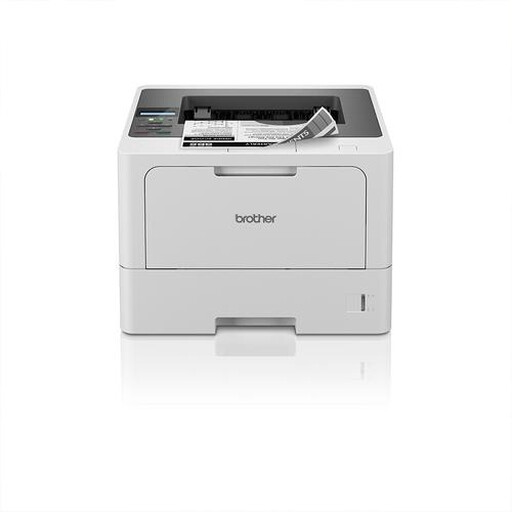 Image unavailable
An option to consider for black-and-white printing on A4.
The product name describes a wireless mono A4 laser model.
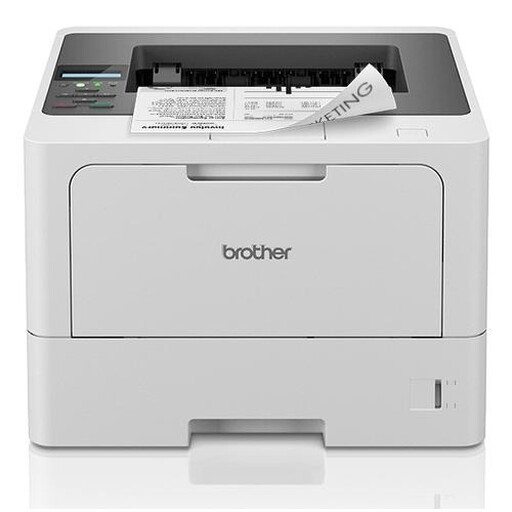 Image unavailable
An option to compare for black-and-white A4 printing in a shared studio.
The product name specifies A4 and 1200 x 1200 DPI.
First, check the document’s scaling settings. Microsoft Support explains that fitting a worksheet to one page can reduce it in size. Print a test copy or split the grid across more pages if the numbers are too small.
Not necessarily: check which network connections and devices the studio uses. Xerox lists Wi-Fi and Ethernet for the B230; Brother lists Wi-Fi and USB for the HL-L2400DWE. Access to the studio network will also need to be set up.
Agree the location and ventilation with the studio manager. Arboportaal lists emissions from office equipment as a potential source of air pollution; which workplace rules apply depends on the actual working conditions.
Check that the toner is compatible with the full model name and variant, and compare the stated page yield. HP lists a restriction for cartridges without a compatible HP chip on the LaserJet Pro 3002dw.
Agree who can send, see and collect documents, especially when they contain personal data. The Dutch Data Protection Authority lists appropriate security for personal data as a GDPR principle.