For appointment letters, a mono laser printer with a suitable paper tray and connection is sufficient if you only print digitally created documents. Only pay for scanning and copying functions if you need them. If the letters contain personal data, first agree with the school on who can access print jobs and printouts: a product listing’s security claim alone doesn’t show whether a shared setup is suitable. Then compare consumables for the exact model and check that the printer and paper output will fit comfortably in the classroom.
Who is this choice relevant to?
Do you print letters containing personal data?
In that case, it’s particularly important to consider who can send print jobs and collect the printed letters. The Dutch Data Protection Authority stresses that appropriate measures depend on the processing involved and the risks. So agree how the printer will be used with the school before sharing it.
Do you regularly print batches of letters?
Compare the paper tray capacity and automatic double-sided printing with the jobs you usually print. Brother and Canon list these features for various models. The Dutch Consumers’ Association also takes cartridge prices and the number of pages per cartridge into account when assessing print costs.
Are you short on space and occasionally need to make a copy?
First decide whether you also want to scan or copy paper documents. Brother lists these functions for the DCP-L2627DWE. You’ll also need space to feed in paper and collect printouts from the output tray.
What should you look for when buying?
First, agree how access to print jobs and printouts will work at the school. Then decide whether you only need printing or also want to scan and copy, and compare the tray and consumables with your expected usage.
| What to consider |
What to look for when buying |
Who is this important for? |
| Access to letters |
Discuss who can access print jobs and the output tray, and what access or collection measures the school needs. |
If I print letters containing personal data, I want to know who can collect them and who can send the print job. Around 36% of consumers prioritise the confidential handling of letters. |
| Printing several letters in a row |
Compare the number of pages per job with the paper tray capacity, and see whether automatic double-sided printing suits the way you work. |
When I regularly print a batch of appointment letters, I want to refill the paper less often and reduce manual steps. Around 29% of consumers prioritise printing several letters quickly. |
| Running costs |
Check which toner and, if applicable, drum are needed for the exact model variant, and compare the stated yields and subscription terms. |
If I print regularly, I want to factor in toner and any drum when making my choice, not just the printer’s features. Around 21% of consumers give recurring printing costs top priority. |
| Space and extra features |
Measure the available space, check the connection you need and decide whether you want to scan or copy paper documents. |
In a small classroom, I want to leave enough space for the printer and only pay for features we’ll use. Around 14% of consumers prioritise the setup, connection and extra features they need. |
Common pitfalls
-
Comparing only the purchase price
Replacement toner and, for some models, a separate drum also contribute to running costs. The Dutch Consumers’ Association takes cartridge prices and the number of pages printed into account when assessing printing costs.
Compare consumables for the exact model variant you’ve chosen, and read the terms before considering a subscription.
If a model has a separate drum, factor it in alongside the toner when planning your usage.
-
Assuming Wi-Fi or a security claim means confidential printing
A network connection or manufacturer claim doesn’t determine who at the school can send print jobs or collect printouts. The Dutch Data Protection Authority says appropriate security measures depend on the processing involved and the risks.
Make sure access to the printer, its location and the collection of letters suit the school’s procedures.
-
Choosing an all-in-one without needing to scan, or vice versa
A printer that only prints can’t scan or copy paper documents. Extra functions aren’t necessary if you only print new letters.
Before buying, decide whether you’ll also be handling paper documents in the classroom, then compare the features of the specific models.
If you need to scan paper documents but choose a printer without a scanner, you’ll need another device for the job.
Brands worth comparing
Brother
Brother offers mono printers that only print, as well as models with scanning and copying functions.
- Brother lists automatic double-sided printing and a 250-sheet paper tray for the HL-L2400DWE.
- The HL-L2400DWE has no scanner. Brother says EcoPro is optional.
Canon
The Canon i-SENSYS LBP122dw is a mono laser printer that only prints.
- Canon lists Wi-Fi, double-sided printing and a 150-sheet cassette.
- Compare the tray capacity with the number of letters you print in a row. A security label alone doesn’t prove that the school’s setup is suitable.
HP
According to HP, the LaserJet M209dw is a compact mono printer with Wi-Fi and double-sided printing.
- HP describes this model as designed for teams of up to five users.
- HP lists dynamic security measures that may block cartridges with a chip from another manufacturer. Check cartridge compatibility before comparing consumables.
Lexmark
The Lexmark B2236dw offers Wi-Fi and Ethernet if you need a wireless or wired connection.
- Lexmark lists automatic double-sided printing and a recommended monthly volume of 250–2,500 pages for this model.
- Check the security settings against the school’s requirements. A manufacturer’s description doesn’t determine which setup is suitable there.
Joybuy products for appointment letters
These Joybuy picks are designed for printing A4 documents with a mono laser printer; the listed models have connections for network or computer use.
 No image available
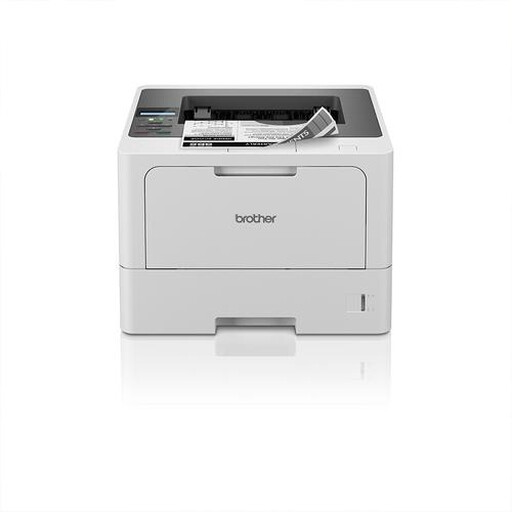
Brother HL-L5210DW A4 mono laser printer
Its listed A4 support and network connections could make this a good fit for printing appointment letters over a network.
Automatic double-sided printing; Wi-Fi, Ethernet and USB.
Joybuy
 No image available
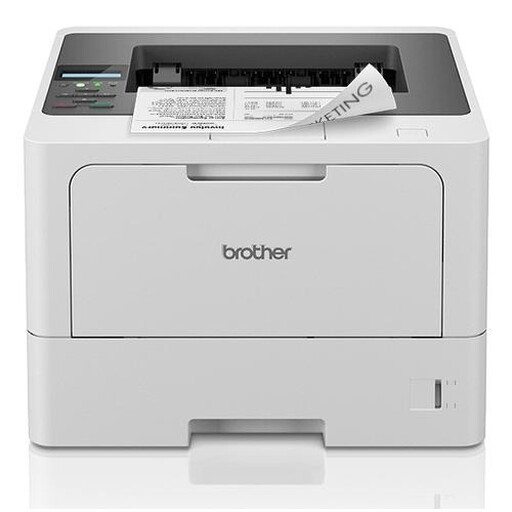
Brother HL-L5210DN A4 laser printer, 1200 × 1200 DPI
Its listed A4 support makes this model worth considering for printing appointment letters over a wired network.
LAN connection; 1200 × 1200 DPI as stated in the product name.
Joybuy
Frequently asked questions
Can a letter containing pupil information be printed on a shared printer?
That depends on the school’s procedures, not just the printer connection. The Dutch Data Protection Authority says organisations must protect personal data appropriately, using measures suited to a risk assessment. So consider who can access print jobs and printouts.
Does the printer have to be in the classroom itself?
Not necessarily. Choose a location that suits access to printouts and the conditions in the room. If the classroom is a workplace, also consider ventilation. Arboportaal lists emissions from office equipment as a possible contributor to poor indoor air quality, but doesn’t specify a safe distance for any particular model.
Do I need a scanner for appointment letters?
Not if you only print letters created digitally. If you also want to scan or copy paper documents, compare an all-in-one such as the Brother DCP-L2627DWE with a model that only prints.
How do I estimate the costs after purchase?
For the exact model, compare the right toner, its stated page yield and any separate drum. The Dutch Consumers’ Association assesses printing costs based on cartridge prices and the number of pages printed with them. A stated yield isn’t a guarantee for every print job.
What warranty applies when buying for a school?
First check who the buyer is. The ACM describes statutory consumer guarantees for products sold to consumers; don’t assume that the same rights automatically apply to a business purchase by a school. For this type of purchase, ask about the applicable warranty and service terms.


