If you mainly print black-and-white application forms, a monochrome laser printer is a sensible place to start. Then choose a connection that everyone using the shared desk can access. If you print regularly, factor in toner and any subscription costs. If completed forms contain personal data, also decide how printouts will be collected and kept secure.
Who is this buying guide for?
A forms printer for a small shared office
You print text-based forms from several devices and mainly need a connection that works with those devices. The Dutch Consumers’ Association (Consumentenbond) recommends considering your printing needs and connectivity options when choosing a printer.
A coordinator printing lots of forms
You regularly handle multiple print jobs and want to balance paper capacity, toner costs and connection to your work network. The Dutch Consumers’ Association (Consumentenbond) points out that ongoing printing costs matter as well as the purchase price.
An administrator handling confidential forms
You print completed application forms containing personal data and want to prevent unauthorised people from seeing or taking the printouts. The Dutch Data Protection Authority stresses that appropriate security measures depend on the processing involved and the risks.
What should you look for?
Start with the connection and the types of forms you actually print. Then compare ongoing costs and how confidential printouts will be handled.
| What to consider |
What should you check? |
Who should give this more weight? |
| Readable text and suitable features |
Check whether your forms need colour, scanning or copying, and whether the paper size is suitable. |
I mainly print black-and-white forms and want features suited to the task. Around 33% of consumers prioritise text printing and a simple setup with the right features. |
| Access for multiple users |
Compare Wi-Fi, Ethernet and USB with the devices and network setup at your workplace. |
I want to print from the devices at our shared desk without choosing a connection our network doesn’t use. Around 27% of consumers prioritise access for multiple users. |
| Confidential printouts |
Consider who could see or take the printouts, and check which printing and access features the model offers. |
I print completed forms containing personal data and don’t want unattended printouts to be accessible to others. Around 20% of consumers prioritise protecting these forms. |
| Ongoing costs and print runs |
Compare toner prices and stated yields on the same basis. Also check whether extra paper trays are optional. |
I regularly print larger batches and want to weigh up toner costs and paper refills. Around 20% of consumers prioritise ongoing costs and handling print runs. |
If an organisation processes personal data, the Dutch Data Protection Authority recommends tailoring security measures to the risks. A secure network connection alone doesn’t determine who can collect printed forms.
Avoiding common buying mistakes
-
Looking only at the purchase price
A low purchase price doesn’t tell you what printing will cost over time. Replacement toner and your own print volume also matter.
Compare the toner price and stated yield against the number of pages you expect to print. Only factor in an optional tray or subscription if you need one.
Replacement toner, an optional paper tray or a toner subscription may involve extra costs or choices.
-
Assuming ‘wireless’ means every type of network connection
Wi-Fi, USB and Ethernet are different connection options. A model with Wi-Fi doesn’t automatically have an Ethernet port.
Check your workplace network and the connections available on the exact model variant being offered.
-
Confusing network security with confidential printouts
Even if a printer is secure on the network, someone else may still be able to see or take an unattended printout.
Decide which measures are appropriate for how the printer will be used, and check the entire printing workflow, from sending a job to collecting it.
-
Assuming every replacement cartridge will work
HP states that the LaserJet Pro 4002dw uses dynamic cartridge security, which may block cartridges with a non-HP chip.
Before buying, check the cartridge requirements for the exact model and version.
These requirements may limit the choice of compatible replacement cartridges for this model.
Brands and models to consider
Brother
The HL-L2400DWE is a monochrome model to consider for forms at a shared desk where Wi-Fi or USB is sufficient.
- Brother lists Wi-Fi, USB, automatic double-sided printing and a 250-sheet paper tray for this model.
- The listed connections don’t include Ethernet. EcoPro is optional, so check that the connection suits your work network.
Canon
The i-SENSYS LBP243dw II could be a good fit if your shared workspace needs Wi-Fi and Ethernet, or extra paper capacity.
- Canon specifies Wi-Fi and Ethernet, a standard 250-sheet cassette and a 100-sheet multi-purpose feeder.
- The capacity of up to 900 sheets requires an optional cassette. Check whether you need the extra capacity for your print volume.
HP
The LaserJet Pro 4002dw is worth considering for shared office printing if the stated speed and cartridge requirements matter to you.
- HP states a top speed of 40 A4 pages per minute and says the printer is suitable for teams of up to ten users. These are manufacturer claims, not measurements from your workplace.
- HP states that the printer uses dynamic cartridge security. Check the requirements for third-party cartridges for the exact version.
Lexmark
The B3442dw is a monochrome model to consider if you have a consistently higher print volume and need Wi-Fi and Ethernet.
- Lexmark specifies automatic double-sided printing and recommends a monthly print volume of 800–8000 pages for this model.
- This range is the manufacturer’s recommendation, not a minimum for every buyer. Also check the warranty terms for the specific version.
Kyocera
The ECOSYS PA3500wx is an alternative to consider if expandable paper capacity is important to you.
- Kyocera states a top speed of 35 A4 pages per minute and a capacity of up to 850 sheets with optional paper feeders.
- Check whether you need extra paper feeders, and compare toner and expansion costs before taking the manufacturer’s cost claims into account.
Joybuy printers for shared use
These models are monochrome laser printers for A4 forms in a shared workplace, with a wired or wireless network connection.
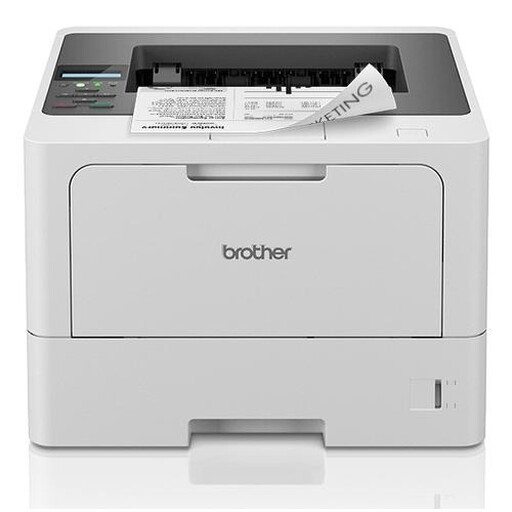 Image unavailable
Brother HL-L5210DN
Suitable for black-and-white A4 forms if you want to share the printer with multiple users over a wired LAN.
Monochrome A4 printing; 1200 × 1200 DPI. The network connection described is wired LAN.
Joybuy
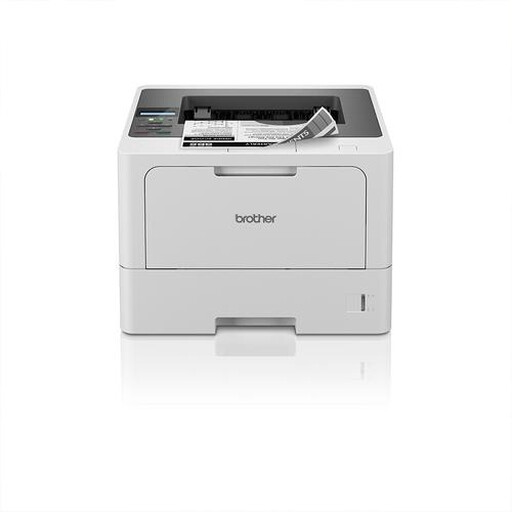 Image unavailable
Brother HL-L5210DW
Suitable for black-and-white A4 forms if users need Wi-Fi or a wired network connection.
Monochrome A4 printing. The product description lists Wi-Fi, Ethernet and USB, as well as automatic double-sided printing.
Joybuy
Frequently asked questions
Do I need a colour printer or scanner for blank application forms?
Not if you only print black-and-white forms. If you also need to scan completed forms, or they include essential colour information, check separately that your chosen device has those features.
How do I connect the printer for multiple users?
Choose a connection that works with your work network and the devices sending print jobs. The Brother HL-L2400DWE lists Wi-Fi and USB; Canon also specifies Ethernet for the i-SENSYS LBP243dw II. Follow the setup instructions for the exact version you choose.
How do I compare a toner subscription with buying toner separately?
Compare the current subscription costs and terms with the price and stated yield of individual toner for the same expected number of pages. Brother says EcoPro is optional for the HL-L2400DWE; that alone doesn’t tell you which option will be cheaper for your needs.
What privacy measures are needed when printing completed forms on a shared printer?
According to the Dutch Data Protection Authority, an organisation that processes personal data must assess the risks and decide which security measures are appropriate. Also consider who can see or take printed forms; the guidance consulted doesn’t say that every shared printer must have a PIN code.


