What should you look for when choosing?
First, work out whether it’s mainly the physical keys or the on-screen text that you find difficult to read. Then consider which keys you need for numbers and navigation, as well as the space and connection available at your workstation.
Royal Visio and the Assistive Technology Guide discuss the readability and contrast of physical keys as separate considerations. Microsoft Support explains how to adjust on-screen text as a separate setting.
| What to consider |
What to check |
Who it’s for |
| Reading the key labels |
Compare the size and colour of the letters and symbols, the finish and the layout of the version. |
If I find it difficult to distinguish letters or symbols on the keys, I want to assess the contrast under my own lighting too. Around 36% of consumers say that the readability of physical keys is their top priority when buying. |
| Entering numbers and details |
Check whether the model has a numeric keypad and the arrow and function keys you need. |
If I regularly enter catalogue numbers, I weigh up having a separate numeric keypad against the extra desk space it takes up. Around 29% of consumers say quick, familiar number entry is their top priority when buying. |
| On-screen text and shortcut keys |
Try your operating system’s magnification settings. For special shortcut keys, check the software and supported Windows version. |
If the text in my catalogue is too small, I want to enlarge it on screen; special keys are mainly relevant if I use the associated software. Around 21% of consumers say control of screen magnification is their top priority when buying. |
| Space and connection |
Compare the dimensions, USB-A or Bluetooth connection, and the keys you need. Also check that the connection is compatible with your computer. |
If I have limited space at my workstation or want to work wirelessly, I weigh that up against the number of individual keys and any battery requirements. Around 14% of consumers say workspace or connection is their top priority when buying. |
Keyboards at Joybuy
This Joybuy selection includes standard QWERTY keyboards for typing and entering catalogue details. For each version, check whether the key labels are large and high-contrast, and whether you need a numeric keypad.
 No image available
Wired QWERTY keyboard with numeric keypad
Could suit catalogue work if you want to use a numeric keypad; check that the keys are easy enough for you to read.
The product name lists a wired connection, QWERTY layout and full-size keyboard.
Joybuy
 No image available
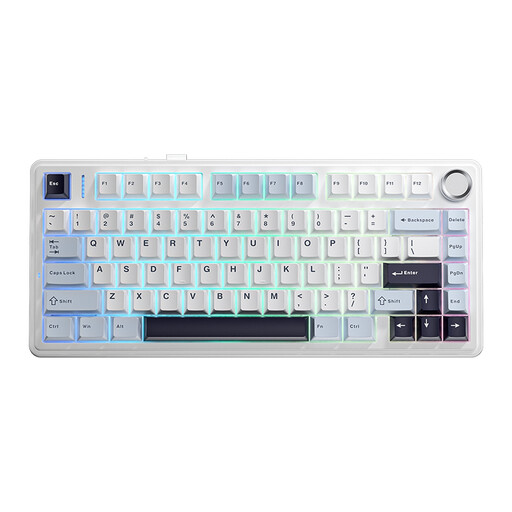
AULA F75 wireless keyboard
Could suit you if you’re looking for a compact QWERTY keyboard; check whether you can manage without the individual keys omitted from a compact layout.
The product name lists a 75% layout, US QWERTY, wireless modes and PBT keycaps.
Joybuy
 No image available
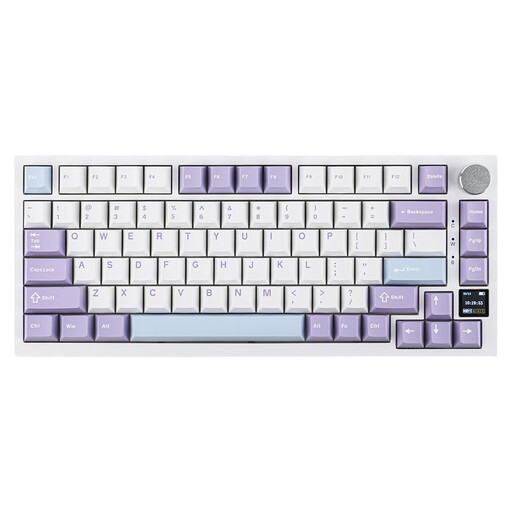
Ajazz AK820 Pro keyboard
Could suit you if you’re considering a compact QWERTY version; check that the layout includes the keys you use for catalogue numbers and navigation.
The product name lists a 75% layout, US QWERTY, and wired, Bluetooth and 2,4G connection options.
Joybuy
 No image available
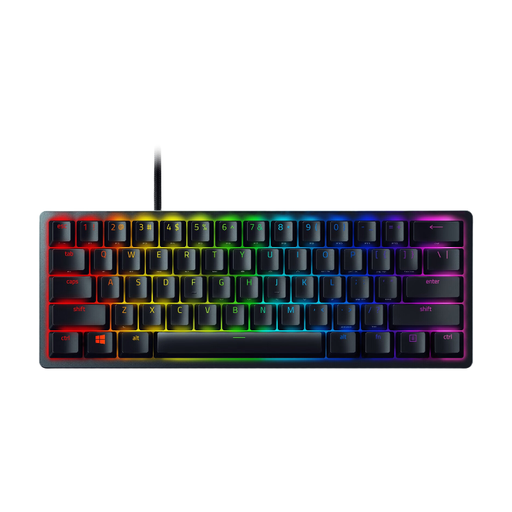
Razer Huntsman Mini with purple switches
Could suit you if you’re looking for a compact US QWERTY version; check whether you can work without the individual keys found on a larger model.
The product name lists purple switches and a US QWERTY layout.
Joybuy
 No image available
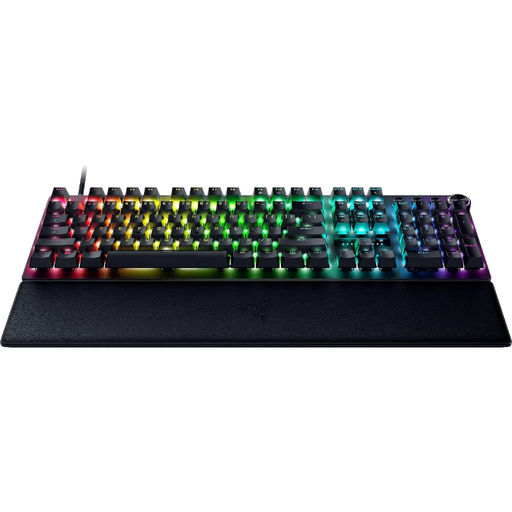
Razer Huntsman V3 Pro
Could suit you if you’re looking for a full-size US QWERTY version; check that the key labels and layout work for your catalogue tasks.
The product name lists a US QWERTY layout.
Joybuy
Frequently asked questions
Will a large-print keyboard make the text in my shell catalogue bigger?
No. The larger letters are on the physical keys. Microsoft Support explains how to enlarge on-screen text separately in Windows 10 or 11; also check how your catalogue software responds to magnification.
Which keyboard layout should I choose?
Compare the keys shown with your current keyboard and the layout in your system settings. For example, LogicKeyboard distinguishes International English, listed for the Netherlands, from a US ANSI layout. For a wired model, also check that the connection is compatible with your computer.
Do I need ZoomText software for a large-print keyboard?
No, not to use larger labels on the physical keys. The specific shortcut keys on the ZoomText keyboard are designed for ZoomText or Fusion features; check whether you use the software and whether your Windows version is supported.
What are my rights if a keyboard bought online isn’t suitable or is faulty?
When you buy online from a business, you generally have a 14-day cooling-off period, according to the Government of the Netherlands. Products must also meet legal expectations; if there’s a defect, you can contact the seller. There is no single statutory warranty period that applies to all products.
Does a keyboard sold in the Netherlands need a CE mark?
That depends on the rules that apply to the specific version. According to the European Commission, CE marking is required when EU rules for the product say it is; the manufacturer is responsible for the assessment. The product name or a photo alone does not show which rules apply or whether a model meets them.


