
Creator of a large-print guide
You want the text in your finished camera starter guide to be easy to read. So check the document layout separately from your operating system’s magnification settings.


Choose a desktop PC if you want to select your own monitor or already have a suitable screen; an all-in-one is a better fit if you want the computer and screen in one unit. Also check that your document software can handle large text and images, and test how easy the guide itself is to read: enlarging the computer display does not automatically change the document’s layout.
You want the text in your finished camera starter guide to be easy to read. So check the document layout separately from your operating system’s magnification settings.
You want to place photos or screenshots alongside steps and captions. Check whether your document software supports images and how to transfer files from your camera.
You want to enlarge text while writing and still see the bigger picture. A desktop PC lets you choose a separate monitor; with an all-in-one, the screen is part of the computer.
Start by checking how easy the guide you’re creating is to read, then decide how you want to view text while you work. Microsoft Support and Apple Support explain how to enlarge text or the display; you set the document layout separately.
| What to consider | What should you check? | Who is this important for? |
|---|---|---|
| How easy the guide is to read | Create a test page with your chosen font size, steps and an image. Also check the format you intend to use. | I want the finished guide itself to have large, easy-to-read text; around 36% of consumers prioritise the readability of the document. |
| Screen readability while you work | Try out the text size and display scaling on your chosen operating system. With an all-in-one, check the built-in screen; with a desktop PC, check how it connects to your monitor. | I want to enlarge text while writing without losing an overview; around 29% of consumers give screen readability while working top priority. |
| Photos and camera files | Check how to transfer files from your camera and which ports are available on the exact computer configuration. Test images and captions in your document software. | I want to include and explain camera images in the guide; around 21% of consumers prioritise working with images. |
| Complete workstation | Check whether a monitor, keyboard and mouse are included, and whether you have the connections you may need for a camera or card reader. | I want to know which components I need to get started; around 14% of consumers make a complete workstation and its components their top priority. |
The magnification setting changes what you see on screen; you need to adjust the guide’s text and layout in the document itself.
Before choosing a computer, create a sample page in the document software you plan to use and check it in the format you intend to use.
Microsoft Support warns that using a resolution lower than the screen’s native resolution can make the image look blurry or stretched.
First, try changing the text size or display scaling while keeping the recommended resolution.
An all-in-one has a built-in screen. With a desktop PC, you choose the screen separately, and the included input devices vary by configuration.
Check which components are included with each model and which monitor and input devices you’ll need.
Apple describes two-port and four-port versions of the iMac M4, with differences in connections and support for external displays. Information about the ASUS V400 AiO range does not automatically confirm the connections available on every individual configuration.
Compare the full model details and available ports with your camera, card reader and any additional monitor.
Worth considering if you want to use macOS and are choosing between a computer with a separate screen and an iMac with a built-in screen.
The Aspire XC is a range of standalone Windows desktop PCs, with the screen chosen separately.
HP offers desktop PCs and all-in-ones, so you can take your preferred screen setup into account when choosing.
According to ASUS, the V400 AiO V440VA range combines the computer and screen in an all-in-one setup.
Lenovo IdeaCentre all-in-ones combine the computer and screen in a single unit.
This selection includes a Mac mini for use with a screen chosen separately, as well as all-in-one desktop PCs with a built-in screen. Check the connections you need and the components included with each configuration.
 No image available
Could be a good fit if you want to choose your own screen setup.
Apple M6 chip with 12-core CPU and 12-core GPU; 16 GB memory; 256 GB SSD.
 No image available
Could be a good fit if you want a computer with a built-in screen.
27-inch screen; 2560 × 1440 pixels; Intel Core Ultra 5 125H; 16 GB DDR5-SDRAM; 1 TB SSD.
 No image available
Could be a good fit if you want a built-in screen for your writing setup.
27-inch QHD screen with 120 Hz; Intel Core Ultra 7 255H; 16 GB LPDDR5X; 1 TB SSD; Windows 11 Home.
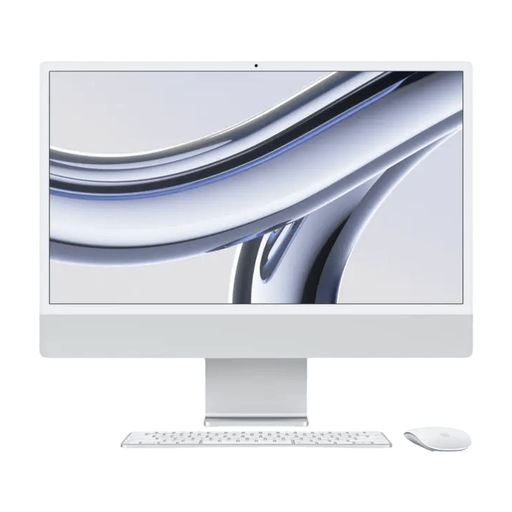 No image available
Could be a good fit if you’re looking for a Mac with a built-in screen.
24-inch screen; M3; 16 GB memory; 512 GB storage.
 No image available
Could be a good fit if you want a computer with a built-in screen; check which power supply and accessories you’ll need.
23.8-inch matt FHD IPS screen. The product description states that a QWERTY keyboard is included; you’ll need to arrange the power adapter separately.
No. Magnification in Windows or macOS changes what you see on screen; adjust the text in your document software and check the result with a test page.
Word supports images with captions. If inserted images look pixelated, Microsoft Support describes a setting for high image quality; also check the quality of the original photo.
No. An all-in-one has a built-in screen, but the included input devices vary by configuration. Check what comes with the configuration you choose and which other components you’ll need.
According to the Dutch government, online purchases from a business usually come with a 14-day cooling-off period, although there are exceptions. You’re also entitled to a product that meets legal standards of quality; there is no fixed statutory guarantee period in the Netherlands, and the retailer is your point of contact if there’s a problem.
No. The Dutch government states that accessibility requirements for certain products and services, including computers and computer software, have applied since 28 June 2025. This alone does not prove that a specific configuration or app will suit your needs; check that it has the features you require.