
Aim training at a large desk
You want to track moving targets, but need to be able to take in the whole screen from where you sit. That makes screen size, refresh rate and motion clarity equally important.


First, choose a screen size that lets you take in the whole display from where you sit. Then check that your PC or console can actually deliver the resolution and refresh rate you want. A 32-inch QHD LCD and a 32-inch 4K OLED screen each have different strengths. OLED also carries a risk of burn-in if static images stay on screen for long periods. None of these specifications proves that your aim will improve.
You want to track moving targets, but need to be able to take in the whole screen from where you sit. That makes screen size, refresh rate and motion clarity equally important.
You use the same large screen for detailed games and are weighing up 4K OLED against what your PC can handle, as well as the effects of prolonged static use. ASUS ROG Netherlands lists the PG32UCDM Gen3 as a 31.5-inch 4K display with a refresh rate of up to 240 Hz.
You want one large screen for several devices, so you need to check which resolution, refresh rate and VRR mode are available through each connection. Dell Netherlands lists the AW3226DM at QHD and 240 Hz; the available mode also depends on the connected device.
Start with your viewing distance and screen size, then choose between QHD LCD, which has a lower resolution than 4K, and 4K OLED, which offers more image detail. Next, check that your source device can handle the mode you’ve chosen. A stated maximum, on its own, says nothing about your aim.
| What to consider | What to look for | Who it matters to |
|---|---|---|
| Tracking moving targets | Check the refresh rate for each connection and compare motion measurements for the exact model. A GTG figure alone doesn’t describe the full motion performance. | When I practise tracking moving targets, I want motion to remain clear at the frame rate my PC can actually achieve. Around 33% of consumers say motion clarity is their main concern when buying. |
| Screen size and visibility | Measure your desk and viewing distance, then check whether you can comfortably see the whole screen. Compare QHD and 4K at the same screen size. | I want to see the whole playing area from where I sit, while still having enough detail. Around 27% of consumers prioritise a large screen that’s easy to see at a glance. |
| Panel and prolonged use | Consider how long the same HUD or interface stays on screen, and read the terms for the exact model. | If I often train with the same interface on screen, I want a panel that suits prolonged use. Around 20% of consumers say image quality and usage risks are their main concerns when buying. |
| Connections and display modes | Check the resolution and refresh rate for each HDMI and DisplayPort input. After connecting your device, check which output mode your PC or console is actually using. | I want to use the same screen with my PC and console, and know in advance which mode that combination supports. Around 20% of consumers say compatibility with their own devices is their main concern when buying. |
Response-time figures may use different measurement modes or definitions. For example, Dell Netherlands lists different GTG figures for the AW3226DM depending on the mode. These aren’t directly comparable with Smart MBR figures for another model.
Only compare figures when the measurement definitions and settings match. Where possible, also consult independent measurements of the exact model.
The maximum refresh rate of the screen doesn’t guarantee that your PC or console can reach it at your chosen resolution and in your game.
Before buying, check the modes supported by each port. After connecting your device, check which display mode is active.
You may need to adjust your settings or equipment to achieve your target frame rate in games.
Prolonged exposure to the same static elements can cause burn-in on OLED screens. A feature such as OLED Care doesn’t prove that this risk disappears or that every usage scenario is covered by the warranty.
Read the terms for the exact model, and compare OLED with an LCD option if the same interface is often visible for long periods.
According to ASUS ROG’s Dutch specifications, the PG32UCDM Gen3 is a 31.5-inch 4K QD-OLED model with a refresh rate of up to 240 Hz.
The AW3226DM and AW3225QF show the different panel and resolution options available in the Alienware range, according to Dell’s Dutch product specifications.
The Dutch product specifications include both a 31.5-inch QHD model and a 31.5-inch 4K QD-OLED model with a refresh rate of 240 Hz.
According to BenQ ZOWIE’s product specifications, the XL2746K is a 27-inch TN screen designed for esports, with a refresh rate of 240 Hz.
These Joybuy gaming monitor picks offer a large playing area, with a range of screen sizes and refresh rates. Check that each model’s resolution and connections suit your PC or console.
 Image unavailable
A 32-inch IPS model with QHD resolution and a refresh rate of 180 Hz, for anyone looking for a large screen with a high refresh rate.
2560 × 1440 pixels; FreeSync; stand with height, swivel and tilt adjustment, plus VESA mounting.
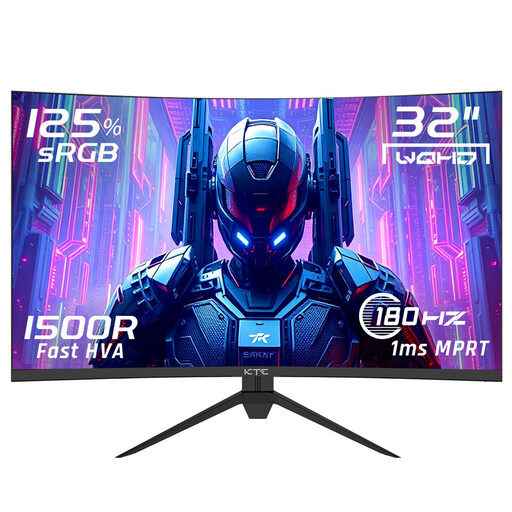 Image unavailable
A 32-inch QHD gaming monitor with a refresh rate of 180 Hz and Adaptive Sync, for anyone looking for this combination.
2560 × 1440 pixels; HVA panel; 1500R curvature; tilt adjustment and VESA mounting.
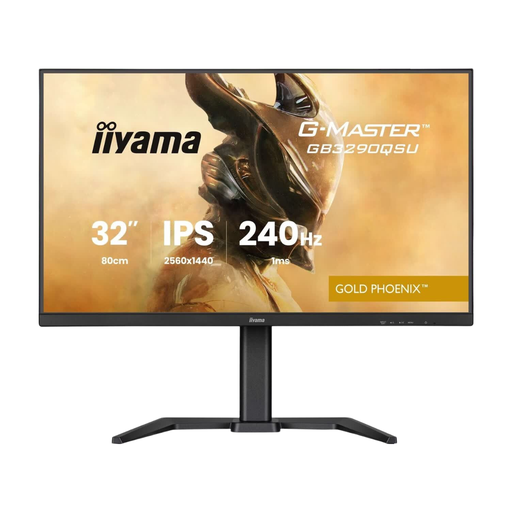 Image unavailable
A 31.5-inch IPS model with Quad HD and a refresh rate of 240 Hz, for anyone looking for a high refresh rate on a large screen.
2560 × 1440 pixels; FreeSync Premium and VRR; HDMI 2.1 and DisplayPort connections; height-adjustable stand.
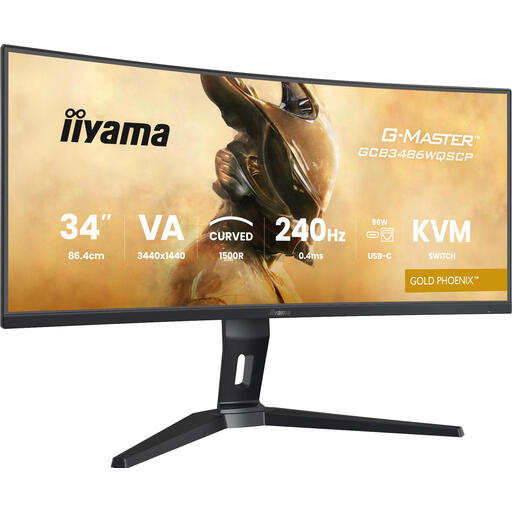 Image unavailable
A curved gaming monitor with UWQHD resolution and a refresh rate of 240 Hz, for anyone looking for this combination.
3440 × 1440 pixels; VA panel; FreeSync Premium; HDMI and DisplayPort connections, plus a height-adjustable stand.
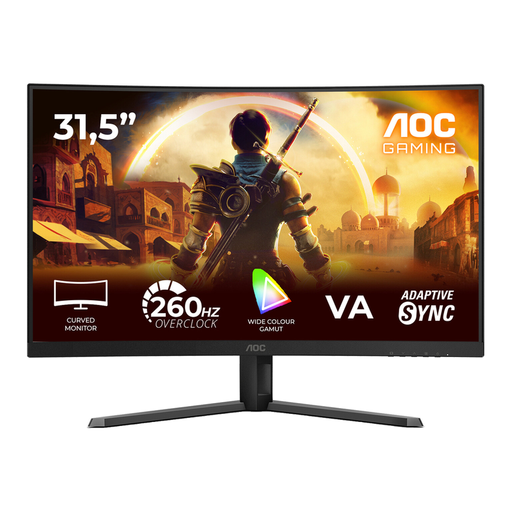 Image unavailable
A curved 31.5-inch monitor with a VA panel, for anyone who prioritises a high refresh rate over QHD or 4K resolution at this screen size.
FHD resolution of 1920 × 1080; 240 Hz native and 260 Hz overclocked; Adaptive-Sync.
No. 240 Hz is a stated maximum refresh rate and doesn’t tell you how well you’ll aim. Also check your game’s frame rate, the active port mode and the motion performance of the exact screen.
Consider how long the same interface elements stay on screen, and read the maintenance and warranty terms for the exact model. RTINGS.com describes a risk of burn-in after prolonged exposure to static elements; OLED Care doesn’t prove that this risk disappears.
No, the PS5 doesn’t automatically output at 240 Hz. PlayStation Support describes 120Hz output for screens and games that support 120 Hz. Check the HDMI modes of the exact screen, then see which output the console reports after connecting it.
Only compare response times when the measurement definition and settings match. Dell Netherlands lists different GTG figures for the AW3226DM depending on the mode; a figure like this doesn’t, by itself, provide a complete measure of motion performance or input lag.
Measure the available space and check from your usual sitting position whether you can comfortably see the whole screen. No one screen size suits every viewing distance. Compare QHD and 4K at the same screen size, keeping your needs in mind.