Who is this monitor for?

Players who track moving targets

You practise fast camera movements on PC and want to keep moving objects in clear view. Compare Hz, response time and overshoot at the settings you use. RTINGS.com explains why pixel transitions and overshoot matter during fast movement.

Players who want a large, sharp picture

You’re looking for plenty of detail at around 32 inches, but want to weigh up QHD versus 4K against your PC’s capabilities. AOC Netherlands and ASUS ROG Netherlands list QHD and 4K resolutions respectively for the models mentioned.

Console and mixed-platform players

You use a PS5 alongside or instead of a PC and want to know which resolution, HDMI mode, 120 Hz and VRR will work in your set-up. PlayStation Support Netherlands explains the requirements for 120Hz output on PS5.

What should you look for when choosing?

Large QHD LCD screen

Choose this option: if 31.5 inches and 2560 × 1440 pixels suit your viewing distance and you mainly practise on PC. AOC Netherlands lists these specifications and 180 Hz for the CQ32G4VE.

The trade-off: QHD has fewer pixels than 4K. A claimed response time is not an independent measurement of motion clarity.

Large 4K OLED screen

Choose this option: if 4K detail matters and your PC can deliver the refresh rate you want at that resolution. ASUS ROG Netherlands and MSI list 31.5–32 inches, 4K and up to 240 Hz for the models mentioned.

The trade-off: check the connections, panel care and warranty terms, particularly if fixed screen elements remain visible for long periods. MSI describes OLED Care as a way to reduce risk; it doesn’t mean burn-in is ruled out.

Large screen mainly for PS5

Choose this option: if you mainly play on PS5, check the HDMI modes and test your preferred settings with your own screen and game.

The trade-off: Sony describes 120Hz output for games that support 120 frames per second; a 180 or 240 Hz monitor won’t automatically increase the console’s output.

What to consider What to look for Who is this most important for?
Motion clarity Compare measurements of pixel transitions and overshoot at the Hz mode you want to use; also consider the frame rate your source can achieve. If I’m tracking fast-moving targets, I want to keep them clearly in view as the camera moves; around 36% of consumers say motion clarity is their main reason for buying.
Screen size and detail Consider whether a screen of around 32 inches will fit comfortably on your desk, and compare 2560 × 1440 with 3840 × 2160 pixels at the same viewing distance. If you want a large gaming picture with the right level of detail, you’ll want to balance screen size, resolution and the load on your PC; around 29% of consumers prioritise screen size and detail.
Source compatibility Check the maximum mode for each connection. Sony describes 120Hz output on PS5 for games that support 120 frames per second. If I switch between PC and console, I want to use my preferred resolution, refresh rate and VRR in my own set-up; around 21% of consumers give source compatibility top priority.
Panel and set-up For OLED, read the applicable panel and warranty terms. If you’re using a monitor arm, check the VESA pattern and weight capacity. If you use fixed screen elements or want to mount a large screen on an arm, you’ll want to check panel care and mounting requirements in advance; around 14% of consumers prioritise lifespan and running costs.

Common pitfalls

  • Comparing only the highest Hz rating or ‘1 ms’

    The claimed refresh rate alone won’t tell you how clearly moving objects will remain visible. Pixel transitions, overshoot, input lag and the frame rate your source can deliver all play a part.

    Compare measurements at the settings you actually plan to use, and check which modes your source and connection support. RTINGS.com explains the role of motion measurements and input lag.

  • Assuming every input supports the advertised top mode

    For the KTC H32S5, KTC lists a maximum of 180 Hz via DisplayPort and 144 Hz via HDMI at QHD; 185 Hz is an optional overclock via DisplayPort.

    Check the resolutions and refresh rates supported by each port on the exact model. You may need a suitable cable or a different input to use your preferred mode.

  • Assuming OLED protection features rule out burn-in

    MSI describes OLED Care as a feature that reduces the risk of burn-in and lists a burn-in warranty for the model in question. This isn’t proof that the risk disappears.

    Read the applicable warranty terms and follow the panel care instructions, particularly if fixed screen elements remain visible for long periods.

Brands to consider

AOC

The CQ32G4VE is a large QHD LCD model to consider if you’re looking for 31.5 inches and 2560 × 1440 pixels.

  • AOC Netherlands lists Fast VA, 180 Hz and Adaptive Sync for this model.
  • The claimed 1 ms GtG isn’t an independent motion measurement and doesn’t automatically apply to other AOC models.

ASUS ROG

The ROG Swift OLED PG32UCDM Gen3 (PG32UCDM3) is a 4K QD-OLED option with a claimed maximum of 240 Hz.

  • ASUS ROG Netherlands lists DisplayPort 2.1a, HDMI 2.1 and OLED Care Pro for this model.
  • ASUS says OLED Care Pro reduces the risk of burn-in; the feature doesn’t prove that the risk disappears.

MSI

The MPG 321URX QD-OLED is an example of a large 4K OLED screen for a PC and console set-up.

  • MSI lists HDMI 2.1, 120Hz console support, VRR, OLED Care 2.0 and a burn-in warranty for this model.
  • Check the applicable warranty terms and panel instructions; OLED care features don’t rule out burn-in.

Dell Alienware

The AW3225QF is a curved 31.6-inch 4K QD-OLED model with a claimed refresh rate of 240 Hz.

  • Dell Netherlands lists 3840 × 2160 pixels and 240 Hz for the AW3225QF.
  • Consider whether the curved design suits your viewing position; these specifications apply to this model, not all Alienware monitors.

KTC

The H32S5 is a curved QHD model whose available refresh rate varies by input.

  • KTC lists a maximum of 180 Hz via DisplayPort and 144 Hz via HDMI at QHD, with optional 185 Hz overclocking via DisplayPort.
  • Check the port, settings and exact model version before relying on a particular mode.

Gaming monitors at Joybuy

These models include large gaming monitors with QHD or 4K resolution. Check which refresh rate and connection mode suit your PC or console for each model.

Samsung Odyssey G5 G50F LS32FG502EUXEN

Samsung Odyssey G5 G50F LS32FG502EUXEN

A 32-inch gaming monitor to consider if you’re looking for a large screen and a claimed refresh rate of 180 Hz.

32 inches; IPS; 180 Hz.

View at Joybuy

MSI MAG 322UP QD-OLED E16 31.5-inch 4K UHD

MSI MAG 322UP QD-OLED E16 31.5-inch 4K UHD

A large 4K OLED model to compare if you’re looking for high-resolution detail and are mindful of panel care.

31.5 inches; 3840 × 2160; 165 Hz; claimed response time 0.03 ms; USB-C. The product description recommends avoiding prolonged static images at high brightness and using panel care features to reduce the risk of image retention.

View at Joybuy
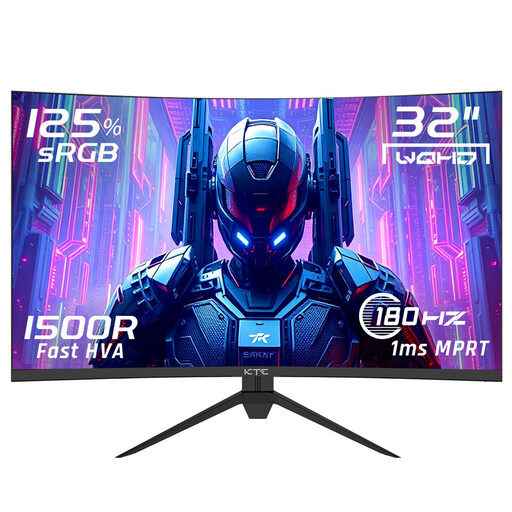
KTC H32S17 32-inch QHD gaming monitor

KTC H32S17 32-inch QHD gaming monitor

A large QHD screen to consider if you want to compare the claimed 180 Hz mode with your PC’s connections.

32 inches; 2560 × 1440; 180 Hz; HVA; 1500R; Adaptive Sync. The product name also lists 1 ms.

View at Joybuy
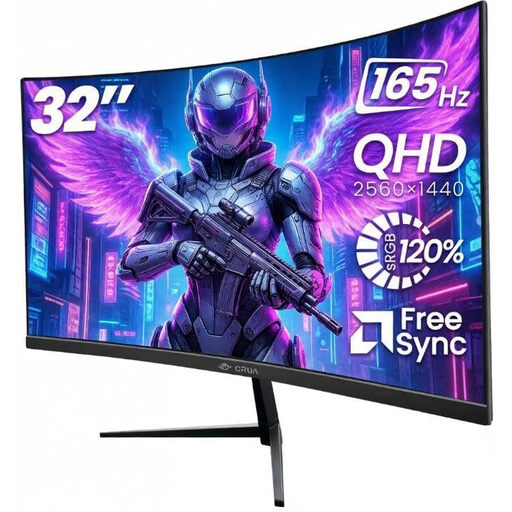
CRUA 32-inch curved QHD gaming monitor, 1500R, 165 Hz

CRUA 32-inch curved QHD gaming monitor, 1500R, 165 Hz

A curved 32-inch QHD gaming monitor to compare if you’re looking for Adaptive Sync and the listed refresh rate.

2560 × 1440; 165 Hz; Adaptive Sync; VESA 100 × 100 mm.

View at Joybuy
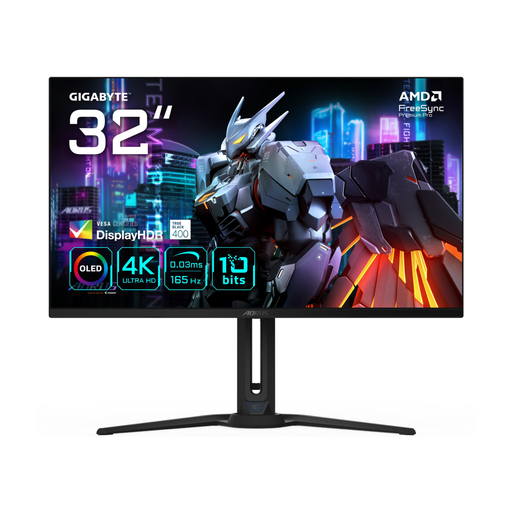
Gigabyte AORUS FO32U 31.5-inch 4K OLED monitor

Gigabyte AORUS FO32U 31.5-inch 4K OLED monitor

A large OLED screen to consider if 4K resolution is an essential requirement for your set-up.

31.5 inches; 3840 × 2160; 4K Ultra HD; OLED.

View at Joybuy

Frequently asked questions

Do I need 240 Hz if I mainly play on PS5?

No, not to get 240 Hz output from the PS5. Sony describes 120Hz output for games that support 120 frames per second. Check the information for the connected HDMI device and test your preferred 1440p, 120Hz and VRR modes in your own set-up.

Why can’t I get 180 Hz via HDMI at QHD on the KTC H32S5?

For the H32S5 at 2560 × 1440, KTC specifies a maximum of 144 Hz via HDMI 2.0 and 180 Hz via DisplayPort 1.4; 185 Hz is an optional overclock. You’ll need a suitable DisplayPort connection to use the claimed standard mode of 180 Hz, and you’ll also need to select that mode on your PC.

What should I check for a monitor arm and OLED care?

For the exact monitor, check the VESA pattern, the arm’s weight capacity and the screw length. With an OLED model, use the panel care features as instructed in the manual and read the applicable warranty terms; a protective feature doesn’t guarantee that burn-in is impossible.

What are my rights if a monitor I bought online is faulty?

According to the Dutch government, if a product is faulty, the seller must resolve the problem; free repair or replacement may be appropriate. The seller can’t simply refer you to the manufacturer. For eligible online consumer purchases, you’re generally also entitled to a 14-day cooling-off period. Your statutory consumer rights are separate from any manufacturer’s warranty.

Where can I take my old monitor in the Netherlands?

According to the Dutch government, when you buy a new, similar electrical appliance, household equipment is covered by a free take-back scheme, including for online purchases. You can also take old equipment to your local council, depending on the facilities available in your area.
