Start by considering how readable your game’s interface is and how much space you have on your desk. A 32-inch 4K screen gives you more vertical pixels, while a 34-inch 3440 × 1440 ultrawide offers more horizontal space. Neither guarantees that a particular game will scale comfortably, though. Also check your PC’s output, the maximum refresh rate for each connection and, with OLED, the trade-off involved in having static interface elements on screen for long periods.
Who is a large screen suited to?
Map and menu reader
If you want to read place names, numbers and menus from your usual seating distance, check your own game’s interface rather than relying on the resolution printed on the box. RTINGS.com notes that text clarity depends on more than resolution and pixel density, and can vary from one viewer to another.
Player looking for more map width
A 34-inch 21:9 screen could be a good fit if you mainly want more horizontal space for the map or additional windows, and have room for it. Check in advance how your game displays this aspect ratio; LG and MSI’s specifications describe screen formats, not the layout of every game.
Practical big-screen buyer
If you want a larger playing area without overlooking connections, PC output or desk space, compare the specifications for each connection and measure the space available. Dell, LG and MSI’s model details show why screen size alone isn’t enough to assess the connection and set-up.
What should you look for when choosing?
32-inch 16:9 4K LCD
Best for: if you mainly want more vertical pixels for maps and menus, and your PC and game support the resolution you choose.
Trade-off: less horizontal screen space than a 34-inch 21:9 screen; check how text and menus scale in your own game.
34-inch 21:9 ultrawide LCD
Best for: if horizontal map space matters to you and your game supports a usable 21:9 display.
Trade-off: fewer vertical pixels than 4K and a wider screen on your desk; also check the limits of the port you’ll be using.
Large OLED screen
Best for: if you play other games as well as grand strategy and want to consider OLED as a screen type.
Trade-off: ASUS says that static images displayed for long periods can cause burn-in; pixel shifting doesn’t eliminate the risk.
| What to consider |
What to look for |
Who should give it more thought? |
| Readability |
Compare the screen size and native resolution; check the interface and text scaling options available in your own game, from your usual seating distance. |
If you want to read map labels and menus without straining, how they look from your seating distance is what matters most. Around 31% of consumers prioritise being able to read map text and menus. |
| Map width |
See how your game displays at 21:9 and compare the screen’s physical width with the space available on your desk. |
If you mainly want more horizontal map space, check that the game makes useful use of the extra width. Around 25% of consumers give extra map width top priority. |
| PC and connections |
Check your PC’s output, cable and port limits for your chosen resolution and refresh rate. For the MAG 342CQR E2 at 3440 × 1440, MSI lists a maximum of 180 Hz via DisplayPort and 100 Hz via HDMI 2.0b. |
If you want to be sure your PC can handle your chosen resolution and refresh rate combination, check both devices and the connection you’ll use. Around 19% of consumers prioritise PC output and connections. |
| Desk set-up |
Measure the available width and depth, then compare them with the dimensions of the screen and stand. |
If space is limited or you want to maintain a comfortable viewing position, measure where the screen and stand will go first. Around 13% of consumers give available desk space the most weight. |
| Static interface elements |
With OLED, check the protective features and warranty terms for the exact model, and consider how long static elements stay on screen. |
If the same high-contrast menus or frames are often on screen during long sessions, factor in the risks of OLED. Around 12% of consumers prioritise interface elements that remain visible for long periods. |
Common pitfalls
-
Choosing based only on screen size or “4K”
A 32-inch 4K screen and a 34-inch 3440 × 1440 ultrawide differ in height, width and aspect ratio. None of these specifications on its own confirms that text in your game will be comfortable to read.
First choose between extra vertical pixels and more horizontal space. Then check your own game’s interface from your usual seating distance.
-
Assuming the maximum refresh rate applies to every input
For the MSI MAG 342CQR E2 at 3440 × 1440, MSI lists different maximum refresh rates for DisplayPort and HDMI 2.0b.
Compare your chosen resolution and refresh rate with the specifications for the monitor port, cable and PC output you’ll actually use.
-
Choosing OLED without considering static menus and the warranty
ASUS warns that high-contrast static images displayed for long periods can lead to burn-in. Pixel shifting is a protective feature, not a guarantee that the risk will disappear.
Check the care instructions and warranty terms that apply to your purchase for the exact model.
Relevant brands to consider
LG
The UltraWide range includes the 34U650A-B, a 34-inch IPS model for those considering a wider screen for mixed use.
- For the 34U650A-B, LG lists a 21:9 aspect ratio, 3440 × 1440 resolution and 100 Hz refresh rate.
- Check your own game’s interface; the screen specifications can’t predict how maps and menus will scale.
MSI
The MAG 342CQR E2 is a curved 34-inch VA ultrawide for those comparing 3440 × 1440 resolution and the port limits for each connection.
- MSI lists a maximum of 180 Hz via DisplayPort at 3440 × 1440.
- At the same resolution, MSI lists a maximum of 100 Hz via HDMI 2.0b, so the maximum rate doesn’t apply to every connection.
Dell
The G3223Q is an example of the 32-inch 16:9 4K option.
- Dell Netherlands lists a resolution of 3840 × 2160 at up to 144 Hz for this model.
- The model specifications don’t tell you how readable a particular game’s interface will be from your viewing distance.
Samsung
The Odyssey G5 LC34G55TWWPXEN is an example from the 34-inch 3440 × 1440 ultrawide category.
- For this specific model, Samsung lists a 1000R curve and 165 Hz refresh rate.
- Consider the pronounced curve as a personal viewing and positioning preference; this specification applies to this model, not the entire range.
ASUS
OLED is a separate panel option to consider if you play other games as well as grand strategy.
- ASUS describes pixel shifting as protection against static images.
- ASUS warns that burn-in can occur; the feature described doesn’t eliminate the risk or confirm the warranty terms for a specific model.
Joybuy products for big-screen gaming
This selection includes 34-inch ultrawides for extra horizontal space and large screens in the 4K category. For ultrawide models, check that your game displays properly at 21:9; with OLED, also consider static interface elements that remain visible for long periods.
 No image available
Philips Evnia 3000 34M2C3500L
Suited to anyone considering a 34-inch ultrawide, provided the game displays properly at 21:9.
34 inch; Fast VA; 3440 × 1440; 180 Hz via DisplayPort and 100 Hz via HDMI, according to the product title.
Check which connection you’ll use; the stated refresh rate varies by port.
Joybuy
 No image available
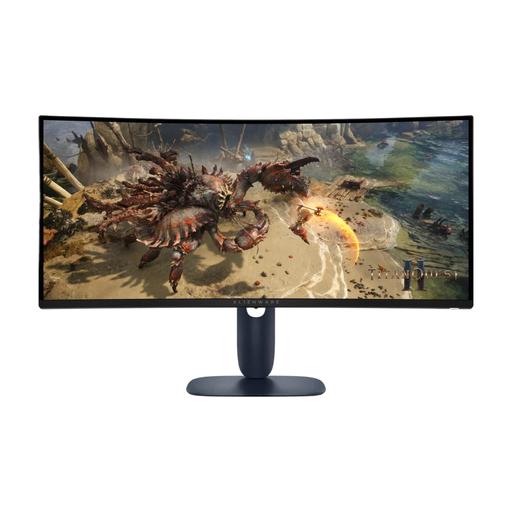
Alienware AW3425DWM
Suited to anyone looking for a 34-inch screen with 3440 × 1440 resolution; check that the game supports your preferred ultrawide display.
34 inch; 3440 × 1440; LCD, according to the product name.
Joybuy
 No image available
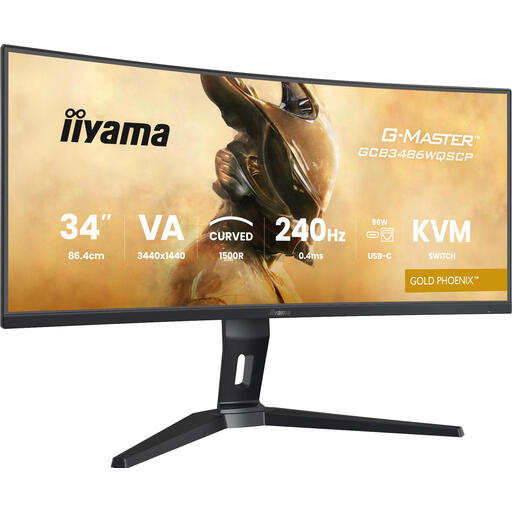
iiyama G-MASTER GCB3486WQSCP-B1 Gold Phoenix
Suited to anyone looking for a curved ultrawide; measure in advance to make sure the screen and stand fit on your desk.
34 inch; 3440 × 1440; 1500R curvature; 240 Hz according to the product name. The product information also lists Picture-in-Picture and Picture-by-Picture.
The stated width with the stand is 808 mm; make sure you have enough desk space.
Joybuy
 No image available
MSI MAG 322UP QD-OLED E16
Suited to anyone considering a large 4K screen with an OLED panel; factor in static interface elements that remain visible for long periods.
31.5 inch; 3840 × 2160; QD-OLED; 165 Hz; USB-C.
ASUS says that static images displayed on OLED screens for long periods can cause burn-in; check the protective features and terms for this exact model.
Joybuy
 No image available
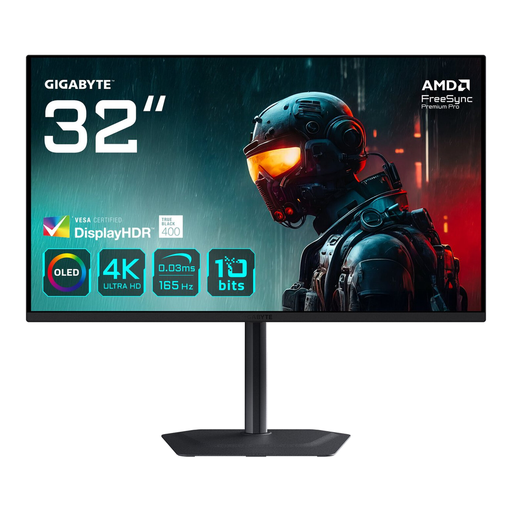
GIGABYTE MO32U
Suited to anyone considering a large 4K OLED screen; factor in how you use static game interface elements.
31.5 inch; 3840 × 2160; OLED; 165 Hz according to the product information.
ASUS says that static images displayed on OLED screens for long periods can cause burn-in; a protective feature doesn’t eliminate the risk.
Joybuy
Frequently asked questions
Is 21:9 automatically better for grand strategy?
No. A 34-inch 3440 × 1440 screen gives you a wider format than a 32-inch 3840 × 2160 screen, but the game determines how maps and menus are arranged across the display. Check the display and text scaling for each game.
How do I connect an ultrawide to get the stated maximum refresh rate?
Check the specifications for the monitor, PC output and port you’ll use. For the MSI MAG 342CQR E2 at 3440 × 1440, MSI lists a maximum of 180 Hz via DisplayPort and 100 Hz via HDMI 2.0b.
What should I consider when using OLED for long strategy sessions?
ASUS warns that high-contrast static images displayed for long periods can lead to burn-in, and describes pixel shifting as a protective feature. Check the care settings and terms for the exact model; the feature doesn’t guarantee that burn-in won’t occur.
What are my rights when buying a monitor online in the Netherlands?
ACM ConsuWijzer states that online purchases generally come with a statutory cooling-off period; for a delivered product, it ends 14 days after delivery. Check the applicable exceptions and returns policy. Statutory consumer guarantees also apply: if a product doesn’t meet what you could reasonably expect under normal use, the seller is responsible for providing an appropriate solution.
Does a computer monitor have an energy label?
The European Commission states that electronic displays, including computer monitors, are covered by energy labelling. The scale runs from A to G; check the label for the exact model.


