
Players who read card text
You want to read cards, descriptions and menus clearly from where you sit. So compare screen size, resolution and scaling settings together.


For a large playing area, a 31.5- or 32-inch QHD monitor is a sensible choice if the card text is easy to read from your viewing distance; LG and Samsung offer examples of QHD models in this size. Choose 4K if small text matters to you too, but check your games’ scaling settings and the output supported by your PC or console. Ultrawide compatibility varies by game, and with OLED it’s worth bearing in mind that interface elements can remain static on screen for long periods.
You want to read cards, descriptions and menus clearly from where you sit. So compare screen size, resolution and scaling settings together.
You want more screen space for relaxed games and are weighing up a QHD display against a higher-resolution screen or a different panel type.
You use the same monitor with, for example, a console and a laptop. Check which display modes are available for each device and connection.
Start by checking how easy card text is to read from your viewing distance. Then choose between QHD, 4K, ultrawide and OLED based on the games, devices and other uses you have in mind.
Best for: anyone looking for a large 16:9 screen who can comfortably read card text from their usual seating position.
Bear in mind: QHD has fewer pixels than 4K at this screen size; a high refresh rate won’t automatically make cards easier to read.
Best for: anyone who values small text and other detailed on-screen work, and has a device that supports the 4K output they want.
Bear in mind: check the interface and scaling settings in your games, as well as the display mode available for each connection.
Best for: anyone who will also use the extra width for other things and has checked how their game is displayed.
Bear in mind: a 21:9 aspect ratio doesn’t guarantee that every game will fill the screen.
Best for: anyone who also wants to use OLED for other games or media and has taken the model-specific care instructions into account.
Bear in mind: interface elements that remain static for long periods can contribute to image retention or burn-in on OLED screens.
| What to consider | What to look for | Who should pay particular attention? |
|---|---|---|
| Readability | Compare 31.5–32-inch QHD with 4K from your viewing distance, and check the scaling settings in the games you play most. | If I want to read cards and menus without straining my eyes, I compare resolution and scaling from my usual seat. Around 36% of consumers prioritise readability. |
| Large screen and value for money | First assess text clarity, screen size and connections; don’t use refresh rate as a measure of readability. | If I mainly want a large screen for relaxed games, I weigh up which features I really need. Around 29% of consumers prioritise value for money. |
| Connection and display mode | Check the combination of resolution, refresh rate, input and cable for your own PC or console. | When I use a monitor with multiple devices, I want to know in advance which display modes each device supports through the connection I’ve chosen. Around 21% of consumers prioritise device compatibility. |
| Interface elements that stay on screen | If you’re considering OLED, compare the maintenance features and warranty terms for the exact model. | If my game interface stays in the same place for a long time, I take that into account when choosing between OLED and LCD. Around 14% of consumers pay particular attention to static images displayed for long periods. |
Monitors of a similar size can have different resolutions, and the available display mode also depends on the connection.
First, check how card text and the interface look from your viewing distance. Then see which refresh rates your device supports through the port you plan to use.
A monitor’s resolution doesn’t tell you exactly how a particular game will display its image and interface.
Check the aspect ratio and display format of the games you play most often before choosing a wider screen.
Elements that stay on screen for long periods can contribute to image retention or burn-in on OLED screens.
Compare OLED with LCD based on how you use your screen, and check the care instructions and warranty terms for the exact model.
The available display mode can vary by model, input and connected device.
Before buying, check the exact model and compare the listed modes for the connection you plan to use.
The LG UltraGear 32GR75Q-B is an example of a flat 31.5-inch QHD IPS screen.
Samsung’s Odyssey G5 range includes curved 32-inch QHD and 34-inch ultrawide models.
The M32U is an example of a 31.5-inch 4K IPS monitor with multiple inputs and a KVM feature.
The AW3225QF is a 31.6-inch 4K QD-OLED model.
The H32S5 is an example of a curved 31.5-inch QHD monitor.
This selection from Joybuy includes large QHD monitors, a 34-inch ultrawide and a 32-inch 4K monitor. For ultrawide and 4K, check that your games and devices support the display mode you want.
 No image available
A 32-inch QHD option if you’re looking for a large screen; check how text looks from your viewing distance.
IPS panel, 2560 × 1440 pixels and a listed refresh rate of 180 Hz.
The product description mentions height, swivel and tilt adjustment.
 No image available
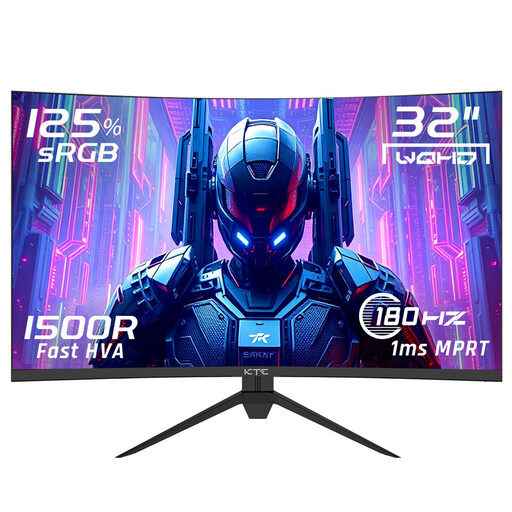
A large QHD screen to compare with other 32-inch options; check card text and scaling settings in the games you play.
The product title lists 2560 × 1440 pixels, 180 Hz and a 1500R curve.
The product description mentions an HVA panel, DisplayPort 1.4, HDMI 2.0 and tilt adjustment.
 No image available
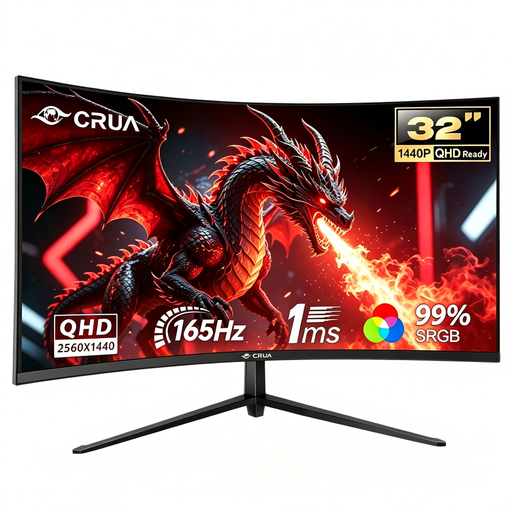
A curved 32-inch option; check the resolution and interface readability for the way you plan to use it.
The product description mentions a VA panel and a 1500R curve.
The product title lists QHD and 165 Hz; check the exact specifications for this configuration.
 No image available
An ultrawide option if you’ll also use the extra width elsewhere; check how each of your deck-building games is displayed.
The product title lists 3440 × 1440 pixels and 165 Hz.
The product description mentions a VA panel, 1500R curve, DisplayPort and VESA mounting.
 No image available
A 32-inch 4K option if small text matters to you; check your games’ scaling settings and the output supported by your device.
The product title lists 3840 × 2160 pixels, a VA panel, HDR10 and a 3000R curve.
No. Start with a screen that lets you read cards clearly from your viewing distance. Then check which display modes your device supports through the connection you’ve chosen.
Check that the monitor is set to its native resolution, then look at the scaling settings on your operating system and in the game. The available settings vary from game to game.
No. The monitor’s resolution doesn’t tell you that on its own. Check whether the specific game supports the aspect ratio before choosing a wider screen.
Avoid leaving static images on screen for longer than necessary, and follow the care instructions for your chosen model. Samsung describes image retention caused by static images displayed for long periods on its OLED monitors; don’t assume every model has the same features.
Compare the text from your viewing distance and using the scaling settings you want to use in the game. QHD has fewer pixels than 4K at the same screen size, but resolution alone doesn’t determine how a game displays its interface.