
Daily file editor
You regularly open and save large design files on a shared workstation and need storage suited to active work. Samsung Netherlands and Crucial describe external SSDs for this type of use.


For large design files that you regularly open and edit on a single shared workstation, an external SSD is usually the better fit. For projects you use less often or for backups, a higher-capacity HDD may be a good choice. If colleagues need to access the same files from different computers, consider network storage rather than assuming a USB drive will be suitable. Always keep a separate backup.
You regularly open and save large design files on a shared workstation and need storage suited to active work. Samsung Netherlands and Crucial describe external SSDs for this type of use.
You store large completed projects or backups, and value storage capacity and recoverability more than maximum working speed. Seagate describes an external HDD option; the National Cyber Security Centre advises against keeping important files in just one location.
You decide whether colleagues all use the same computer or need to access files from different computers, and what access permissions are appropriate. The National Cyber Security Centre specifically advises documenting which users can access which files when using network storage.
A good fit when: you often open, save or transfer large files on the same workstation.
Bear in mind: capacity and connectivity; quoted maximum speeds do not guarantee the same performance for every application or workload.
A good fit when: you mainly store lots of projects that you don't need to open as often.
Bear in mind: an HDD is less suitable if fast, repeated access is your main requirement. A single drive is not a separate backup, either.
A good fit when: colleagues need the same files from different computers.
Bear in mind: access permissions, management and separate backups need to be set up; a NAS is not a backup in itself.
| What to consider | What should you check? | Who is this important for? |
|---|---|---|
| Active working files | Check read and write speeds, the USB specification of the drive, workstation and cable, and how much space your active projects need. | If I often open and save large files, the connection matters as well as the drive itself. Around 33% of consumers prioritise active editing speed when making this choice. |
| Archiving and recovery | Calculate existing projects, expected growth and the versions you need to keep separately; also decide where an additional backup will be stored. | If I want to keep completed projects and recoverable versions, capacity matters more than maximum everyday working speed. Around 25% of consumers prioritise archiving and recovery when making this choice. |
| Access and set-up | Work out which computers need access, which operating systems they use, and whether shared permissions or simultaneous access are required. | If colleagues need to open files from different computers, I want to know whether a USB drive will do or whether I need network storage. Around 25% of consumers prioritise access between workstations. |
| Access security | Decide who can open project files and how access, any encryption and backups will be managed; additional measures depend on the files and working environment. | If projects contain confidential information, I want to restrict access to the right users. Around 17% of consumers prioritise confidentiality. |
Even a large or fast drive is still just one storage location. For important business data, the National Cyber Security Centre advises keeping an original and two backups on different media, with one copy stored elsewhere.
Plan separate backups and check that you can restore your files from them.
A drive connected to one shared workstation and central network storage serve different access needs. Don't assume that a USB drive is automatically suitable for sharing files with other computers.
First, note who needs access to which projects, and from which computers.
According to Kingston, the quoted speed of the Kingston XS2000 requires a USB 3.2 Gen 2x2 host port and a suitable connection. Kingston says a Mac won't reach the advertised speed over USB 3.2 Gen 2x2.
Check the full USB specifications of your computer, drive and cable before choosing a higher speed class.
Apple warns that formatting erases the files on the selected drive or partition.
Check which device you have selected and copy any existing data to another location first.
These brand examples cover active SSD storage, project archives and workstation connectivity. Product specifications and speeds are quoted by the manufacturers.
The Portable SSD T7 Shield is worth comparing for active projects when you want a portable SSD with a higher capacity.
The X9 Pro 4 TB is an SSD option to compare if you work with large active projects and use Windows or Mac.
The 5 TB Expansion Portable HDD is worth comparing for archiving files that aren't being actively edited all the time.
The XS2000 is an SSD option to compare if your workstation supports USB 3.2 Gen 2x2.
This selection includes portable SSDs for active project files and external HDDs for storage at a fixed workstation or in an archive.
 No image available
A portable SSD to compare for active project files.
1 TB storage; quoted read speed of up to 800 MB/s; drop protection from heights of up to two metres.
 No image available
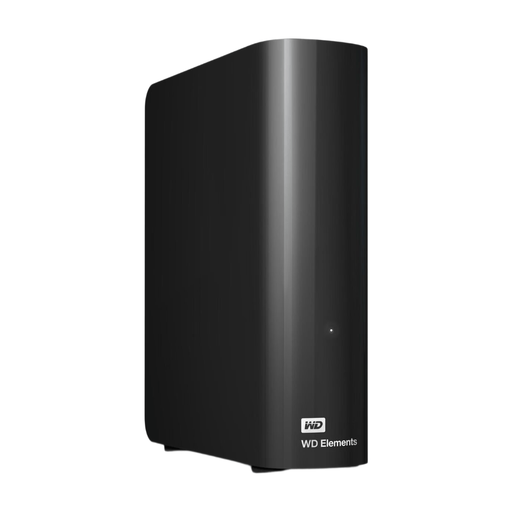
A desktop HDD to compare for storage at a fixed workstation.
6 TB storage; USB 3.0; mains adapter; NTFS format for Windows. Reformatting may be needed for use with Mac; copy any existing files before formatting.
 No image available
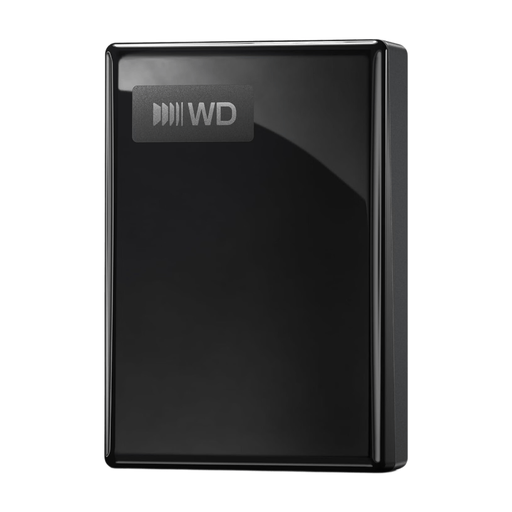
An external HDD to compare for storing project files on a workstation.
1 TB storage; mechanical hard drive; USB 3.0; portable 2.5-inch format.
 No image available
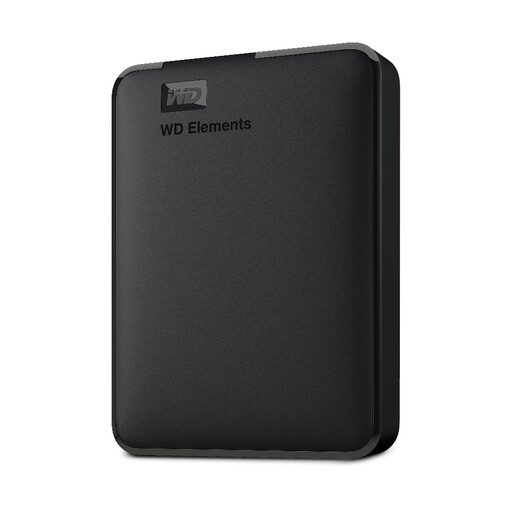
A portable external HDD to compare for project files you want to keep on a computer.
2 TB storage; USB 3.2 Gen 1; described in the product name as formatted for PC and Mac.
 No image available
A portable SSD to compare for storing and transferring files at a workstation.
1 TB storage; USB 3.2 Gen 2x2; quoted maximum read and write speeds of 2.000 and 1.800 MB/s respectively. Check that your workstation's connection and cable are compatible with the chosen interface.
Don't assume so: a USB drive connected to one shared workstation is different from storage that can be accessed from several computers. If colleagues need files from different computers, compare a managed NAS, file server or suitable cloud service. For network storage, the National Cyber Security Centre advises setting explicit user permissions.
Apple lists exFAT as a formatting option for a drive larger than 32 GB that will also be used with Windows. First check the current format and copy existing files to another location, as formatting erases data on the selected drive.
Yes. In Windows, use the safe removal feature. Microsoft recommends this for external drives to prevent data loss. On a shared workstation, make sure nobody is still using the files before disconnecting the drive.
No, not if it contains the only saved copy. For important business data, the National Cyber Security Centre advises keeping an original and two backups on different media, with one copy stored elsewhere. Also check that you can restore your files from the backup.
Not every design folder or drive automatically needs the same security measures. The Dutch Data Protection Authority states that organisations must protect personal data properly, so decide which access restrictions and any encryption are appropriate based on the files and working environment.