First, choose a laptop that runs your writing software, then test the text enlargement settings until you find a comfortable size. Next, check how much of your document remains visible: a larger screen gives you more room, while a more compact model is easier to carry around. For long writing sessions, it’s also important to be able to set up your workspace properly.
Who should consider this choice?
Columnists who need larger text
You want to enlarge text while writing and editing, rather than basing your choice solely on the physical screen size. Microsoft Support, Apple Support and Google Chromebook Help explain the enlargement settings available on their respective systems.
Columnists who write for long periods
You want to type comfortably and adjust your workspace to suit you. Arboportaal states that specific workplace requirements apply to employees who use a screen for more than 2 hours a day.
Columnists who write on location
You want to access or edit documents while you’re out and about, even without an internet connection, and weigh portability against screen space. Google Docs Help explains the requirements for working offline.
What should you look for?
Start with your writing app and the level of text enlargement you need. Then compare the visible workspace, keyboard and how often you’ll take the laptop with you.
Windows laptop
A good fit if: your writing software requires Windows, or you want to adjust your system text and document view separately.
Bear in mind: increasing the text size may mean seeing less of the document at once. Test your own app and settings.
MacBook
A good fit if: your writing workflow runs on macOS and you want to use the built-in settings for enlarging text and symbols.
Bear in mind: check that your writing app and the connections you need suit the way you work.
Chromebook
A good fit if: you mainly write in a compatible browser or web app and can make files available offline in advance when needed.
Bear in mind: check which app you need, your offline settings and the end-of-update date for the specific model.
| What to consider |
What should you check? |
Who will find this more important? |
| Enlarged text |
Test your own writing app and document at your preferred enlargement setting. Also check menus and how much of your workspace remains visible. |
If I want to read and edit my columns comfortably without losing access to important controls, this is my top priority. Around 36% of consumers give text enlargement the highest priority. |
| Typing for long periods |
Try the keyboard and consider whether a separate keyboard or monitor would work in your home workspace. |
If I write at a desk for long periods, I want to be able to adjust my posture and workspace. Around 29% of consumers prioritise a comfortable typing and workspace set-up. |
| On the go and offline |
Weigh screen size against portability, and test whether you can open and edit your files without an internet connection. |
If I write on location or don’t always have an internet connection, I want my documents close at hand. Around 21% of consumers prioritise portability and offline access. |
| Writing software |
Check the required app and file format. Try enlarging, editing and returning a document. |
If my editorial team uses a specific app or file format, it needs to work with my laptop. Around 14% of consumers give compatibility with their editorial workflow the highest priority. |
What to watch out for
-
Focusing only on the screen diagonal
The level of enlargement you need also affects how much text and how many controls remain visible at once.
Open your own document and writing app at the enlargement setting you actually use. Only then compare screen sizes.
-
Assuming a Chromebook works offline by default or supports every writing app
To work offline in Google Docs, you need to set up access in advance and make files available offline. The writing app you use also needs to be compatible with the device.
Test a sample document and set up offline access before relying on it.
-
Assuming every laptop comes with a charger
According to the product information, the HP ProBook configuration described by HP Store Netherlands does not include a charger.
Check what’s included in the offer and which charger is compatible with the exact configuration.
For this HP configuration, you’ll need to factor in the cost of buying a compatible charger separately.
Brands to compare
HP
The HP ProBook 4 G1i 16 configuration D4TM6EA#ABH is a useful point of comparison if you’re looking for a larger Windows workspace and on-site support.
- For this configuration, HP lists a 16-inch, 1920 × 1200 screen, HDMI and USB-C connections, and a three-year warranty with on-site support.
- According to HP Store Netherlands, the charger is sold separately. The model specifications don’t tell you how comfortable the screen or keyboard will feel to use.
Apple
The MacBook Air range includes a 15-inch option for anyone who writes on macOS and wants to balance screen space with portability.
- Apple Support explains how to enlarge text and symbols on a Mac.
- Check the exact memory and storage configuration, your writing app and the connections you need. Apple’s battery figures are based on the usage conditions it describes.
Lenovo
The IdeaPad Slim 5 15ARP10 is a Windows range worth comparing if connections for a home workspace and a mid-sized screen are important to you.
- Lenovo lists HDMI, USB-C and a microSD card reader in the specifications sheet.
- Configurations can vary. Check the processor, memory, battery and screen for the full specification you’re considering.
Laptops at Joybuy
This selection includes Windows laptops and a MacBook for writing columns with enlarged text. Test your preferred display settings and writing software on the exact configuration.
 No image available
HP OmniBook 3 16-by0058ndx 16-inch Laptop
A Windows configuration to compare if you’d like a larger workspace. Test your writing app with your preferred text enlargement setting.
AMD Ryzen 5 7520U, 8 GB RAM, 512 GB SSD, 2K IPS display and Windows 11 Home.
According to the product information, the charger is not included and is sold separately.
View at Joybuy
 No image available
ASUS Vivobook S16 S3607QA-SH109W
A Windows model to compare with your writing software. Check whether your preferred enlargement setting works comfortably with your own documents.
16-inch WUXGA OLED, Snapdragon X processor, 16 GB LPDDR5X, 512 GB SSD and Windows 11 Home.
View at Joybuy
 No image available
MSI Modern 14 F1MG-867NL
A more compact Windows model to consider if you also write on the go. Try the keyboard and screen for yourself.
14-inch Full HD IPS-Level screen, Intel Core 7 150U, 16 GB DDR4, 512 GB SSD and Windows 11 Home.
View at Joybuy
 No image available
Apple MacBook Air 15-inch M5 16GB 512GB – Starlight – QWERTY Keyboard
A macOS configuration to compare if your writing workflow runs on a Mac. Test text enlargement in your own writing app.
15-inch configuration, 16 GB memory and 512 GB storage.
According to the product information, the power adapter is not included. A 35 W or higher USB-C adapter is required.
View at Joybuy
 No image available
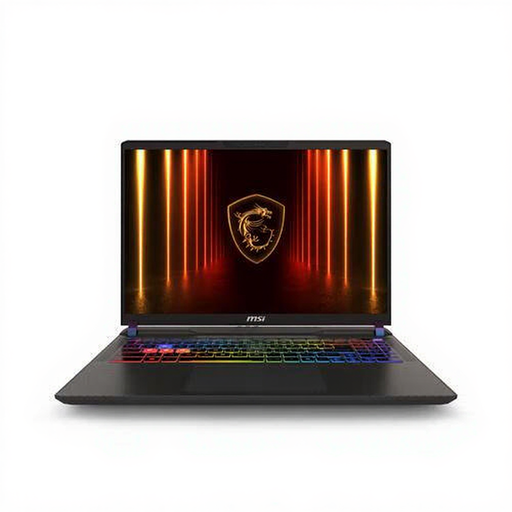
MSI Vector A16 HX A8WIG-025NL
A Windows configuration with a large screen to compare. Decide for yourself whether its size suits your workspace and how you use it on the go.
AMD Ryzen 9 8940HX, 16 GB DDR5, 1 TB SSD, NVIDIA GeForce RTX 5080 and QWERTY keyboard.
The product information gives a weight of 2.7 kg. Bear this in mind if you plan to carry the laptop around often.
View at Joybuy
Frequently asked questions
Does zooming in on a document also make the letters in your submitted column larger?
As Microsoft Support explains, document zoom changes how much of the document you can see on screen. Check the final document formatting separately before submitting your column.
Can you use Google Docs when writing without an internet connection?
Yes, if you set up offline access in advance and make the required file available offline. Google Docs Help also lists sufficient local storage and the right browser settings as requirements.
If you’re an employee who writes for long periods, should you be able to use a separate keyboard or monitor?
According to Arboportaal, workplace requirements apply to employees who use a screen for more than 2 hours a day: when using a laptop, they must be able to use a separate monitor or keyboard. This is not a general buying requirement for every private individual who writes columns.
What are your rights if the laptop you bought online disappoints or breaks down too soon?
For eligible online consumer purchases, you generally have a 14-day cooling-off period from delivery. Check the applicable exceptions and returns conditions with ACM ConsuWijzer. You’re also covered by the legal guarantee if, under normal use, a product does not meet what you could reasonably expect. The retailer is your point of contact.


