
Writer working with two documents
Keeps the guide and funding rules in view at the same time, and prioritises readable windows and a comfortable screen. Microsoft Support explains how to display windows or Word documents side by side.


Start by choosing the document software and file features your team and funding provider need. Then decide how much screen space you’ll find comfortable for reading the source and your draft at the same time. Windows, macOS and ChromeOS all let you arrange windows side by side, but check that your files and features work with your chosen system. Microsoft Support, Apple Support and Google Chromebook Help explain how.
Keeps the guide and funding rules in view at the same time, and prioritises readable windows and a comfortable screen. Microsoft Support explains how to display windows or Word documents side by side.
Shares drafts with others and chooses a laptop based on the required document software and features, not just screen size.
Also writes away from their usual workspace, weighing portability and offline access against the space needed for two documents. Google Docs Help explains how to set up offline access.
A good fit if: your team uses Word and wants to work with documents or other windows side by side; Microsoft Support explains both options.
Check: that the Word features and software you need are available on the configuration you choose.
A good fit if: the writing software and file-sharing options you need work with your macOS workflow; Apple Support explains how to arrange windows side by side.
Check: that the apps and features you need are available before choosing macOS. Apple presents the 15-inch MacBook Air as offering more room for multitasking.
A good fit if: your workflow works with browser-based documents and the file features you need; Google Chromebook Help explains how to split windows.
Check: set up Google Docs for offline work in advance and check the specific device’s update period. Snap Groups requires ChromeOS M128 or later.
Start with the software and file features you need, then compare screen space, portability and offline use.
| What to consider | What should you check? | Who should pay particular attention? |
|---|---|---|
| Readable documents side by side | Open an actual source file and your draft at the same time; assess the screen size and resolution of the exact configuration. | If I want to read source text and my draft at the same time while writing, I focus on usable screen space. Around 36% of consumers prioritise being able to read documents side by side. |
| Documents and features | Ask which file formats and specific features your team uses, and test a sample file in the app you plan to use. | Anyone sharing files with others will want to make sure the required features work on their chosen system. Around 29% of consumers give top priority to compatibility with documents and collaboration. |
| Portability and working offline | Compare the weight of the exact configuration and try out your offline workflow with your files. | If I write in different locations, I want to be able to take my laptop with me and carry on working without an internet connection if necessary. Around 21% of consumers prioritise portability and offline working. |
| Memory and storage | Choose memory to suit the number of programmes you use at the same time, and storage to suit the files you keep. | Anyone who mainly writes will want the right capacity without paying for features they don’t need. Around 14% of consumers see memory and storage as the most important factors. |
Screen size alone doesn’t tell you whether two documents will fit side by side and remain readable at your preferred text size.
Try the layout with an actual source file and draft, and compare the resolution of the exact configuration.
Being able to split windows doesn’t guarantee that every document feature you need is available. You’ll need to set up offline working with Google Docs in advance.
Test a representative file in the app you plan to use, and check that the files you need are available offline before you set off.
A manufacturer’s warranty is separate from the seller’s responsibility if a product is faulty. The Government of the Netherlands says there is no fixed statutory guarantee period that applies to all products in the Netherlands.
If a product is faulty, contact the seller and check what cover any additional warranty offers.
For the OmniBook 5 16-bm0615ndx, HP lists Windows 11 Home, 16 GB RAM, 512 GB SSD and a 16-inch screen.
For the IdeaPad Slim 5 16, model number 82XG0094MH, Lenovo specifies an anti-glare 16-inch screen with a resolution of 1920 × 1200 pixels and Windows 11 Home.
Apple offers the MacBook Air in 13- and 15-inch configurations, describing the larger model as offering more room for multitasking.
The ASUS Vivobook 16 X1607 is a Windows range with a 16:10 screen; specifications vary by configuration.
According to Acer, the Acer Chromebook Plus 516 CB516-1HT-54CM has a 16-inch screen with a resolution of 1920 × 1200 pixels, 8 GB RAM and 256 GB SSD.
Below are some Joybuy laptops to consider for working with multiple document windows. Check the screen size, software and features you need for each model.
 No image available
A Windows 11 Pro configuration to consider if you want to snap windows into place while writing.
16-inch screen, 1920 × 1200, 144 Hz, Intel Core Ultra 7 255H, 32 GB DDR5 RAM and 512 GB PCIe 4.0 SSD.
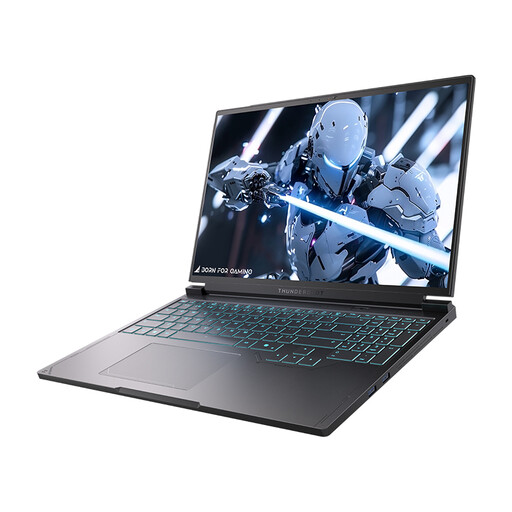 No image available
Its 16-inch screen makes this a model worth considering if you want two document windows on the same screen.
16-inch QHD+ 240 Hz screen, Intel Core i7-13650HX, NVIDIA GeForce RTX 5060, 16 GB DDR5 RAM and 1 TB SSD.
 No image available
A 15-inch MacBook Air to consider if the apps and file features you need work with macOS.
15-inch, M5, 16 GB memory and 512 GB storage. According to the product description, the power adapter isn’t included; a USB-C adapter of at least 35 W is required.
 No image available
A Windows 11 Home configuration to compare if you want to snap windows into place in Windows.
15.6-inch Full HD screen, Intel Core 7 150U, 16 GB RAM and 512 GB SSD.
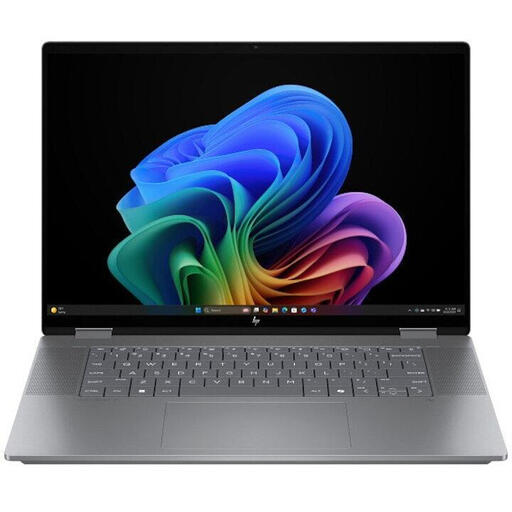 No image available
An HP OmniBook X Flip to include in your comparison of laptops for working with documents.
Check the screen size, memory and accessories included with the exact configuration before you choose.
In Windows, you can snap windows side by side, according to Microsoft Support. Microsoft also explains how to display open files side by side in Word. Check that this feature is available in the version you use, and try the layout on the screen you’ve chosen.
Yes, if you set up offline access in advance using the browser, extension and settings described in Google Docs Help. If necessary, make important source files available offline individually, and test this before working without an internet connection.
No, an extended warranty isn’t required for your statutory rights. According to the Government of the Netherlands, the seller is responsible for putting things right if a product is faulty; there is no fixed statutory guarantee period that applies to all products in the Netherlands. Check what cover an additional plan provides.
According to the Government of the Netherlands, in many cases you have 14 days to change your mind when buying online from a business. The rules for distance selling don’t apply in the same way to an online purchase from a private individual.