
Teacher who uses school software
You create lessons and presentations, and want to check in advance that your school’s programmes and digital learning environment will work.


Start with your school’s software and access requirements. Choose a Windows laptop if essential programmes require Windows, and consider a Chromebook only if browser apps will do the job. Microsoft Support confirms that Microsoft 365 web apps are available on Chromebooks, but you can’t install the Windows or Mac desktop versions on them. Then choose a screen size and level of portability to suit your workspace. If you’ll be working for longer periods, you’ll also need to consider how your kitchen table is set up.
You create lessons and presentations, and want to check in advance that your school’s programmes and digital learning environment will work.
You read, write and compare documents during longer lesson-planning sessions, so screen space and the layout of your workspace matter.
You take your laptop between the kitchen table and school, weighing up screen space against size and portability.
| What to consider | What should you check? | Who is this important for? |
|---|---|---|
| School software | Ask which programmes, browser features and account access are essential. Also check the rules for school devices and pupil data. | If you want to make sure your school software and access will work before anything else, compatibility is your main concern. Around 33% of consumers put this need first. |
| Screen and workspace | Compare the screen size, resolution and finish of the exact model. Consider whether a separate mouse, keyboard, stand or external monitor will fit into your workspace. | If you work at a table for longer periods, you’ll want to read documents comfortably and set up your workspace to suit you. Around 27% of consumers prioritise this need. |
| Taking it between locations | Compare the stated weight, dimensions and ports. Consider battery life alongside the manufacturer’s testing conditions. | If you regularly take your laptop to school, a manageable size matters, as well as enough screen space. Around 20% of consumers prioritise carrying their laptop between workplaces. |
| Specifications and overall cost | Work out how many programmes you’ll have open at once and how many files need to be stored locally. Check whether the memory can be upgraded and what’s included with the model. | If you want to prepare lessons without paying for capacity you won’t use, compare the specific configurations. Around 20% of consumers prioritise keeping the overall purchase cost appropriate to their needs. |
Microsoft 365 web apps are available on Chromebooks, but Microsoft Support says the Windows and Mac desktop versions of Office can’t be installed on them.
Ask your school which applications, features and access requirements apply to your lessons.
A separate stand, mouse, keyboard or external monitor may be part of the set-up you need.
Screen technology and memory can vary between configurations. The Acer Aspire Go 15 tested has a TN screen, while the Acer Chromebook Plus 514 mentioned has a matt IPS screen. The Lenovo configuration tested has soldered memory.
Compare the full model or part number with the specifications of the configuration you want to buy.
A Joybuy listing reviewed for a MacBook Air doesn’t mention a charger. What’s included can vary between configurations.
Before buying, check what’s in the box and which accessories or software licences you already have.
If you need a power supply, adapter or software licence, factor in buying it separately.
The IdeaPad Slim 3 range includes Windows models for everyday document work. The 82XQ00SHMH model reviewed has a 15.6-inch screen.
Acer offers Windows models in the Aspire Go range, as well as Chromebook Plus models. The right choice depends partly on the software you need and the specific configuration.
The 13-inch MacBook Air with M5 is a macOS option if your school’s applications work with macOS.
These Joybuy laptop picks are aimed at lesson preparation and include models whose product information lists Windows 11 Home. Check that your school’s software is compatible with each configuration.
 No image available
The product information lists Windows 11 Home, making it suitable for lesson preparation using Windows software.
16-inch IPS touchscreen with 1920 × 1200 resolution; 16 GB of memory.
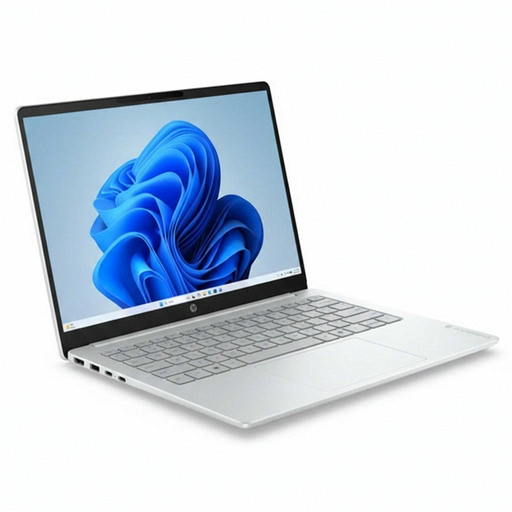 No image available
The product information lists Windows 11 Home for use with Windows software.
14-inch IPS screen with 1920 × 1200 resolution; Intel Core 3 304; 8 GB of memory; 512 GB SSD.
 No image available
The product information lists Windows 11 Home and an anti-glare screen for working with lesson materials.
14-inch IPS screen with 1920 × 1200 resolution; AMD Ryzen 5 7520U; 8 GB of memory; 512 GB SSD.
The product information states that a charger is not included.
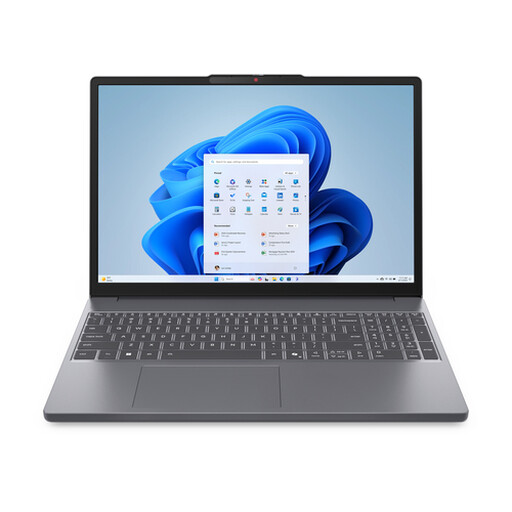 No image available
The product information lists Windows 11 Home, making it suitable for lesson preparation using Windows software.
15.3-inch anti-glare IPS screen with 1920 × 1200 resolution; AMD Ryzen 7 8840HS; 16 GB of memory; 512 GB SSD; QWERTY keyboard.
The product information states that a charger is not included.
 No image available
The 15.6-inch IPS screen is one size option to consider for working with documents at the table.
15.6-inch FHD IPS screen; 16 GB DDR4 memory; 512 GB SSD; 3050E processor; fingerprint unlocking; backlit keyboard.
Yes. Microsoft Support lists web versions of Word, Excel and PowerPoint, among other apps, for Chromebooks. The Windows and Mac desktop versions can’t be installed on them. Check which features and access your school needs.
Not always; your workspace and set-up matter too. Arboportaal recommends a workspace that can be adjusted properly. For employees who spend more than 2 hours a day working with a screen, Arboportaal lists requirements stating that the screen and keyboard must not be attached to each other. If needed, discuss your workspace and any relevant arrangements with your employer.
Ask your school what rules apply to access, storage and devices. The Dutch Data Protection Authority outlines schools’ accountability obligations under the GDPR and measures to protect pupils’ personal data. Having a laptop alone doesn’t show that these requirements have been met.
When you buy as a consumer, you have a statutory right to a product that meets the standards you’re entitled to expect. This isn’t simply limited to a stated two-year manufacturer’s guarantee. Online purchases generally come with a 14-day cooling-off period, subject to statutory exceptions. Before ordering, check who the seller is and what’s included with the product.