Start with the meeting app and software required by your course: Teams, Zoom and Google Meet have different requirements for background blur. A sharp webcam alone doesn’t guarantee that your background will be masked. Then choose between effects built into the app, a Windows laptop with Windows Studio Effects, or a Mac with video effects, and weigh that choice against memory, portability and cost.
Who is this buying guide for?
Students who want to keep their room private
You make video calls from a shared or untidy room and want to check whether your meeting app can really blur or replace the background. Microsoft Support, Zoom Support and Google Meet Help point out that this feature can depend on the app and device.
Students who need specific course software
As well as handling video calls, your laptop needs to run the programmes required by your course. Check the software and system requirements before choosing an operating system or model; Consumentenbond advises matching the configuration to how you plan to use it.
Students who take their laptop with them every day
You move between your room, lectures and the library, and need to balance a portable size with enough screen space for studying and video calls.
What should you look for when choosing?
| What to consider |
What should you check? |
Who should give this more weight? |
| Background blur |
Check whether your version of Teams, Zoom or Meet offers the feature on the device you’re considering. Zoom has its own device requirements for blurring without a green screen, so test the feature in advance using your own account. |
If I make calls from a shared or untidy room, I want to know before a lesson whether my app can blur the background on this device. Around 33% of consumers give background privacy their top buying priority. |
| Study software |
Find out which programmes and operating systems your course requires, then compare them with the exact laptop configuration. |
If my course requires specific software, I want to make sure it works on my chosen system first. Around 27% of consumers give compatibility with their studies top priority. |
| Portability |
Compare the screen size and weight of the exact configuration, and think about how much screen space you need when studying on the go. |
If I take my laptop between my room, lectures and the library every day, size matters alongside workspace. Around 20% of consumers give portability top priority. |
| Purchase cost |
Compare the complete configuration, the features you need and what’s included, such as a power adapter. |
If I’m choosing within my own budget, I don’t want to pay for extra camera effects I won’t use. Around 20% of consumers give purchase cost top priority. |
Common buying mistakes
-
Assuming a sharp webcam guarantees background privacy
Whether blur is available and how well it works depend on the app and device. Microsoft Support and Google Meet Help also warn that sensitive details may still be visible despite a background effect.
Test your meeting app in a practice call, and move identifiable documents or other sensitive items out of view.
-
Paying for extra camera effects when the app’s own blur is enough
Windows Studio Effects has its own hardware requirements, while meeting apps may also offer their own background features. So a Copilot+ label isn’t automatically necessary for app-based blur.
First decide which feature you want to use, then check its requirements for the exact model.
-
Assuming every configuration in a laptop range is the same
Memory, storage, keyboard and included accessories can vary between configurations.
Check the full model number, RAM, SSD, keyboard and box contents for the configuration you’re considering. Also check whether a power adapter is included.
Brands to consider
Lenovo
The Yoga Slim 7i Gen 11 Aura Edition is a compact Windows Copilot+ option. Lenovo Netherlands lists a 14-inch screen, 16 GB of memory and 512 GB of SSD storage for configuration 83R0CTO1WWNL3.
- The configuration listed comes with 16 GB of memory and 512 GB of SSD storage.
- Copilot+ alone doesn’t tell you which effects are available in every meeting app. Check the exact configuration, the app and the keyboard you need.
Acer
The Aspire 14 AI OLED A14-52M, configuration NX.JFVEH.00C, is a 14-inch Windows Copilot+ model. Acer lists 16 GB of memory, 1 TB of SSD storage and an NPU rated at 47 TOPS for this configuration.
- The stated NPU specification exceeds the more-than-40-TOPS threshold Microsoft gives for the full range of Windows Studio Effects.
- Microsoft notes that available effects can vary by device. The NPU specification therefore doesn’t show how background separation will look during a call; check the exact model and test the feature.
Apple
The MacBook Air with M5 chip offers a macOS option with supported Apple video effects and meeting-app features. Apple Netherlands lists 16 GB of memory and 512 GB of storage for the 13-inch base configuration; Apple Support explains Portrait mode for background blur.
- If you choose a Mac, you can consider Portrait mode or the background feature in your meeting app.
- Available effects may depend on the Mac model, macOS and the app. Also check that your course software works and that the ports suit your needs.
HP
The HP OmniBook 3 range includes the 14-hy0620ndx with Windows 11 Home, 16 GB of RAM and 512 GB of SSD storage, according to HP Netherlands.
- The configuration listed is one option for general study tasks.
- Check the background feature in your meeting app and confirm the configuration and included accessories for the exact model.
Laptops on Joybuy
This Joybuy selection includes laptops for studying and video calls. Whether background blur is available depends on the meeting app and the exact configuration.
 No image available
MSI Modern 14 F1MG-867NL, Core 7 150U, 16 GB, 512 GB SSD
A 14-inch configuration to consider if you’re looking for a laptop for studying and everyday use on the go.
Intel Core 7 150U, 16 GB DDR4 memory and 512 GB of SSD storage. Check that it supports the meeting app you use.
Joybuy
 No image available
Apple MacBook Air 15-inch M5, 16 GB, 512 GB, Starlight, QWERTY
A MacBook option if macOS suits your course and you’re weighing the screen space of a 15-inch model against portability.
16 GB of memory, 512 GB of storage and a QWERTY keyboard. Check that your meeting app and course software support the features you want.
Joybuy
 No image available
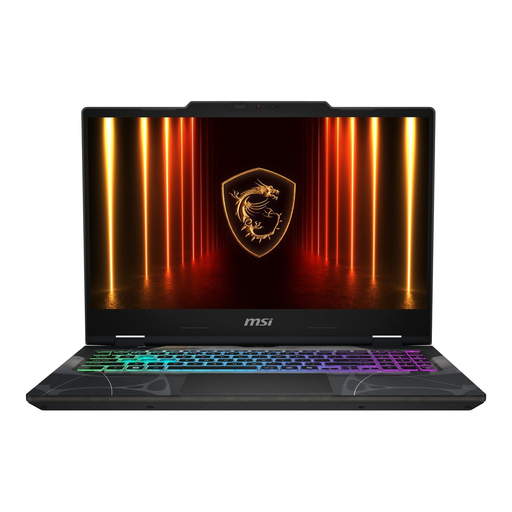
MSI Cyborg 15 B2RWEKG-085NL, Core 5 210H, 16 GB, 512 GB SSD
A Windows laptop with a 15.6-inch screen to consider if you’re weighing a larger display against carrying it around every day.
Intel Core 5 210H, 16 GB DDR5 memory, 512 GB of SSD storage and an NVIDIA GeForce RTX 5050. The power adapter must be purchased separately.
Joybuy
 No image available
Samsung Galaxy Book4 NP750XGK-KG3NL, 15.6-inch, Core 7 150U
A Windows configuration for studying if you prefer a 15.6-inch screen and the laptop software suits your course.
16 GB of RAM, 512 GB of SSD storage, Full HD and Windows 11 Home. Check support for background blur in your app separately.
Joybuy
 No image available
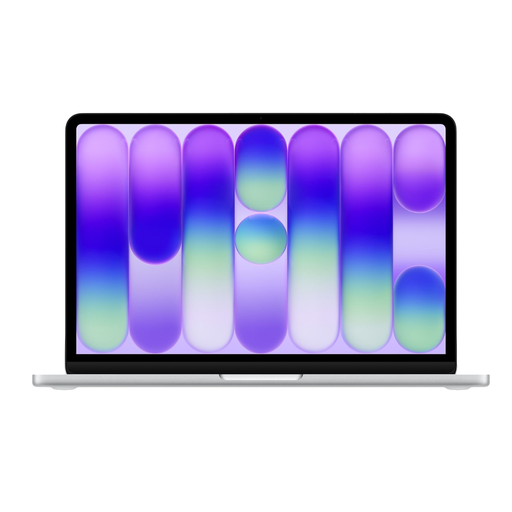
Apple MacBook Neo 13-inch A18 Pro, 8 GB, 512 GB, Silver, QWERTY
A compact MacBook option if your course software works on macOS and you’re looking for a 13-inch screen.
8 GB of memory and 512 GB of storage. Consumentenbond describes 8 GB as suitable for light use and recommends considering 16 GB if possible. This configuration requires a USB-C power adapter of at least 20 W, sold separately.
Joybuy
Frequently asked questions
Do I need a Copilot+ laptop to blur my background in Teams or Zoom?
No, not just for that: Teams has its own background blur feature, and Zoom offers Blur on devices that meet its requirements. Windows Studio Effects is a separate option with its own hardware requirements; check whether your exact device supports the effects you want.
How do I set up blur before a lecture call?
On the Teams pre-join screen, choose blur from the video effects and check the preview. In the Zoom desktop app, you’ll find Blur under backgrounds; check in advance whether the option is available with your device and account.
Is blur enough to hide personal information in my room?
No, it’s not guaranteed. Microsoft Support and Google Meet Help warn that sensitive information may still be visible; move identifiable documents out of view and check the video preview.
What cooling-off period and warranty apply to an online purchase in the Netherlands?
According to ACM ConsuWijzer, online consumer purchases generally come with a statutory cooling-off period of up to 14 days after delivery. You’re also entitled to a product that meets what you could reasonably expect; a manufacturer’s warranty is separate from this statutory right.
Should I buy an extra warranty plan if the manufacturer offers a warranty?
No, you don’t need an extra plan to have statutory warranty rights. These apply alongside any manufacturer’s or seller’s warranty; assess a paid plan separately, looking at the extra cover and exclusions.


