Who are these laptop options for?

Student who annotates plans

If you want to add notes or sketches to digital plans, look at the combination of screen, compatible stylus and annotation app. Lenovo lists the stylus as optional for the Yoga 7 configuration reviewed here; Microsoft explains how to use a stylus in apps that support handwriting.

Student who needs specific design software

If you use CAD, BIM or image-editing software for your course, first check the requirements for the prescribed programme and the right version. TU Delft lists Windows as the standard for its laptop project; Autodesk and Adobe requirements apply to specific programmes and versions.

Student who reads large plans

If you view detailed plans alongside scans or handwritten sources and do little writing on screen, weigh up screen size and finish against how you carry your laptop. Lenovo specifies a 16-inch glossy touchscreen for the Yoga 7 version reviewed here.

What should you look for in a laptop for studying plans?

Stylus-compatible 2-in-1

Suitable if: you want to add handwritten notes or sketches to digital plans.

Bear in mind: a touchscreen alone does not guarantee stylus compatibility; Lenovo lists the stylus as optional for the Yoga 7 version reviewed here.

Standard laptop with room for plans

Suitable if: you mainly read plans and existing notes, rather than writing directly on the screen.

Bear in mind: you cannot write directly on the laptop screen with a stylus; also check the requirements for your design software.

Compact macOS laptop

Suitable if: your course supports macOS for all required applications and you want a more compact laptop.

Bear in mind: TU Delft lists Windows as the standard, and Autodesk specifies Windows for Revit 2026. Check whether macOS will work for each software package.

What to consider What to look for Who is this important for?
Writing on screen Check the stylus model, device compatibility, support in the annotation app and whether the stylus is included. If you want to add your own notes or sketches to digital plans, the stylus, laptop and app need to work together; around 34% of consumers put on-screen annotation first.
Course software Ask your course provider which programme, version and operating system you need, then compare these requirements with the exact configuration. Autodesk recommends 32 GB of memory for AutoCAD 2026 on Windows; this is not a general requirement for reading plans. If your course requires a particular CAD, BIM or image-editing package, its system requirements take priority over your preferred brand or form factor; around 33% of consumers put software compatibility first.
Plan space and readability Compare the screen size, resolution and finish of the exact model; where possible, view a representative plan and scan on the screen. If you view a plan alongside a handwritten source, you need to be able to assess the detail rather than relying on screen size alone; plan viewing is the top priority for around 20% of consumers.
Taking it between study spaces Weigh the size and weight of the model against the screen space you need, and check how battery-life claims were tested. If you often take your laptop between study spaces, portability matters alongside having enough room to view plans; around 13% of consumers put portability first.

Pitfalls to avoid when buying

  • Assuming a touchscreen is a complete writing solution

    To write on screen, you need a compatible stylus and an app that supports handwriting. Lenovo lists the stylus as optional for the Yoga 7 version reviewed here.

    Before buying, check that the stylus works with the exact device, that your app supports handwriting and what is included in the box.

    Depending on the configuration, you may need to buy a compatible stylus separately.

  • Choosing a laptop before checking which software you need

    System requirements for Photoshop, AutoCAD and Revit vary by programme and version. So a general label such as ‘student laptop’ does not tell you whether a particular configuration meets your course requirements.

    Ask your course provider for the programme names, versions and system requirements, then check them against the exact laptop configuration.

  • Treating the stated battery life as a guarantee for a full study day

    Apple gives separate maximum battery-life figures for video streaming and wireless internet use. These conditions are not the same as working on a design or GIS project.

    Compare the test conditions behind battery-life claims and consider access to a power socket for more demanding tasks.

  • Comparing only the laptop and forgetting the accessories

    For the Lenovo Yoga 7 version reviewed here, Lenovo lists the stylus as optional; HP lists a separately available charger for the OmniBook X Flip version reviewed here.

    Check which accessories are included with the exact model and which ones you need for the way you work.

    Depending on the configuration, a stylus or charger may need to be bought separately.

Brands worth comparing

Lenovo

The Yoga 7 2-in-1 Gen 10 is worth comparing if you want a convertible screen and space to view plans.

  • Lenovo specifies a 16-inch WUXGA touchscreen and 16 GB of soldered memory for configuration 83JU0027MH.
  • The screen is glossy, and Lenovo says the stylus is sold separately.

HP

The OmniBook X Flip 14 is a smaller Windows 2-in-1 to consider alongside larger convertibles.

  • HP specifies a 14-inch touchscreen, 16 GB RAM and a 512 GB SSD for model 14-fm0601ndx.
  • The charger is listed separately for this model. Check stylus compatibility and what is included in the box separately.

Dell

The Dell 14 Plus 2-in-1 DB04250 is a configurable Windows convertible to compare for studying and making annotations.

  • Dell offers a range of configuration options for this model, including the processor and memory.
  • Check the specifications of the model you choose; features can vary between configurations.

Apple

The 13-inch MacBook Air with M5 is a compact macOS option if your course supports the software you need and you do not need stylus input on the laptop screen.

  • Apple specifies 16 GB of unified memory and a 512 GB SSD for the base model. QGIS is available for macOS.
  • TU Delft lists Windows as the standard, and Autodesk specifies Windows for Revit 2026; check the requirements for every programme your course requires.

Microsoft

Surface devices are worth considering if writing on screen is a key requirement.

  • Microsoft explains how to write with Surface pens in apps that support handwriting and provides information about stylus compatibility.
  • General information about pens does not confirm that a specific Surface device, stylus and keyboard are supplied together.

Joybuy laptops for studying plans and making annotations

This Joybuy selection includes Windows laptops with larger screens for viewing plans, as well as 2-in-1 models for touch or stylus input. Check the requirements for the software used on your course, and separately confirm whether a compatible stylus is included with any 2-in-1.
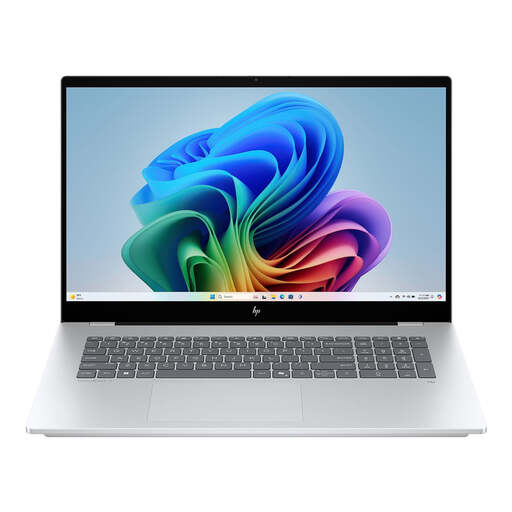
HP OmniBook 7 NG AI PC 17-dc0051nd

HP OmniBook 7 NG AI PC 17-dc0051nd D75LTEA#ABH

The 17.3-inch display could suit you if you want to view plans on a large built-in screen.

17.3-inch Full HD IPS touchscreen, 16 GB LPDDR5X memory, 512 GB SSD and Windows 11. The product description says the charger is sold separately.

View at Joybuy

HP OmniBook X Flip NG AI PC 16-as0050nd

HP OmniBook X Flip NG AI PC 16-as0050nd D75LQEA#ABH

The 2-in-1 design and 16-inch touchscreen could suit you if you want to view digital plans in different screen positions.

16-inch touchscreen, 16 GB memory, 512 GB SSD and Windows 11 Home. Check separately whether a compatible stylus is included with this model.

View at Joybuy
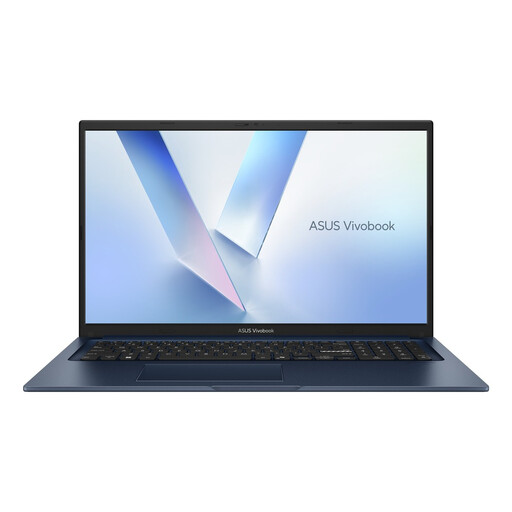
ASUS Vivobook 17 X1704MA-AU153W

ASUS Vivobook 17 X1704MA-AU153W

This model could suit you if a 17.3-inch Full HD screen for viewing plans matters more than writing on screen.

Core 5 320, 8 GB RAM, 256 GB SSD and Windows 11 Home. Check that the memory and storage configuration meets the requirements of your course software.

View at Joybuy

ASUS Vivobook S16 S3607QA-SH109W

ASUS Vivobook S16 S3607QA-SH109W

The 16-inch WUXGA OLED screen could suit you if you want a spacious display for plans and studying.

Snapdragon X processor, 16 GB LPDDR5X memory, 512 GB SSD and Windows 11 Home. Check that the required software runs on this configuration.

View at Joybuy

Lenovo Yoga 9 16N1X11 83N70020MH

Lenovo Yoga 9 16N1X11 83N70020MH

This 2-in-1 model lists stylus input and could suit you if you want to add notes to digital plans.

16-inch OLED touchscreen with 2880 × 1800 resolution, 32 GB memory, 1 TB SSD and Windows 11 Home. Check whether the stylus you want is included with this model and is compatible.

View at Joybuy

Frequently asked questions

Do I need a laptop with a stylus to read existing handwritten notes?

No, not if you only need to read them. If you want to write on digital plans yourself, check that the device, stylus and app support handwriting; Microsoft explains how to use a stylus with apps that support it.

Can I install my course software on a MacBook or a Windows laptop with an ARM processor?

That depends on the programmes and versions required by your course. QGIS offers a macOS installation, while Autodesk specifies Windows for the standard installation of Revit 2026. Check the current requirements for each application and your course provider’s recommendations.

How do I get started with handwritten notes on screen?

First, check that a stylus is compatible with your device and use an app with handwriting support. Then follow the instructions for using or pairing the stylus; features can vary between apps.

Which accessories and service details should I check in advance?

Check whether a compatible stylus and charger are included with the exact model, and review the seller’s warranty and repair terms. Lenovo lists the stylus as optional for the Yoga 7 version reviewed here, and HP lists a separately available charger for the OmniBook X Flip version reviewed here. According to the Dutch government, the seller is the point of contact for resolving issues with a faulty product.

Do I have a cooling-off period when buying a laptop online in the Netherlands?

According to the Dutch government, when you buy from a business at a distance, you generally have a 14-day cooling-off period. There are exceptions, and the rules differ when buying from a private individual; check which terms apply to your purchase.
