
Sketching on screen
You want to draw façade outlines and decorative details directly on a convertible screen. Check whether the exact model supports the pen you want and whether it’s included.


If you want to sketch façade details directly on your laptop screen, choose a 2-in-1 whose pen compatibility is clearly confirmed. If you mainly work with a pointer or a separate graphics tablet, a standard laptop may be enough. Then compare the screen size and memory configuration of the exact model, and check whether the pen, keyboard or any other accessories you need are included. A larger screen gives you more room to work, but is less compact to carry around.
You want to draw façade outlines and decorative details directly on a convertible screen. Check whether the exact model supports the pen you want and whether it’s included.
You mainly build your illustration using digital shapes, layers or reference images, and need enough screen space and memory for the way you work.
You take your laptop to locations or community presentations, and need to weigh screen size against how easy the model is to carry.
Choose this option: if you want to draw sketch lines directly over a digital façade and show the result on the same device.
Bear in mind: for the Yoga 7 and Surface Pro models described, the pen is sold separately; for the Surface Pro, the keyboard is too. Check the model you’ve chosen.
Choose this option: if you mainly work with a keyboard and pointer, and drawing on the laptop screen isn’t a priority.
Bear in mind: the MacBook Air models described are available with 13- and 15-inch screens; the information cited doesn’t confirm pen input on the laptop screen.
Choose this option: if screen space or a specific creative configuration matters for more than just façade illustrations.
Bear in mind: ASUS lists a 16-inch screen and several configurations for the ProArt P16. Check that the specifications you choose suit the work you do.
| What to consider | What should you check? | Who is this important for? |
|---|---|---|
| Drawing with a pen | Check pen support for the exact model and what’s included in the box. | If I want to sketch directly on the screen, I need to know whether my pen works with this model and is included. Around 33% of consumers give top priority to drawing directly on screen. |
| Screen space and detail | Compare the screen size and specifications of the exact model; if needed, check colours on the final presentation or print medium. | When I’m working on small façade details on the built-in screen, I need enough room to assess lines and shapes. Around 27% of consumers prioritise screen space for working on details. |
| Memory and software | Check your software’s system requirements, as well as the processor architecture, memory and storage of the model you’re considering. | If my software and larger work files are key, I want to know in advance whether the laptop will suit my workflow. Around 20% of consumers give software and configuration top priority. |
| Portability and presenting | Compare the actual weight and screen size, and check which port, power supply or adapter you’ll need. | When I take my laptop to a location or community presentation, I need a size that suits the way I carry and use it. Around 20% of consumers prioritise portability and presenting. |
The Yoga Pen is optional with the Lenovo Yoga 7 model described; the pen and keyboard are sold separately with the Surface Pro model described. A touchscreen alone doesn’t confirm that the pen you want is included with, or works with, your model.
Before ordering, check pen compatibility and what’s included with the exact model.
The Consumentenbond describes 16 GB of memory as a sensible choice for running several programmes at once, not as a universal requirement for façade illustrations. The configuration you need depends on your software and how you work.
Start by checking your own software’s system requirements, then compare specific models.
ACM ConsuWijzer explains that statutory guarantees apply alongside a guarantee from the manufacturer or retailer. A commercial guarantee doesn’t replace your statutory rights.
First, check your rights in relation to the retailer, then consider what extra terms a paid warranty product offers.
The Yoga 7 2-in-1 is worth considering if you’d like to use a Windows laptop as a sketching surface too.
The MacBook Air is a standard macOS laptop, available in 13-inch and 15-inch models.
The ProArt range offers models to consider if you’re looking for a creative laptop with a choice of screens and configurations.
The Surface Pro is a detachable Windows 2-in-1 to consider if you’re looking for a pen to use on screen.
The OmniBook X Flip and EliteBook X Flip ranges are worth considering if you’re looking at a convertible Windows laptop.
These product picks include laptops for drawing on screen, working on a larger built-in display, and developing or presenting façade illustrations.
 No image available
Suited to working on a large screen; the product description also mentions stylus input on the touchscreen.
16-inch 4K OLED touchscreen; 64 GB memory; 1 TB SSD.
 No image available
An option to compare if you’re looking for a large screen with stylus input for illustrations and larger work files.
16-inch 4K OLED touchscreen; 128 GB memory; 1 TB SSD.
 No image available
Suited to sketching directly on screen; the product description mentions pen input and a 360° hinge with tablet mode.
16-inch OLED screen with 2880 × 1800 resolution; 32 GB memory; 1 TB SSD.
 No image available
Suited to developing and presenting illustrations with a keyboard and pointer; according to the product specifications, the screen isn’t a touchscreen.
15.3-inch screen with 2880 × 1864 resolution; 16 GB memory; 512 GB storage; stated weight 1.51 kg.
 No image available
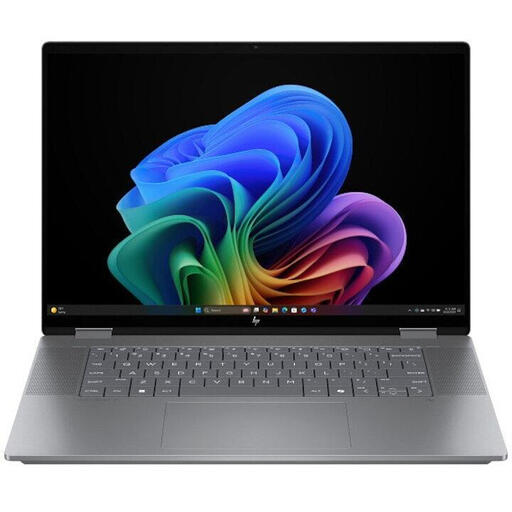
An option to compare if you’re looking for a large touchscreen and several modes for working on digital illustrations.
16-inch 3K OLED touchscreen; 24 GB memory; 1 TB SSD. The product description lists laptop, tent, tablet and reverse modes.
No, only if you want to sketch directly on the laptop screen. If you mainly work with shapes and a pointer, or use a separate graphics tablet, focus on whether a standard laptop suits your workflow. With a 2-in-1, check pen support and what’s included with the model you’ve chosen.
It depends on your software, files and how many applications you use at once. The Consumentenbond describes 16 GB as a sensible choice for working smoothly with several programmes, not as a universal requirement for this type of illustration work. On the macOS section of the system requirements page consulted, Adobe lists 8 GB as the minimum and 16 GB as the recommendation; check the requirements for your software version and operating system.
Before buying, check that the exact version and features you need are compatible with the operating system and processor architecture. Adobe’s compatibility information dated 17 September 2025 lists Illustrator (Beta) among the emulated apps for Snapdragon X Copilot+ PCs; check the current status of your workflow before buying.
Not without checking: according to the Dutch government, you may generally only use someone else’s copyright-protected photos with the creator’s permission. An exception for personal use doesn’t automatically mean you can show an image publicly. This information doesn’t determine whether a particular illustration you’ve made of a building is permitted.
For eligible distance purchases by consumers, ACM ConsuWijzer says there is generally a statutory cooling-off period that ends 14 days after delivery; exceptions apply. Check who the seller is and which terms apply to your order. This is separate from your statutory rights if a product is faulty or inaccurately described.