
Author working with an editor
You exchange chapters and need to review suggested text changes and comments. Agree in advance on the document and review process you’ll use; Microsoft Support explains how to track and share changes in Word.


First, agree with your editor whether you’ll use Word on your computer or on the web. If you need Word’s more extensive review features, choose a suitable Windows laptop or Mac; a Chromebook is only suitable if the web-based workflow you’ve agreed on is all you need. Microsoft Support describes Word for the web’s review features as more limited than those in the desktop version.
You exchange chapters and need to review suggested text changes and comments. Agree in advance on the document and review process you’ll use; Microsoft Support explains how to track and share changes in Word.
You spend long periods writing while referring to notes and sources. So, check the keyboard and screen layout on the exact laptop configuration you’re considering; Tweakers describes differences between specific models.
You take your laptop to interviews or archives, balancing portability against the screen space built into the device. A stated battery life doesn’t predict how long your writing or interview session will last; Apple gives battery-life figures for specified activities.
First agree on a review process with your editor, then assess the keyboard, screen space and how often you’ll be carrying your laptop around.
| What to consider | What should you check? | Who should pay extra attention? |
|---|---|---|
| Reviewing with an editor | Test a sample document together using tracked changes and comments; check that the version of Word you’ve chosen supports the agreed workflow. | If I work with an editor, I want to be able to review changes and comments in the same sample document. Around 36% of consumers give reviewing with an editor top priority. |
| Writing comfort and research | Try the keyboard on the exact configuration and compare the screen space available for your manuscript, notes and source material. | If you write for long periods while consulting sources, you’ll want a keyboard and screen layout that suit the task. Around 29% of consumers prioritise writing comfort and workspace. |
| Taking it to interviews | Compare the dimensions, weight and ports of the exact configuration; for battery life, check which activities were used in the test. | If I take my laptop to interviews or archives, I weigh portability against the screen space built into the device. For around 21% of consumers, taking a laptop to interviews and research locations comes first. |
| Software and support | Check which document application and features you need, what’s included with the laptop and what support applies to the specific purchase. | If you want to know in advance which software and support suit your needs, check these details for each configuration and purchase. Around 14% of consumers make this their top priority when choosing. |
Microsoft Support describes the tracked changes features on the web as more limited than those in the desktop version. This can matter if you and your editor need a specific review step.
Before you buy, go through a sample file together, including changes and comments.
The Aspire Go 15 714D reviewed by Tweakers has 16 GB of memory. The AG15-72P-599F is a different configuration with 8 GB of memory and a different processor, according to Joybuy’s product information.
Compare the full model number, memory, screen and operating system of the configuration you’re considering.
According to Microsoft Support, the No Markup view hides changes temporarily; they remain part of the document until they’ve been dealt with.
Accept or reject changes, then check the version you’re actually sharing.
The IdeaPad Slim 3 is a Windows option researched for manuscripts and source material. For the tested configuration, 83K0007YMH, Tweakers lists a 14-inch screen and 16 GB of memory.
The Aspire Go 15 is a Windows option researched for situations where a larger built-in screen matters. Tweakers lists a 15.6-inch screen for configuration 714D.
The Vivobook S14 LY096W reviewed by Tweakers is a 14-inch Windows configuration for anyone weighing portability against built-in screen space.
The MacBook Air M5 offers a macOS option with a 13.6-inch or 15.3-inch screen if you want to use Word for Mac. Apple Netherlands publishes the specifications for the configuration.
The OmniBook 0001nd reviewed by Tweakers is a separate Windows configuration with a 14-inch screen and 16 GB of memory.
This selection includes Windows laptops and a MacBook for writing, consulting sources and reviewing documents. Choose based on the software workflow you’ve agreed on, and check the specifications of the exact configuration.
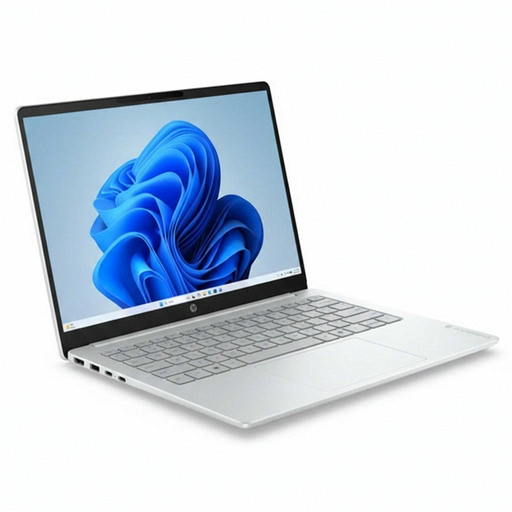 No image available
A Windows laptop for viewing your manuscript and sources on a 14-inch screen.
Intel Core 3 304, 8 GB RAM, 512 GB SSD and Windows 11 Home.
 No image available
A Windows laptop with a 14-inch screen and backlit keyboard for writing and consulting sources.
Full HD, Intel Core 7 150U, 16 GB DDR4, 512 GB SSD and Windows 11 Home.
 No image available
A MacBook for anyone who wants to use macOS and prefers the 15-inch model.
15-inch, M5, 16 GB and 512 GB. According to the product information, the power adapter isn’t included; a USB-C power adapter of at least 35 W is required.
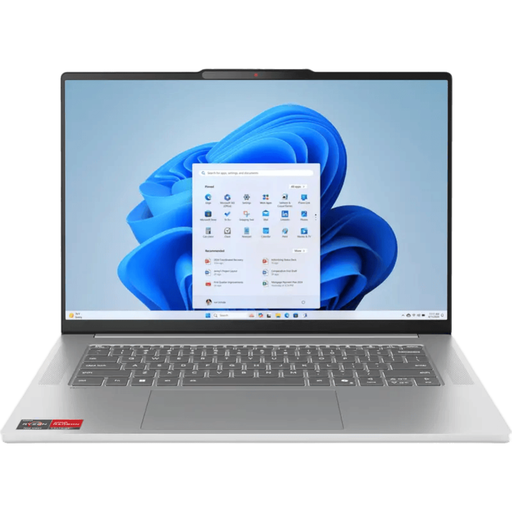 No image available
A laptop to consider if you’d like a larger screen for writing and consulting sources.
The product name lists R7, 16G, 512G and 11H. According to the product information, a compatible charger must be purchased separately.
 No image available
A Windows laptop with a 15.6-inch screen for viewing text and source material on a larger built-in display.
Intel Core 7 150U, 16 GB RAM, 512 GB SSD, Full HD and Windows 11 Home.
Yes. Microsoft Support explains that you can use tracked changes in Word for the web, but its features are more limited than those in Word on your computer. So, test the review steps you’ve agreed on with your editor.
Before sharing, review changes by accepting or rejecting them. According to Microsoft Support, the No Markup view only hides changes temporarily; check the comments in the version you’re sending too.
Microsoft’s version history works for files saved in OneDrive or SharePoint. Check that your manuscript is saved there and that syncing is complete; version history is different from hiding tracked changes.
Check that the exact laptop configuration is compatible with the version of Word you and your editor use. Test a sample document with changes and comments before relying on the laptop for your complete review workflow.