
Writer who needs sources alongside their text
You mainly work at a desk and want to keep a document or scan visible while you write. Check whether two windows fit on screen at a text size you find comfortable, then consider the keyboard and ports.


If you usually write in one place without an external monitor, start by looking at laptops with a larger screen. Check whether you can read your manuscript and source side by side at your preferred zoom level. If you often take your laptop to an archive, compare a more compact model with an external screen set-up at home. Whichever option you choose, check the keyboard, ports, memory and storage you need for your own files.
You mainly work at a desk and want to keep a document or scan visible while you write. Check whether two windows fit on screen at a text size you find comfortable, then consider the keyboard and ports.
You keep source files alongside your manuscript. Check how much storage your own archive needs, how you can transfer files and where you’ll keep a separate back-up.
You take your laptop with you to make notes, then carry on working at home. Compare how easy it is to carry with the screen space available on the move, and check that you can connect the external screen set-up you want at home.
A good fit if: you usually write in one place and don’t want to use an external monitor.
The trade-off: more built-in screen space also means carrying a larger laptop. Try both windows at your preferred zoom level to make sure they’re still easy to read.
A good fit if: you often work away from home and can connect a monitor at home or in the office.
The trade-off: this set-up calls for extra equipment and space at home. Check that the exact laptop model can connect to your monitor.
| What to consider | What to look for | Who should give this extra thought? |
|---|---|---|
| Reading text and a source at the same time | Open two typical documents side by side. Check the screen size, resolution, finish and the zoom level you actually use. Microsoft Support describes the ‘View Side by Side’ feature in Word for this. | If you work on one screen without a monitor, you’ll want both your manuscript and source to remain easy to read. For around 31% of consumers, being able to read two windows is the top priority. |
| Typing for long periods | Try the keyboard layout and feel of the exact model. Consider whether a separate keyboard and a different screen position would work at your desk. | During long writing sessions, you’ll notice every day whether the keyboard suits the way you work. Around 25% of consumers put typing comfort first. |
| Storing scans and photos | Estimate the size of your own archive and check the SSD capacity. The Consumentenbond recommends 256 GB as a starting point for everyday office work, and 512 GB or more for lots of large photo and video files. You’ll still need a back-up as well. | If you collect lots of scans and photos, you’ll want enough room for your source files. For around 19% of consumers, archive storage is the top priority. |
| Taking your laptop with you | Compare the dimensions and weight of specific models, and check whether you can connect your own monitor at home. Also check which port and any adapter you’ll need. | If you do research in different places, you’ll want a laptop that’s easy to carry, while still being able to use a spacious set-up at home. Around 13% of consumers give portability top priority. |
| Choosing the right specification | Work out which programmes and files you use, then compare the screen, memory and SSD. Only prioritise a dedicated graphics card if you also do demanding visual work. | If you mainly write and consult sources, you won’t want to pay for performance you don’t need. For around 12% of consumers, spending on what matters is the top priority. |
A large screen doesn’t guarantee that your manuscript and source will both be readable at your preferred zoom level.
Try two of your own documents side by side and compare the resolution, screen finish and text zoom.
You may still need an external screen or a different work set-up.
If files are stored only on your laptop, there’s no separate copy if the device or files are lost.
Plan a recent back-up somewhere else and test that you can restore a file.
You’ll need a separate solution for a separate back-up.
A dedicated graphics card isn’t automatically a priority for writing and consulting sources. The Acer Aspire 16 A16-71GM configuration reviewed has an RTX 3050, but that alone doesn’t make the card useful for word processing.
First, focus on a screen, keyboard, memory and storage that suit your needs. Consider graphics hardware if you also do specific visual or video work.
A comparison of laptops won’t necessarily tell you whether the accessories you need for your workspace are compatible with the exact model.
Check what’s included and whether your monitor, keyboard and power supply will work with the set-up you’ve chosen.
The ThinkPad E16 Gen 3 AMD configuration reviewed is a 16-inch option for a fixed writing space with room for a source window.
The OmniBook 7 16-bh0600nd reviewed offers another 16-inch option, with a higher specified screen resolution and more storage.
The Vivobook 16 OLED (M1605) is a 16-inch option if you also value the specified OLED display for more than just writing.
The Aspire 16 A16-71GM model reviewed combines a matte 16:10 screen with graphics hardware for anyone who also does more demanding visual work.
This selection of Joybuy products includes laptops with larger built-in screens, as well as more compact models for working on the move, with the option of an external screen at your usual workspace.
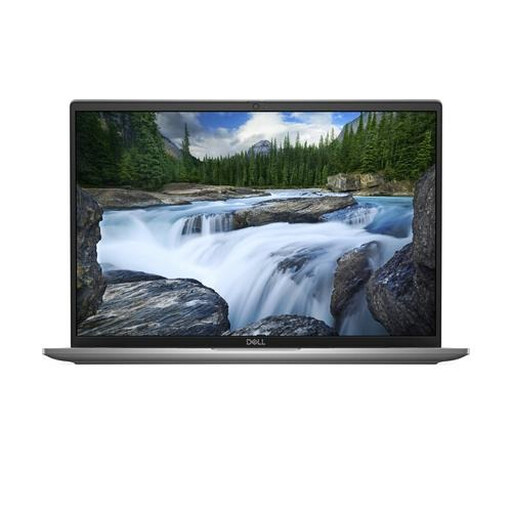 No image available
This 16-inch configuration could suit you if you want to view your manuscript and sources on one built-in screen.
16 GB LPDDR5x RAM and 512 GB SSD. The product information lists an anti-glare IPS screen, HDMI 2.1 and Thunderbolt 4. The keyboard layout is QWERTY English.
 No image available
This 16-inch configuration could suit you if you use several writing and research programmes at the same time.
32 GB DDR5 RAM and 512 GB SSD. The product information lists a 1920 × 1200 screen with an anti-glare finish and ports for an external screen. According to the description, this configuration is supplied without a power adapter.
 No image available
The 18.4-inch screen could suit a fixed writing space where you want extra built-in room for text and sources.
16 GB RAM and 512 GB SSD. The product information lists a 16:10 screen with an anti-glare finish and HDMI 2.1. The stated weight is 2.60 kg. According to the description, the laptop is supplied without a power adapter and requires a 45–65 W USB-C PD charger.
 No image available
This 14-inch laptop could suit you if you often travel to an archive and want to use an external screen at home.
16 GB RAM and 512 GB SSD. The product information lists a 16:10 OLED screen, HDMI 2.1 and USB4 with DisplayPort output. The stated weight is around 0.98 kg and the keyboard has a Dutch QWERTY layout. A compatible 65 W USB-C Power Delivery charger is required and isn’t included.
 No image available
This configuration could suit you if you want to take your laptop with you and connect an external screen at home.
15.6-inch Full HD screen, 16 GB DDR5 RAM and 512 GB SSD. The product information lists a 16:9 screen and USB-C with DisplayPort support. The stated weight starts at 1.61 kg.
Not just to view two documents side by side: Microsoft Support describes the ‘View Side by Side’ feature in Word for this. Try your own text and source files at your preferred zoom level, and choose graphics hardware based on any other work you do.
Keep a recent back-up as well as your working copy, for example on an external drive or in the cloud, and check that you can restore it. More SSD space in the same laptop isn’t a separate back-up.
Check that you can adjust your screen, keyboard and posture to work comfortably. According to the Arboportaal, specific workplace requirements apply to employees who work at a screen for more than two hours a day. These include being able to use a separate screen or keyboard with a laptop. These employment requirements don’t automatically apply to personal use.
For many standard distance purchases from a business, you have a 14-day cooling-off period. Before ordering, check the seller information, returns policy and any applicable exceptions.
No. Check whether the material is still protected by copyright and whether you have permission or an applicable exception. The Rijksoverheid distinguishes between making a copy for personal use and distributing or publishing material. Choosing a laptop won’t resolve questions about publication.