Start by choosing your writing programme, then try using two text panes side by side in it. A larger screen gives you more room to work, while a more compact laptop may be easier to take with you. Before buying, also check the exact configuration, keyboard layout, power supply and software licence.
Who is this for?
Writers who want to see their story and notes side by side
You want to write scenes while viewing characters, the plot or earlier passages at the same time. Decide whether you want to place two app windows side by side or split the editor within your writing programme. Microsoft Support explains how to snap windows into place, while Literature & Latte explains how to split the Scrivener editor.
Writers who often work on the go
You want to write away from your usual workspace too, and are happy to see less text at once on a more compact screen. Apple offers the MacBook Air M5 in 13- and 15-inch configurations.
Writers who already use a particular writing programme
Your choice depends on whether your editor is supported, the licence you already have and how you store your manuscript. Literature & Latte states that Scrivener licences for macOS and Windows are not interchangeable, and recommends keeping a backup in a separate location.
What should you look for when choosing?
Windows laptop
A good fit if: you want to arrange two app windows side by side or use a Windows version of your writing programme.
Bear in mind: the screen, keyboard layout and included power supply can vary between configurations.
MacBook Air with macOS
A good fit if: your writing app works on macOS and you’re choosing between the more compact 13-inch model and the 15-inch version, which gives you more screen space.
Bear in mind: according to Literature & Latte, a Scrivener licence for macOS does not automatically unlock the Windows version.
Chromebook for compatible web apps
A good fit if: your writing tasks work well in a web app that you can use on ChromeOS.
Bear in mind: the standard Scrivener downloads are for macOS and Windows, so don’t assume the desktop version will work on ChromeOS.
| What to consider |
What should you check? |
Who is this important for? |
| Easy-to-read text panes |
Open two sample texts side by side and check that both remain easy to read at your preferred text size. |
If I want to view my story and notes at the same time, I focus on the space available in each text pane. Around 29% of consumers give readable screen space top priority. |
| Editor compatibility |
Check the exact app and version, supported operating systems and licence. |
If I want to keep using my trusted writing programme, I first check that it works on the system I’m considering. Around 23% of consumers prioritise compatibility with their editor. |
| Typing comfort |
Check the keyboard layout of the configuration and, if possible, try the keyboard for yourself. |
For long writing sessions, I want keys and a layout that suit the way I type. Around 18% of consumers give typing comfort top priority. |
| Portability |
Compare the size and weight of the exact configuration, and try splitting the screen without an external monitor. |
If I write in different places, I weigh portability against the space available for two text panes. Around 18% of consumers choose portability as their main consideration. |
| Manuscript and other essentials |
Check what’s included with the laptop and software, and make a restorable backup of a test project. |
If I want to keep my manuscript safe and understand the total cost, I check backups, software and power supplies. Around 12% of consumers prioritise this combination. |
Common pitfalls
-
Assuming every split-screen feature works in the same way
Putting two windows side by side is different from viewing two documents within the Scrivener editor. Licences can also vary between operating systems.
Before buying, try the layout you want to use while writing, and check the app version and licence for the system you’ve chosen.
-
Assuming the specifications for an entire product range apply to one configuration
A product range may include different screen, system and keyboard options. The range specifications alone won’t tell you exactly which configuration you’re looking at.
Compare the full model number, screen, keyboard layout and what’s included with the configuration you’re considering.
-
Keeping your manuscript only on your laptop
If your work is stored on just one device, you won’t have a second copy to hand if you lose it. Literature & Latte recommends keeping a Scrivener backup in a separate location.
Set up backups and use a test project to check that you can restore an earlier version.
Brands to compare
Lenovo
The IdeaPad Slim 5 15ARP10 is a Windows range worth considering if you’re looking for a screen around 15 inches. Lenovo lists several processor, screen and system configurations.
- Lenovo’s official PSREF lists options within the range including the Ryzen 5 7535HS and USB-C with DisplayPort.
- Check the exact configuration: the range specifications don’t mean that every model has the same screen, keyboard or accessories.
Apple
The MacBook Air M5 is available in 13- and 15-inch configurations. You can choose between a more compact model and more built-in screen space, provided your writing app works with macOS.
- Apple lists 16 GB of memory and 512 GB of storage for the base configurations.
- Check the configuration and power supply for the specific model. Apple’s battery life figures are based on its own testing conditions.
HP
The HP OmniBook 5 16-bm0615ndx is a Windows configuration with a 16-inch screen to compare if you’d like more space on the built-in display.
- The HP listing specifies 16 GB of memory and a 512 GB SSD.
- According to the HP listing, the recommended USB-C adapter is sold separately; check what’s included with the configuration.
Joybuy laptops for this writing setup
This selection mainly includes Windows laptops with 15.6- to 16-inch screens, plus a 15-inch MacBook Air. Compare the space available for your text panes with your writing programme, keyboard preferences and working style.
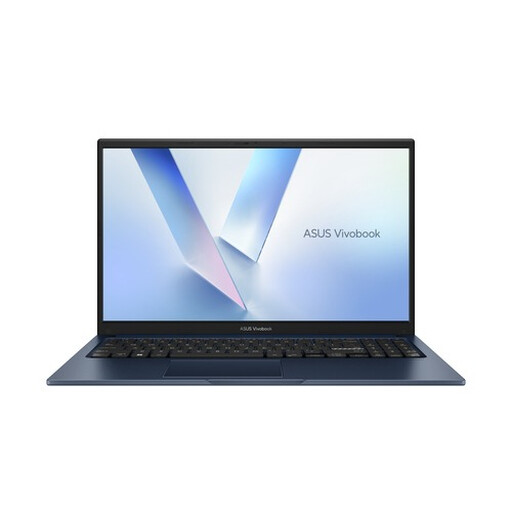 Image unavailable
ASUS Vivobook 15 X1504MA-BQ588W, 15.6-inch, 8 GB, 256 GB SSD
This Windows configuration with a 15.6-inch screen is worth considering if you want to use two windows side by side. Check that the text remains easy to read in both panes.
The product name specifies a Core 3 304 processor, 8 GB RAM, a 256 GB SSD and a QWERTY keyboard. The product description lists a Full HD IPS screen.
View at Joybuy
 Image unavailable
HP OmniBook Ultra Next Gen AI 16-bk0001nd, 16-inch, 32 GB, 1 TB SSD
The 16-inch screen gives you plenty of built-in workspace for viewing text and notes side by side. Try the layout using your preferred text size.
The product name specifies Windows 11 Pro, a 3K 120 Hz OLED touchscreen, 32 GB RAM, a 1 TB SSD and a QWERTY keyboard.
View at Joybuy
 Image unavailable
Apple MacBook Air 15-inch M5, 16 GB, 512 GB, Starlight
This macOS configuration could suit you if your writing app works with Split View and you’re looking for a 15-inch MacBook Air.
The product name specifies an M5 chip, 16 GB of memory, 512 GB of storage and a QWERTY keyboard. According to the product description, a USB-C power adapter isn’t included, and a minimum of 35 W is required.
View at Joybuy
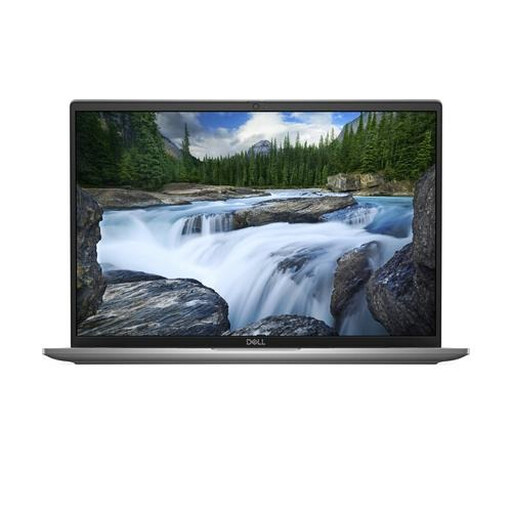 Image unavailable
Dell Latitude 7650, Core Ultra 7 155U, 16-inch, 16 GB, 512 GB
This 16-inch Windows configuration is worth considering if you want to view text and notes on one screen.
The product name specifies Windows 11 Pro and a QWERTY keyboard. The product description lists a resolution of 1920 × 1200 and a 16:10 aspect ratio.
View at Joybuy
 Image unavailable
Lenovo IdeaPad Slim 5 15ARP10, 15.3-inch, Ryzen 5 7535HS, 16 GB, 512 GB
This Windows configuration with a 15.3-inch screen is worth considering if you want to view two windows side by side. Check that there’s enough room in both text panes for you.
The product name specifies a QWERTY keyboard and the colour Cloud Grey. The product description lists an IPS screen with a resolution of 1920 × 1200 and a backlit keyboard. According to the product description, a USB-C power adapter isn’t included.
View at Joybuy
Frequently asked questions
Do I need a special laptop to view two texts at once?
Not necessarily: on compatible systems, you can place two app windows side by side. To view two documents within one Scrivener project, use the app’s split-screen feature. Check that both text panes remain easy to read on the laptop screen.
Can I install the standard Scrivener desktop version on a Chromebook?
Literature & Latte’s standard download page lists versions for macOS and Windows, but not ChromeOS. So don’t assume the standard desktop version is supported on a Chromebook; check that the writing app you want to use works on it.
How can I make sure I don’t lose my story?
Keep a backup in a separate location as well as the version on your laptop. Literature & Latte recommends keeping an external copy for Scrivener and highlights steps to take to avoid losing data when syncing between devices. Also check that you can restore an earlier version.
Will I also need to pay for software or an adapter with a new laptop?
It depends on the configuration and your writing app. Literature & Latte states that Scrivener licences for macOS and Windows are not interchangeable. The HP listing for the OmniBook configuration mentioned also specifies a recommended adapter that’s sold separately. Check what’s included with the specific laptop and software.
What are my rights in the Netherlands if the laptop is faulty or I change my mind about an online purchase?
According to the Dutch government, the legal guarantee entitles you to a product that works properly. ACM ConsuWijzer states that online purchases often come with a 14-day cooling-off period from the day of delivery, although exceptions may apply. Check the terms and conditions that apply to your purchase.


