
Writer with long desk sessions
Writes for extended periods and wants to position the keyboard and screen comfortably as the desk moves up or down. Arboportaal recommends changing posture regularly when working at a screen.


Start with your writing setup: try out the keyboard and screen position, then choose a size and operating system that suit the way you write. You may not need extra processing power for basic writing; the Consumentenbond says an entry-level processor is enough for simple everyday tasks. Also check the keyboard layout, ports and any accessories you might need for your workspace.
Writes for extended periods and wants to position the keyboard and screen comfortably as the desk moves up or down. Arboportaal recommends changing posture regularly when working at a screen.
Moves between the desk and other writing spots, so compares size, portability and working offline. Google Docs Help explains how to make documents available offline in advance.
Wants to keep using existing documents and writing software. If you’re considering a Chromebook, check the offline settings and the update schedule for the specific model via Google Docs Help and Chromebook Help.
First choose according to your main writing needs; then compare the details of each configuration.
| What to consider | What should you check? | Who should pay particular attention? |
|---|---|---|
| Keyboard and setup | Check the layout and the ports you need; Arboportaal recommends changing posture regularly. | If I write for long periods, I want to position the screen and my hands comfortably. Around 33% of consumers give their workspace setup top priority. |
| Portability and battery | Compare the size of the exact configuration and, when checking battery figures, see what activity the manufacturer measured. | When I write in different places, I want to be able to take my laptop with me and sometimes work without a mains socket. Around 27% of consumers put portability first. |
| Cost for writing | The Consumentenbond says an entry-level processor is enough for simple everyday tasks; first decide which programmes you’ll use. | For a short story, I don’t want to choose a configuration based on features I don’t need. Around 20% of consumers prioritise good value for basic writing. |
| Software and offline access | Check software and file compatibility; set up offline access in advance and, for a Chromebook, check the update schedule for the specific device. | If I want to keep using my existing writing software and documents, the laptop needs to fit that workflow. Around 20% of consumers prioritise software and access to documents. |
With a laptop, the screen and built-in keyboard move together. This means the screen position can change while the keyboard gets higher.
Assess the whole setup and check in advance which ports you’ll need for a separate keyboard or screen. Arboportaal lists specific requirements for employees who work at a screen for more than two hours a day, including the ability to use a screen or keyboard separately; these workplace rules don’t automatically apply to writing at home.
A separate keyboard, screen or suitable port may take up extra desk space.
Extra processing power isn’t necessarily needed for basic writing. The Consumentenbond says an entry-level processor is enough for simple everyday tasks; more memory may be useful if you run lots of programmes at once.
First work out which writing software and other applications you use, then compare the processor and memory.
Otherwise, you could pay for processing power you don’t need for basic writing.
Offline access and making specific files available require preparation.
Set up offline access while you’re connected to the internet, and check in advance that the document you want to use is available offline, following the instructions in Google Docs Help.
Keyboard layouts, screen options and memory can vary between configurations. Battery claims may also relate to specific activities rather than writing time.
Compare the full model and configuration number, and check the keyboard layout, screen option and the conditions used to measure battery life.
The Chromebook Plus 514 NX.JKAEH.001 is a ChromeOS option for a web-focused writing workflow.
The 13-inch MacBook Air with M5 is a compact macOS option for anyone looking to pair a laptop with an external screen setup.
The ThinkPad E14 Gen 7 is a 14-inch Windows option available in a range of configurations.
The Zenbook 14 OLED UX3405CA-QL535W is a compact Windows option for anyone considering an OLED screen.
The ProBook 4 G1i 14 is a business Windows option for comparing configurations with a 14-inch WUXGA screen.
These laptops are suited to writing at a desk, with a range of screen sizes and setups to compare.
 Image unavailable
An option to compare if you’re looking for a Windows workflow and different screen positions at your desk.
A compatible USB-C charger of at least 45 W is not included.
 Image unavailable
A good fit if you’re looking for a 14-inch laptop for documents and a Windows workflow.
The product name lists an AMD Ryzen 5 7520U, 8 GB RAM, 512 GB SSD and Windows 11 Home. The laptop is supplied without a charger; you’ll need a compatible USB-C charger to charge it.
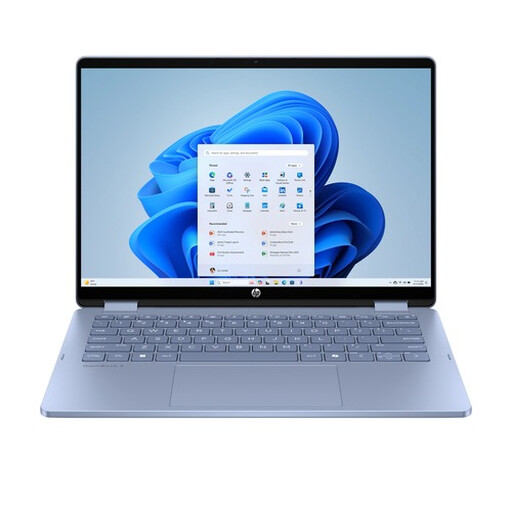 Image unavailable
An option to compare if you want a 2-in-1 laptop that can switch between different positions at your desk.
The product name lists an Intel Core 5 120U, 8 GB RAM, 512 GB SSD, a 14-inch touchscreen and Windows 11 Home. A compatible USB-C charger is not included.
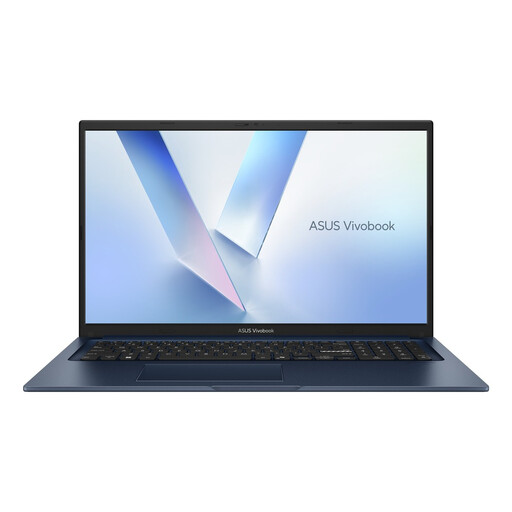 Image unavailable
A good fit if you want to compare larger screen sizes for writing at a desk.
The product name lists a 17.3-inch screen, Core 5 320, 8 GB RAM, 256 GB SSD and a QWERTY keyboard.
 Image unavailable
An option to compare if you want the listed memory and storage capacity to suit your writing software and files.
The product name lists 16 GB DDR4 RAM, 1 TB SSD and fingerprint unlock.
A separate keyboard or screen can help you position the screen and input devices independently. For employees who work at a screen for more than two hours a day, Arboportaal describes specific requirements that may mean a separate screen or keyboard must be available. Don’t automatically apply this workplace rule to writing at home, and remember to change your posture while working.
Yes, if you set up offline access in advance and make the files you need available offline. Follow the instructions in Google Docs Help and check that your document is ready before you go offline.
Google says you can check the update schedule and most recent update date on the device by going to Settings, About ChromeOS and Additional details. Check the specific device, not just the product range.
According to the Dutch government, in many cases you have a 14-day cooling-off period when buying at a distance, although there are exceptions. If a product is faulty, the seller must provide a solution under the statutory guarantee; an additional warranty does not replace this right. Check who the seller is and which terms apply to your specific order.