Start by checking which software and file format the museum requires. Then choose a screen and keyboard that make it comfortable to write and consult your sources. You don’t necessarily need a powerful setup for basic word processing, but running several programmes at once, working with image files or having a dedicated workspace may call for different specifications. A Chromebook is only suitable if your workflow works in a browser: Microsoft Support says that the Windows and Mac desktop versions of Microsoft 365 cannot be installed on one.
Who is this laptop guide for?
Home-based editor who spends long hours writing
Writes, revises and regularly checks museum text against sources. A screen that’s easy to read and a comfortable place to work are important. Arboportaal also sets out workplace requirements for employees who work from home for extended periods.
Museum worker with a set file workflow
Needs to submit text using the museum’s software or file format. Check in advance that the required features are available on your chosen operating system: Word in a browser isn’t the same as the desktop version.
Occasional writer on a tight budget
Mostly writes short pieces and uses basic office software. The key question is how much memory, storage and portability you really need for the way you work.
What to look for in a laptop for writing museum text
First check the software you need and the format you’ll have to submit. Then compare the writing setup, specifications and portability with how you plan to use the laptop.
| What to consider |
What to check before buying |
Who should pay particular attention? |
| Workspace and readability |
Consider the screen size, reflections, keyboard layout and whether you can use a separate screen or keyboard. Arboportaal sets out specific requirements for the workstation of employees who spend more than 2 hours a day working with a screen. |
If I often compare text with sources, I want to be able to read and write comfortably at my usual workspace. Around 40% of consumers give the writing setup top priority. |
| Software and files |
Ask which programme, features and submission format the museum requires. If necessary, test the browser-based or desktop programme with a sample file. |
If the museum specifies a particular programme, I want to be sure I can submit the finished file correctly. Around 30% of consumers prioritise software and file compatibility. |
| Specifications and budget |
Choose memory and storage to suit the programmes and files you use. The Consumentenbond says 8 GB RAM is enough for light use and recommends 16 GB where possible if you run several programmes at once. |
For short texts and basic office software, I don’t want to pay for capacity I won’t use. Around 20% of consumers prioritise affordability. |
| Portability and connections |
Balance screen size against portability, and check which ports, adapters and power supply your equipment requires. |
If I also write while out and about, I want a laptop that’s easy to carry without overlooking the connections my equipment needs. Around 10% of consumers prioritise using their laptop in more than one location. |
Common mistakes when buying a laptop for writing museum text
-
Choosing based on the processor or AI label without checking your workflow
A laptop that doesn’t support the required software or file workflow isn’t right for the task, even if its specifications are more advanced.
First find out which programme and final file you need, then compare specifications.
A more expensive specification won’t fix an incompatible software workflow.
-
Assuming every version has the same layout and what’s included
Keyboard layouts and included accessories can vary between versions. Lenovo lists an English (EU) keyboard for ThinkPad E14 version 21T9001TMH; HP says the charger for the OmniBook 7 14-fs0603ndx is sold separately.
Check the model code, keyboard layout and box contents for the version you want to buy.
A different keyboard layout may be less comfortable to use; if you don’t already have a charger, you’ll need to buy one separately.
-
Confusing the manufacturer’s warranty with all your statutory rights
The Dutch government says there is no fixed statutory warranty period in the Netherlands. However, a product bought by a consumer must conform to the agreement; a manufacturer’s warranty doesn’t replace those rights.
If you’re considering an additional warranty, compare the extra cover it provides with your statutory rights.
An additional warranty may not be worth it if it offers no relevant extra cover.
Laptop brands worth considering
Lenovo
The ThinkPad E14 Gen 7 is a Windows option for a compact writing setup.
- For version 21T9001TMH, Lenovo lists a 14-inch anti-glare IPS screen with 1920 × 1200 pixels, 16 GB RAM and a 512 GB SSD.
- Lenovo lists an English (EU) keyboard for this version. Check the keyboard layout of the version you choose.
HP
The OmniBook 7 14-fs0603ndx is a compact Windows model for writing and working with multiple windows.
- For version D70VNEA#ABH, HP specifies 24 GB RAM, a 512 GB SSD and a 14-inch OLED screen with 1920 × 1200 pixels.
- HP says the charger is sold separately. Also check whether the screen will be comfortable to use in the lighting conditions of your workspace.
Apple
The MacBook Air M5 is a macOS option available in two screen sizes, for those who can use the required software on macOS.
- Apple lists models with either a 13.6-inch or 15-inch screen and two Thunderbolt 4 ports.
- Check that the museum software works on macOS and whether you’ll need adapters. Apple’s stated battery life won’t necessarily reflect your working day.
Dell
The Inspiron 14 2-in-1 7440 is another Windows option if its convertible design suits the way you work.
- Dell describes model 7440 as a 14-inch laptop with several usage modes.
- Dell says that images or specifications may differ from those of the selected configuration. Decide in advance whether you really need the extra usage modes.
Joybuy laptops for writing and working with source material
This selection includes Windows laptops and a MacBook Air for writing and comparing source material. For each version, check that the museum software, keyboard layout and required accessories suit the way you work.
 No image available
HP OmniBook X Flip NG AI PC 16-as0050nd D75LQEA#ABH
A Windows laptop for viewing text and source material side by side. Check in advance that the required software works on the version you choose.
View at Joybuy
 No image available
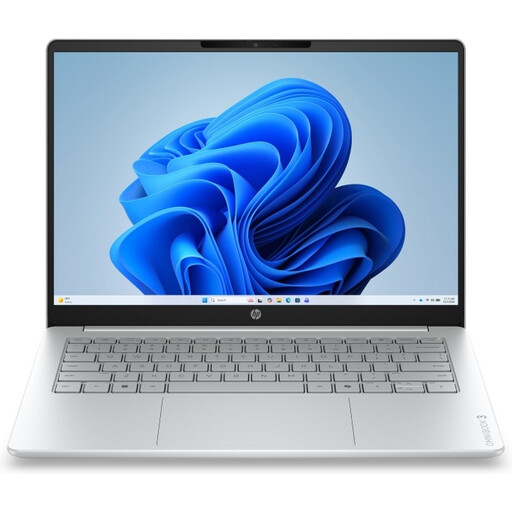
HP OmniBook 3 17-dp0050ndx
The 17.3-inch version may suit a dedicated writing space where screen area matters.
AMD Ryzen 5, 8 GB RAM, 512 GB SSD, Full HD IPS screen and Windows 11 Home.
The power adapter isn’t included and must be bought separately.
View at Joybuy
 No image available
Lenovo ThinkBook 16 G8 IAL 21SK00EBMH
A Windows model for comparing text and sources on a larger screen. Check that its size suits your workspace.
16-inch WUXGA anti-glare IPS screen, Intel Core Ultra 5 135H, 16 GB DDR5, 512 GB SSD, Windows 11 Pro and QWERTY keyboard.
View at Joybuy
 No image available
Apple MacBook Air 15-inch M5 16GB 512GB - Starlight (2026) - QWERTY Keyboard
A macOS option with a larger screen for comparing text with sources, if you can use the museum software on macOS.
15-inch M5 model, 16 GB memory and 512 GB SSD.
The power adapter isn’t included; the product information says that a USB-C adapter of at least 35 W is required.
View at Joybuy
 No image available
Lenovo IdeaPad Slim 5 15ARP10
A Windows laptop for viewing documents and source material on a larger screen. Check that the screen size suits your workspace and the way you work.
15.3-inch WUXGA anti-glare IPS screen, Ryzen 5 7535HS, 16 GB memory, 512 GB SSD, Cloud Grey and QWERTY keyboard.
A 45–65 W USB-C power adapter isn’t included and must be bought separately.
View at Joybuy
Frequently asked questions
Do I need a powerful laptop to write a single museum label?
Not just for the short text. The Consumentenbond recommends a basic processor, 8 GB RAM and 256 GB storage as a guide for browsing the internet and using basic office software. Running several programmes at once or working with large image files may change what you need.
Can I use a Chromebook if the museum works with Word?
Microsoft Support says you can access Word through a browser on a Chromebook, but the Windows and Mac desktop versions of Microsoft 365 can’t be installed on one. Ask the museum which features and final file it requires.
How should I set up a laptop for writing at home for long periods?
For employees who spend more than 2 hours a day working with a screen, Arboportaal says the screen and keyboard must not be attached to each other, and that a laptop workstation must allow for a separate screen or keyboard. Don’t automatically treat this workplace rule as a general legal purchasing requirement for every private individual who writes.
What warranty and cooling-off period apply to online purchases in the Netherlands?
When a consumer buys a product, it must conform to the agreement; according to the Dutch government, there is no fixed statutory warranty period in the Netherlands. For many online distance purchases from a business, there is a 14-day cooling-off period, subject to applicable exceptions and conditions. Don’t automatically apply these rules to a business purchase.
Does everyone who writes museum text at home need a separate keyboard?
No. The requirement described by Arboportaal for a screen and keyboard that aren’t attached to each other applies to employees who work with a screen for more than 2 hours a day. Simply writing a museum label at home doesn’t automatically mean this condition is met.


