For writing a covering letter, viewing a job advert and checking your CV, a laptop for light office work is usually more than adequate. You don't necessarily need high performance for gaming or creative software. Choose a keyboard and screen that feel comfortable to use, then check that your software and file formats are compatible. If you use your laptop at home for long periods, also consider how your screen and input devices are set up.
Who is this laptop guide for?
Writing job applications at home
You want to write a letter comfortably while keeping a job advert or your CV to hand. So look for a comfortable keyboard, a clear screen and a practical workspace. You don't necessarily need a powerful processor for these writing tasks.
Applicants who rely on specific software
You use a particular document program or need to submit files in a specified format. Check that your workflow is supported before choosing an operating system. For example, Google Chromebook Help explains that OneDrive is needed for the Microsoft 365 workflow described for a Chromebook.
Applicants who take their laptop with them
You usually write at home, but sometimes take your laptop out with you. Compare its weight with the screen space you find comfortable, rather than choosing based only on a large screen or a stated battery life.
What should you look for?
| What to consider |
What should you check? |
Who is this important for? |
| Comfort when writing and reading |
Try the keyboard layout and compare the screen size and anti-glare finish of the exact model. Also consider whether you use separate input devices at home. |
If you write a letter while referring to a job advert or your CV, you’ll want to type comfortably and proofread your text easily. Around 36% of consumers prioritise comfort when writing and reading. |
| Documents and software |
Check which file format you need, and try the editor, storage location and submission method you plan to use. |
If you use a particular program or need to submit a document in a specific format, you’ll want to know in advance whether your usual workflow will work. Around 29% of consumers prioritise compatibility. |
| Suitable configuration |
Compare the memory and storage of the exact model with the programs and files you use. Also consider whether you use several programs at once. |
If you mainly write letters and do other light office tasks, you won’t want to pay for features you don’t need. Around 21% of consumers prioritise getting the right value for money. |
| Portability |
Compare the weight and dimensions of the exact model with the screen space you want. Check the conditions under which the stated battery life was measured. |
If you also use your laptop away from home, you’ll want to be able to take it with you without compromising on more screen space than suits you. Around 14% of consumers prioritise portability. |
Common buying mistakes
-
Choosing a Chromebook without testing your entire document workflow
Being able to open a file doesn’t automatically mean that your preferred program, storage location and submission method will work. Google Chromebook Help lists OneDrive as a requirement for the Microsoft 365 workflow described for a Chromebook.
Before you buy, try a sample letter using the editor and file format you want to work with.
If your usual workflow isn’t supported, you may need a different editor or computer.
-
Focusing only on the built-in screen
When you spend long periods working at a screen at home, it’s also important to consider how you can position the screen and input devices. A laptop on its own doesn’t automatically give you a workspace where these components can be positioned separately.
Look at your workspace and check which connections you’ll need for a separate keyboard, mouse, stand or external screen.
You may need extra accessories to create a suitable set-up.
-
Assuming every model in a series has the same configuration
Specifications can vary between models in the same series. HP notes that components and features in the 15-fd1000 series vary by configuration.
Compare the full model or manufacturer number, and check the keyboard layout, memory, screen, connections and supplied power adaptor.
Brands to compare
Lenovo
The IdeaPad Slim 3 is a Windows range for everyday office work. For the IdeaPad Slim 3 Gen 8 14-inch AMD model reviewed, 82XN00BFMH, Lenovo lists a 14-inch FHD IPS screen, 16 GB RAM and a 512 GB SSD.
- The 82XN00BFMH model is specified with an anti-glare screen and soldered memory.
- Lenovo lists the keyboard layout for this model as ‘English (Euro)’. Check that it suits the way you type. These are model specifications, not an independent performance test of the range.
Acer
The Acer product information reviewed covers both an Aspire Go 15 with Windows and a 15.6-inch screen, and a Chromebook 314 with ChromeOS and a 14-inch screen. These models suit different software preferences.
- According to Acer, the Chromebook 314 NX.KB5EH.00B has 128 GB of flash storage.
- For the Aspire Go 15 NX.KRPEH.00E, Acer lists 8 GB RAM and a stated maximum of 8 GB. Check the specifications for each model, and don’t assume it’s available from another retailer.
ASUS
The Vivobook family is worth comparing for everyday use, particularly for its screen and keyboard options.
- The product family includes a range of models to compare individually.
- ASUS offers several ranges, including Vivobook, Vivobook Flip and Vivobook S. Don’t assume a model has particular features without checking it, or rely on information about a different model.
HP
The HP 15-fd1000 series is worth considering if you’re comparing Windows laptops with a larger built-in screen.
- You can compare the different models by their individual model numbers.
- HP notes that components and features vary by configuration. Check the full product number before attributing specifications to a model you’re considering.
Apple
The MacBook Air is a macOS option if your programs work with that operating system. Apple lists models with 13-inch and 15-inch screens.
- For the 13-inch M5 model reviewed, Apple lists 16 GB memory and a 512 GB SSD as the base configuration.
- The stated battery life is based on streaming video or using the internet wirelessly, not on a test carried out while writing job applications. Also check which power adaptor is included with the model you choose.
Joybuy laptops for writing and proofreading
These Joybuy laptops are suited to writing and proofreading on the built-in screen. Compare the screen space, keyboard layout and software you need for each model.
 No image available
HP OmniBook 7 AeroNGAI 13-bg1051nd NL Copilot+
A compact model to compare if you want to view documents on a smaller built-in screen.
13.3-inch screen; AMD Ryzen AI 5; 16 GB RAM; 512 GB SSD; Windows 11; white backlit keyboard.
View at Joybuy
 No image available
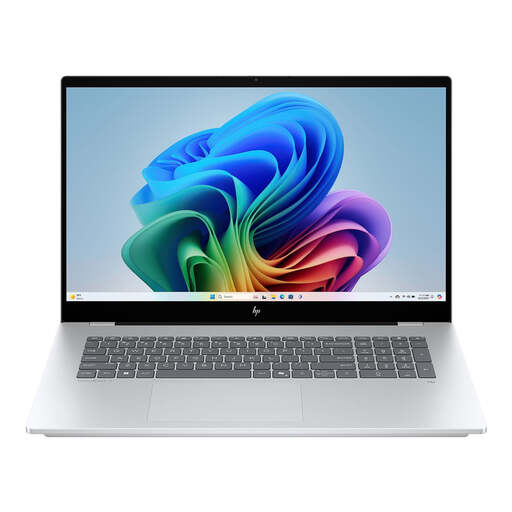
HP OmniBook 7 NG AI PC 17-dc0051nd D75LTEA#ABH
A model with a larger built-in screen to consider if you prefer more room for proofreading documents.
17.3-inch Full HD IPS touchscreen; Windows 11 Home; 16 GB RAM; 512 GB SSD.
View at Joybuy
 No image available
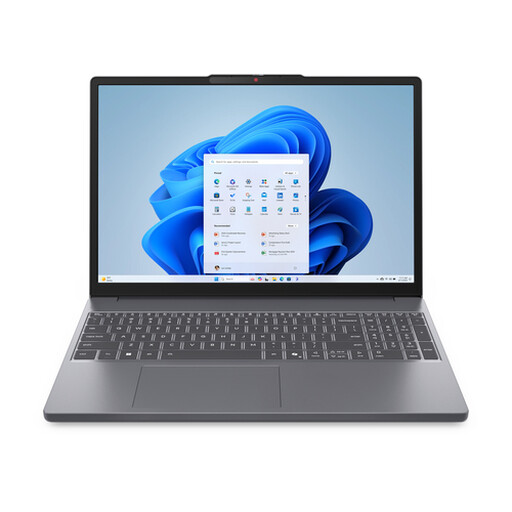
Lenovo IdeaPad Slim 3 15AHP10, Ryzen 7 8840HS, 16 GB, 512 GB SSD, QWERTY
A 16:10 screen may suit you if you want to view documents and job adverts side by side.
15.3-inch WUXGA IPS screen with anti-glare finish; Ryzen 7 8840HS; 16 GB RAM; 512 GB SSD; QWERTY keyboard. The power adaptor must be purchased separately.
View at Joybuy
 No image available
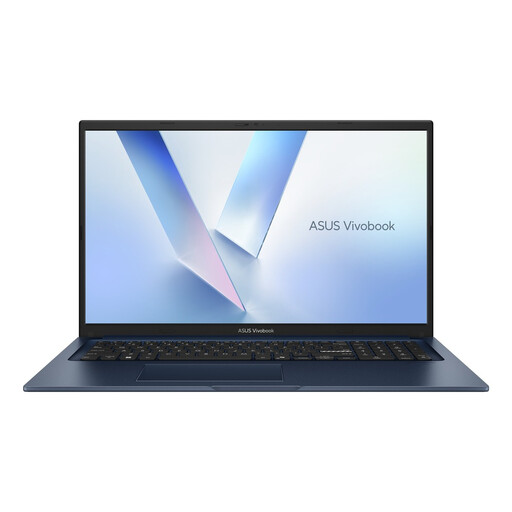
ASUS Vivobook 17 X1704MA-AU153W, Core 5 320, 8 GB RAM, 256 GB SSD, QWERTY
A 17.3-inch screen is worth comparing if you mainly write at a fixed workstation and want more built-in screen space.
17.3-inch Full HD screen; Core 5 320; 8 GB RAM; 256 GB SSD; Windows 11 Home; QWERTY keyboard.
View at Joybuy
 No image available
Auusda T161N, i3 1000NG4, 16 GB DDR4 RAM, 1 TB SSD
This model has a 16-inch screen and is worth comparing if you want space to proofread a letter alongside other documents.
16-inch Full HD IPS screen with 1920 × 1200 resolution; i3 1000NG4 processor; 16 GB DDR4 RAM; 1 TB SSD; backlit keyboard.
View at Joybuy
Frequently asked questions
Do I need 16 GB of RAM to write a single job application?
Not necessarily. The Consumentenbond says 8 GB is a suitable starting point for light use, and recommends 16 GB if possible when you use several programs at once.
Can I edit a Word document on a Chromebook?
Yes. Google describes ways to edit Office files on a Chromebook. OneDrive is needed for the Microsoft 365 workflow described; try your own document and check that the features you need are available.
How should I set up my laptop if I write at home for long periods?
Make sure you can position your screen and input devices appropriately. For screen-based work on a laptop, Arboportaal recommends a separate keyboard and mouse, and, if needed, a screen or laptop stand. The equipment you need will depend on your workspace and how you use it.
Do I have to pay separately for Word?
Not always: as well as subscription benefits, Microsoft offers free web versions of Word, Excel and PowerPoint. Check whether these versions have the features you need for your documents, and consider how you want to save and submit files.


