Who is this laptop guide for?

Writer who uses lots of shortcuts

You write long pieces and regularly switch between reference material and text. The physical keyboard layout and the commands in your apps need to suit the way you work. Microsoft Support and Apple Support explain that keyboard shortcuts can vary between applications.

Illustrated guide creator

You place and edit images alongside text, so you need to consider how much screen space, memory and local storage your files require. Consumentenbond discusses memory for running multiple programmes and storage for large files; Adobe sets out the system requirements for programmes including Photoshop and InDesign.

Writer on the move

You take your laptop to different writing spots and weigh portability against the space you need for text, references and images. Check the dimensions and ports of the exact configuration, and consider whether you usually work with an external monitor.

What should you look for when choosing?

Windows laptop

A good fit if: your required programmes, keyboard layout and ports are compatible with Windows. A 16-inch model can give you room to view text and images side by side.

Keep in mind: check the full model number and screen specifications. Lenovo lists the ThinkBook 16 G8 IAL 21SK00EBMH as having an anti-glare IPS screen with 45% NTSC and no factory calibration. Those specifications alone don’t make it a reliable proofing monitor for print.

MacBook with macOS

A good fit if: your required programmes support macOS and you want a compact writing setup. Apple specifies 16 GB of memory, 512 GB of storage and a 13.6-inch screen for the 13-inch MacBook Air M5 configuration mentioned here.

Keep in mind: test your keyboard shortcuts in the apps you use and check that your existing accessories are compatible with the ports. Apple lists two Thunderbolt 4 ports for this configuration.

Chromebook with ChromeOS

A good fit if: your writing, image-editing and formatting tasks work with the web apps and files you’ve checked. Google explains how to make certain Drive files available offline.

Keep in mind: don’t assume you’ll get the same desktop workflow as on Windows or macOS without checking first. Adobe’s desktop requirements for InDesign and Photoshop cover Windows and macOS; Google also notes that some apps don’t work offline.

What to consider What should you check? Who is this important for?
Keyboard and shortcuts Check the layout of the exact configuration and try your most-used commands in your own apps. Microsoft Support and Apple Support point out that keyboard shortcuts can vary between applications. If I do a lot of writing and often use keyboard shortcuts, I want the keys to work well with my apps. Around 31% of consumers say the keyboard and shortcuts are their top priority.
Screen space and files Check the screen size and finish, and estimate the size of your image files. Consumentenbond recommends 16 GB of memory for running multiple programmes and 512 GB or more for large files; tailor that advice to your own needs. For colour-critical print work, Adobe explains the importance of colour management and the print environment. If I want to arrange and compare text and illustrations at the same time, having a clear view on screen matters. Around 25% of consumers prioritise screen space, image editing and files.
Software compatibility Make a note of the programmes and versions you need, then check their system requirements and file formats. Adobe publishes separate requirements for Photoshop and InDesign. If my guide depends on specific writing or layout software, I want to know before buying whether it will work on my chosen system. Around 25% of consumers say compatibility is their main consideration.
Taking it with you and working on the move Compare the weight of the exact configuration and check its ports, power supply and any accessories. Assess the stated battery life in light of the tests it’s based on. If I write in different places, I want to take my laptop with me without sacrificing more workspace than my files require. Around 19% of consumers prioritise this balance between portability and workspace.

Common buying pitfalls

  • Assuming a colourful screen will give you a reliable print proof

    Screen specifications alone can’t predict how colours will look when printed on a particular printer, with specific ink or on a certain type of paper.

    First, decide whether your guide will be printed. For colour-critical work, match colour management to your print workflow and assess a proof print if needed.

    Colour-critical print work may require a suitable calibration and proofing workflow.

  • Confusing a product family with the exact configuration

    The screen, keyboard, ports and included accessories can vary between configurations. Specifications for one configuration don’t necessarily apply to every model in the range.

    Before buying, compare the full model number, keyboard layout, ports and contents of the box.

    The ASUS eShop configuration of the Zenbook 14 OLED UX3405 we checked is sold without a power adapter. Check what’s in the box for the configuration you choose.

  • Choosing a compact laptop without considering your workspace

    A smaller built-in screen leaves less room to view text alongside illustrations. The Dutch Arboportaal also states that for employees who spend more than two hours a day working with a screen, the screen and keyboard must not be attached to one another.

    Think about where you’ll work for extended periods and check in advance which ports and workspace setup will suit you. If you use a laptop for work, take into account the requirements that apply to your situation.

    A permanent workspace may require a separate keyboard, external monitor, stand or suitable adapter.

Brands to compare

Lenovo

The ThinkBook 16 G8 IAL configuration 21SK00EBMH is a Windows option with a built-in 16-inch screen for text, images and reference material.

  • Lenovo PSREF lists 16 GB of RAM, 512 GB of SSD storage and an SD card reader for this configuration.
  • According to Lenovo, the screen is anti-glare, has 45% NTSC and isn’t factory calibrated. Don’t base a choice for colour-critical print work on these screen specifications alone.

Apple

The 13-inch MacBook Air M5 is a compact macOS option if the apps you need and your keyboard shortcuts are compatible with macOS.

  • For the base configuration mentioned here, Apple specifies 16 GB of memory, 512 GB of SSD storage, a 13.6-inch screen and two Thunderbolt 4 ports.
  • Keyboard shortcuts can vary between apps. Check that your camera, card reader and external monitor will work with the available ports.

ASUS

The Dutch Zenbook 14 OLED UX3405 configuration we checked is a compact Windows option for viewing illustrations on a 14-inch screen.

  • For this eShop configuration, ASUS lists a glossy 14-inch OLED screen, 32 GB of built-in memory and 1 TB of storage.
  • ASUS states that this particular configuration doesn’t include a power adapter. The configuration mentioned has a US International keyboard; check these details for each model.

HP

According to HP, the OmniBook 5 range includes 14-inch and 16-inch configurations, giving you a choice of how compact you want your laptop to be.

  • HP lists screen and keyboard features that can vary between configurations.
  • ‘Up to’ specifications don’t automatically apply to every model. Check the exact model before expecting a particular screen, keyboard or port.

Dell

The Dell 14 Plus is a configurable Windows option for anyone looking for a compact laptop with a chosen keyboard and screen.

  • The Dell configuration we checked shows a 14-inch QHD+ screen and 16 GB of built-in memory, with a choice of keyboard layouts.
  • Dell states that changes to the configuration can also change other specifications. Check the final specification.

Joybuy product picks

This selection focuses on Windows laptops for writing and viewing illustrations on the built-in screen. For each configuration, check that the software, keyboard layout and ports suit the way you work.

HP OmniBook X Flip NG AI PC 16-as0050nd D75LQEA#ABH

HP OmniBook X Flip NG AI PC 16-as0050nd D75LQEA#ABH

A Windows option to compare if you want to edit text and images on one laptop; check that the exact configuration works with your apps and keyboard shortcuts.

View at Joybuy

ASUS Vivobook S16 S3607QA-SH109W, 16 GB RAM, 512 GB SSD, Cool Silver

ASUS Vivobook S16 S3607QA-SH109W, 16 GB RAM, 512 GB SSD, Cool Silver

The 16-inch configuration gives you a built-in workspace for text and illustrations.

The product name lists a WUXGA OLED screen, 16 GB of LPDDR5X memory and a 512 GB SSD.

View at Joybuy

Auusda T156A, 16 GB DDR4 memory, 512 GB SSD

Auusda T156A, 16 GB DDR4 memory, 512 GB SSD

A Windows laptop to compare if you type long pieces and want to view documents and images on the built-in screen.

The product name lists 16 GB of DDR4 memory and 512 GB of SSD storage.

View at Joybuy

HP OmniBook Ultra Next Gen AI 16-bk0004nd, 128 GB RAM, 2 TB SSD, 3K OLED

HP OmniBook Ultra Next Gen AI 16-bk0004nd, 128 GB RAM, 2 TB SSD, 3K OLED

A Windows option to consider if you want to work with text and illustrations on a built-in screen.

The product name lists 128 GB of RAM, 2 TB of SSD storage and a 120 Hz 3K OLED touchscreen.

View at Joybuy
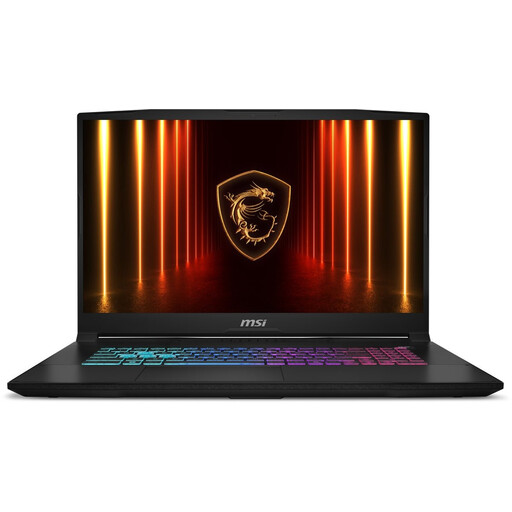
MSI17 HX B14WFK-021NL with QWERTY keyboard

MSI17 HX B14WFK-021NL, QWERTY keyboard

A Windows option to compare if you need plenty of workspace on the built-in screen; check that the size suits your regular writing spot.

View at Joybuy

Frequently asked questions

How can you check whether your keyboard shortcuts will work on another laptop?

Try your most-used commands in your own apps, and check both the physical keyboard layout and the operating system. Microsoft Support and Apple Support explain that commands can vary between apps.

Can you work on files on a Chromebook without an internet connection?

You can with certain Google Drive files, as long as you make them available for offline use in advance. Google warns that some apps don’t work offline and that files sync once the Chromebook reconnects.

What do you need to arrange if your guide will be printed in colour?

Set up your print workflow to suit your printer and paper, and manage your colour profiles. If needed, assess colours on a calibrated monitor. Adobe says that ambient light and paper also affect how closely the print matches the screen.

Do you always need a powerful graphics card for an illustrated guide?

Not based on the subject alone. Check the requirements of the image-editing and layout programmes you actually use, as well as the size of your files. Consumentenbond distinguishes creative use from more demanding work such as 4K video and 3D animation.

Do you need a separate keyboard if you work on a laptop for long periods?

The Dutch Arboportaal states that for employees who spend more than two hours a day working with a screen, the screen and keyboard must not be attached to one another. This requirement doesn’t automatically apply to every personal buyer.
