
Writers who want to see larger text
If you enlarge text and menus while writing, you’ll also want to keep enough of your document in view. Microsoft Support and Apple Support explain how to make on-screen text larger.


First, choose a laptop that lets you enlarge text while still keeping enough of your document in view. If you usually write in one place, compare larger screens; if you often take your laptop with you, weigh screen space against size and weight. If readers need the finished guide to have larger text, increase the font size in the guide itself too.
If you enlarge text and menus while writing, you’ll also want to keep enough of your document in view. Microsoft Support and Apple Support explain how to make on-screen text larger.
If you want to view recipes, notes or images alongside your guide, screen space is worth considering. Lenovo Netherlands and HP describe larger-screen models that you can assess using your preferred text size.
If you take your laptop with you or sometimes want to keep writing without an internet connection, consider portability and how your chosen software works offline. Google Docs Help explains the requirements for working offline in Google Docs.
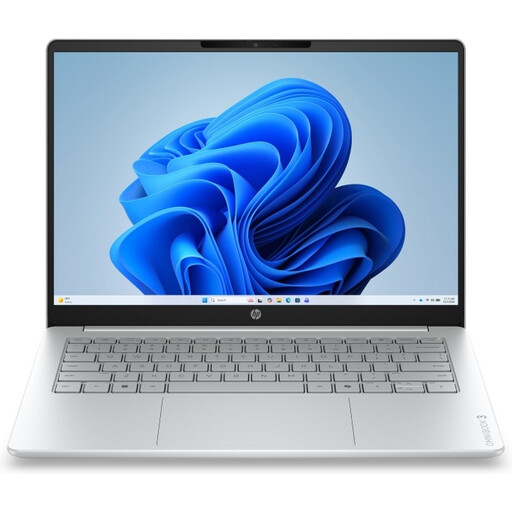
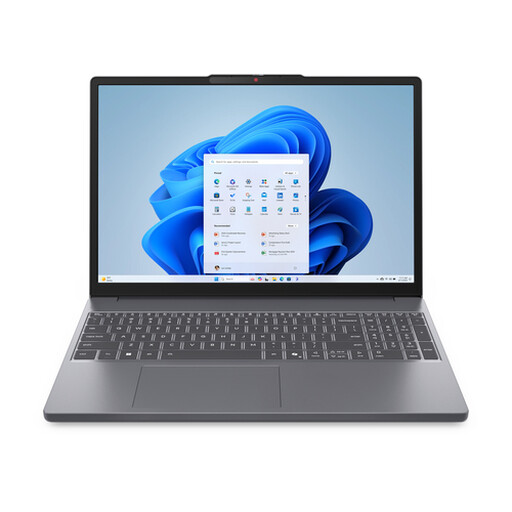
A good fit if: you usually write in one place and want to view your document and source material at the same time. Lenovo Netherlands lists an anti-glare 16-inch screen for the IdeaPad Slim 3 Gen 10 model 83K8009YMH; HP lists a 17.3-inch screen for the OmniBook 3 17-dp0650nd.
Bear in mind: a larger screen is less compact to carry around. Test your preferred text size and screen scaling on the exact model; screen size alone won’t tell you whether the display will be comfortable for you.
A good fit if: you want to take a Mac with you but still prefer a larger built-in screen. Apple lists the weight of this model as 1.51 kg and explains how to make text larger.
Bear in mind: Apple says some text settings only work in supported apps and when the specified settings are enabled. Check the writing software you plan to use.
A good fit if: you mainly write in Google Docs and want to use ChromeOS screen magnification. Google Docs Help explains how to prepare files for offline editing.
Bear in mind: working offline takes some preparation, including using a compatible browser and setting up access in advance. Also check that your documents and any other software are suited to this way of working.
| What to consider | What should you check? | Who is this important for? |
|---|---|---|
| Enlarging text so it’s easy to read | Test text size, screen scaling and how your writing software displays text separately. To make the letters larger in the finished guide, set the document font size too. | When I enlarge text, I still want to be able to see my document clearly. Around 33% of consumers give readability top priority. |
| Space for your document and source material | Compare the screen size and resolution of the exact model. Try your preferred magnification and see whether you can view your document and sources comfortably. | Anyone who wants to view a guide and its source material at the same time will want practical workspace. Around 27% of consumers put this need first. |
| Taking your laptop with you | Check the dimensions and weight of the exact model, and test whether text remains comfortable to read when you’re out and about. | When I write in different places, I want enough screen space without losing sight of how easy the laptop is to carry. Around 20% of consumers put portability first. |
| Writing and sharing offline | Create a test document, check offline access in the software you plan to use, then export a sample to check the formatting. | If you want to keep writing without an internet connection and share your guide, it helps to test your workflow in advance. Around 20% of consumers give this need top priority. |
How much of your document you can see also depends on your magnification settings. So a larger stated screen size doesn’t guarantee a comfortable workspace.
Open a document on the laptop you’re considering and test your preferred text size and screen scaling.
Screen settings change how text looks to you; they don’t automatically increase the font size in the document you share.
Check both how text appears on your screen and the document’s font size, then view an exported sample.
Google Docs requires you to set up offline access in advance and make the file you need available offline.
Set up offline access while you’re connected, then check that you can edit the document without an internet connection.
HP says the charger for the OmniBook 3 17-dp0650nd is sold separately, so you may need to make an additional purchase.
Check which charger the exact model needs and whether it’s included.
The IdeaPad Slim 3 Gen 10 model 83K8009YMH sold in the Netherlands is a Windows option for assessing a 16-inch screen with enlarged text.
The OmniBook 3 17-dp0650nd is a Windows option to compare if you want a larger built-in screen.
The 15.3-inch MacBook Air M5 is a macOS option for weighing up screen space against portability.
This selection from Joybuy includes Windows laptops with larger screens and a MacBook Air. Compare text magnification and document display on the exact model you’re considering.
 No image available
A Windows laptop with a large built-in screen, so you can assess how an enlarged guide looks.
The product information lists a 17.3-inch Full HD IPS anti-glare screen, a full QWERTY keyboard and Windows 11 Home.
According to the product description, this model is supplied without a mains adaptor; check which adaptor you need.
 No image available
A Windows option to compare if you want to balance room for your document with a laptop you can take with you.
The product information lists a 15.3-inch WUXGA IPS anti-glare screen with a 16:10 aspect ratio, 16 GB of memory, a 512 GB SSD and Windows 11. The listed weight is 1.59 kg.
According to the product description, the charger must be purchased separately.
 No image available
A Windows laptop with a 16-inch screen, so you can test how much of your document remains visible at your preferred text size.
The product name lists a WUXGA OLED screen, Snapdragon X processor, 16 GB LPDDR5X memory, a 512 GB SSD and Windows 11 Home.
 No image available
A Windows laptop with a 16-inch screen, so you can assess how documents and sources look with your chosen text settings.
The product information lists a resolution of 1920 × 1200, an anti-glare surface, 32 GB of memory, a 512 GB SSD and Windows 11 Pro.
According to the product description, this model is supplied without a power adaptor.
 No image available
A macOS option for anyone who wants a larger built-in screen in a laptop they can take with them.
The product information lists a 15.3-inch screen with a resolution of 2880 × 1864 and a weight of 1.51 kg. Apple explains how to make text larger; some settings only work in supported apps when the specified setting is enabled.
According to the product information, no power adaptor is included; Apple says a USB-C adaptor of 35 W or higher is required.
No. The settings described by Microsoft Support change how things appear on your screen. If you want larger text in the guide itself, also adjust the font size in your writing software and check the version you share.
Yes, if you set up offline access in advance as Google recommends and make the document you need available offline. Google Docs Help lists requirements including Chrome or Edge, the offline extension and enough storage space.
Microsoft Support explains that exporting to PDF in Word for the web is one way to create a shareable copy that keeps its formatting. Keep your editable document too if you want to make changes later.
According to ACM ConsuWijzer, for a standard online consumer purchase you generally have up to 14 days after delivery to change your mind, subject to legal exceptions. Your statutory guarantee is separate from any manufacturer’s guarantee. If a product is faulty, the seller must offer a remedy under the applicable conditions.