Start by setting the text size you actually want to use in your writing programme and system menus, then check how much room is left for your manuscript and notes. Next, choose an operating system that supports your writing software. If you want to write offline, it’s worth testing how files are saved beforehand. A larger screen gives you more room to work, but also takes up more space in your bag.
Who is this choice relevant to?
Writers who need larger text
You want to read chapters and notes without your working area becoming awkwardly small. Try magnification in both your writing programme and the system interface. Microsoft Support, Apple Support and Google Chromebook Help explain the magnification options available for Windows, macOS and ChromeOS respectively.
Writers who type for long periods
The physical keyboard layout and the space available for working on your manuscript and research side by side can both matter. Check the full model number and try the keyboard layout on the exact configuration. Lenovo Netherlands and Acer Netherlands publish specifications for specific models, but those alone can’t tell you how comfortable you’ll find typing.
Writers who work in different places
You may want to take your manuscript with you and carry on working without an internet connection. Weigh up screen space against the size that will fit in your bag, and test offline access beforehand. Google Docs Help explains how to make files available offline.
What should you look for?
First, try the magnification and check how much of your workspace remains visible. Then check your writing software and offline setup, and assess the keyboard and portability of the exact configuration.
Windows laptop
A good fit if: your writing programme requires Windows, or you want to try changing text size, display scaling and Magnifier separately. Microsoft Support explains these Windows settings.
Bear in mind: a 16-inch model needs more room in your bag than a compact one. Also check the physical keyboard layout of the model you choose.
MacBook with macOS
A good fit if: your writing software supports macOS and you want to use the ‘Larger Text’ setting or zoom. Apple Support explains these magnification options.
Bear in mind: if you’re switching, check that your existing software and files fit your way of working. Apple’s stated battery life is based on the test activities described, so it won’t necessarily reflect how long you can use your writing app.
Chromebook with ChromeOS
A good fit if: you mainly write in Google Docs or the web version of Word. Google Docs can work offline once you’ve set up access and selected your files in advance.
Bear in mind: Microsoft describes Word on a Chromebook as web access. Test whether the features you need are available, and check the update period for the exact model.
| What to consider |
What should you check? |
Who is this most relevant to? |
| Readability after magnification |
Open your writing programme and enlarge the document text and system interface separately. Check how many lines and windows remain visible. |
If I enlarge my manuscript, I still want to see enough text and notes. Around 33% of consumers give readability after magnification their top priority. |
| Keyboard and workspace |
Check the physical keyboard layout for the full model number and try typing with your preferred window arrangement. |
For long writing sessions, I want to type comfortably and have my manuscript open alongside my notes. Around 27% of consumers prioritise typing and workspace. |
| Software and files |
Open your existing manuscript in the app you plan to use, test offline editing and check where the updated version is saved. |
If I want to keep using my current writing software and manuscript, I’ll check compatibility and storage first. Around 20% of consumers give software and file retention their top priority. |
| Portability and screen space |
Compare the dimensions of the exact configuration with your bag, and try your preferred text size in your usual writing spot. |
When I write in different places, I want to carry my laptop easily without making the text too small to work with. Around 20% of consumers prioritise portability. |
Pitfalls to avoid
-
A larger screen doesn’t automatically make text easier to read
Magnification can reduce the amount of your workspace that’s visible. The result also depends on the settings in your writing programme and system interface.
Before you buy, try your manuscript at your preferred magnification on a similar screen.
-
Not every configuration in a laptop range is the same
Keyboard layouts and included accessories can vary between configurations. For example, Lenovo lists an English (EU) keyboard for model 83K8009YMH; HP notes that a recommended adapter is sold separately with certain configurations.
Check the full model number, the physical keyboard layout and what’s included with the configuration you’ve chosen.
Some configurations may require a separate adapter, so check before you order.
-
Choosing a Chromebook without testing your writing software
According to Microsoft, Word is accessed on a Chromebook through the web. Google Docs requires some preparation before you can use selected files offline.
Make a test file available offline, disconnect from the internet, then check that you can edit it and find it again later.
Brands to consider
Lenovo
A Windows option to consider if you want to pair Windows software with a larger, anti-glare screen.
- Lenovo lists a 16-inch 1920 × 1200-pixel IPS screen for the IdeaPad Slim 3 Gen 10, part number 83K8009YMH.
- According to Lenovo, this configuration has an English (EU) keyboard. Check that the layout suits your writing habits; the specification can’t predict your personal reading or typing comfort.
Apple
MacBook Air models with macOS are an option if your writing software works on macOS.
- Apple documents the ‘Larger Text’ setting and zoom. The MacBook Air with M5 chip is available in 13- and 15-inch models.
- Apple’s stated battery life applies to the activities and conditions it describes, and won’t necessarily reflect a session in your writing app.
Acer
The Chromebook Plus 516 CB516-1HT-560H is an example of a Chromebook with a larger screen for a web-based writing setup.
- Acer specifies a 16-inch 1920 × 1200-pixel anti-glare IPS screen and a backlit keyboard for this configuration.
- Check that the web app features you need are available, how to work offline and what update period applies to the exact model.
HP
HP offers both 16-inch Windows laptops and 14-inch Chromebooks; features vary by product range and configuration.
- HP’s listings in the Netherlands include both screen sizes and operating systems.
- HP notes that a recommended adapter is sold separately with certain configurations. Don’t assume the screen specifications or included accessories based on the brand name alone.
Dell
The Dell 16 is a Windows option to explore if you’re looking for a 16-inch laptop.
- For the configurations described, Dell lists a choice of a plastic or aluminium base configuration and includes a charger.
- Check the screen and keyboard options for the configuration you choose; they aren’t necessarily the same across every model.
Laptops at Joybuy
These models offer different screen sizes and configurations to compare for writing with enlarged text. Test your preferred magnification and software on the exact configuration.
 Image unavailable
ASUS Vivobook 18 M1807HA-S16512W, Ryzen 7 260, 16 GB, 512 GB SSD
The 18.4-inch model could suit you if you want plenty of screen space for your manuscript and notes. Try the magnification at your usual writing spot to see if it works for you.
The product name lists a QWERTY keyboard. Check the physical layout, and note that a 45–65 W USB-C Power Delivery adapter is required but not included.
View at Joybuy
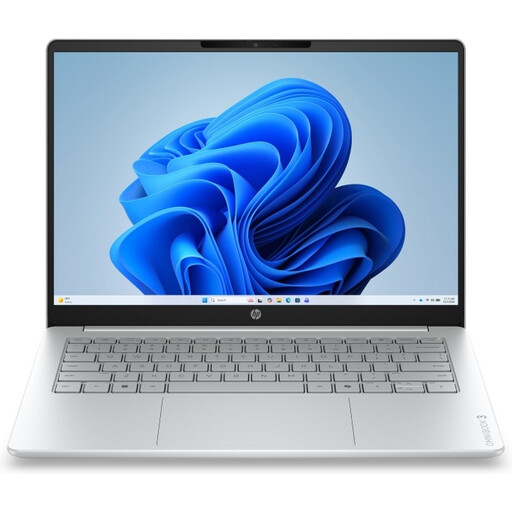 Image unavailable
HP OmniBook 3 17-dp0050ndx, Ryzen 5, 8 GB, 512 GB SSD
The 17.3-inch model could work well if you prefer writing in a larger document window. Check readability with your own settings.
The product name lists a Full HD IPS screen and Windows 11 Home. The power adapter isn’t included and must be purchased separately.
View at Joybuy
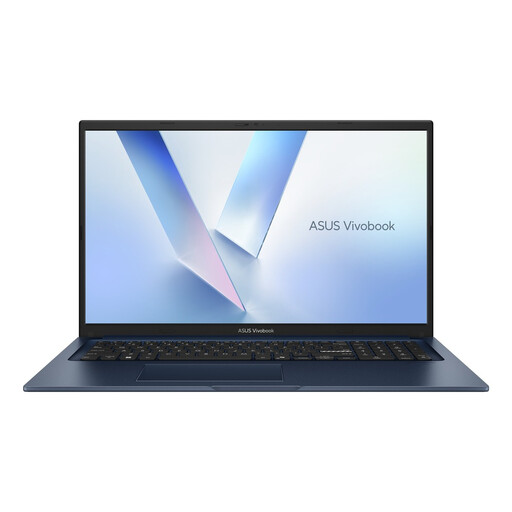 Image unavailable
ASUS Vivobook 17 X1704MA-AU153W, Core 5 320, 8 GB, 256 GB SSD
The 17.3-inch model could be a good choice if you want a larger document window while writing. Try your preferred text size before deciding.
The product name lists a QWERTY keyboard. The product information specifies Windows 11 Home and a Full HD anti-glare screen.
View at Joybuy
 Image unavailable
Apple MacBook Air 15-inch M5, 16 GB, 512 GB, Starlight
This model could suit you if you use writing software for macOS and want a larger MacBook Air. Apple documents the ‘Larger Text’ setting for macOS.
The product information lists a 15.3-inch screen and a QWERTY keyboard. A 35 W or higher USB-C power adapter is required but not included.
View at Joybuy
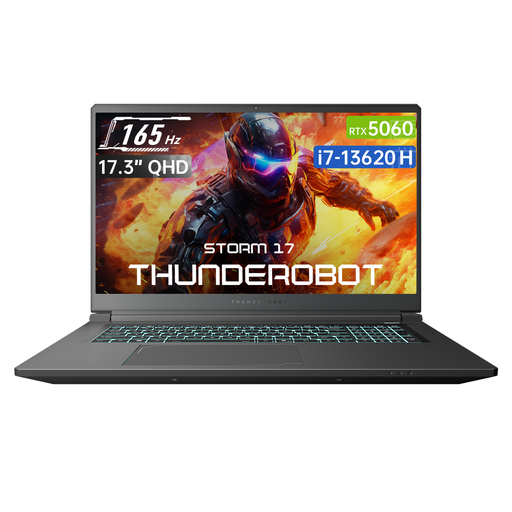 Image unavailable
Thunderobot Storm 17 5060, 17.3-inch QHD, Core i7-13620H, 16 GB DDR5, 1 TB SSD
The 17.3-inch model could work well for documents on a larger screen. Check the text at your preferred magnification.
The product name lists a QHD screen with a 165 Hz refresh rate and a backlit keyboard. Check that the other features suit your writing software and how you plan to use it.
View at Joybuy
Frequently asked questions
Do I need a lower screen resolution to make text larger?
No, screen resolution alone doesn’t determine this. Windows has settings for text size and display scaling; on a Mac, you can choose ‘Larger Text’, and on a Chromebook, you can zoom in on a page, among other options. Try the settings in the writing app you use.
Can I use Word as a Windows desktop programme on a Chromebook?
Microsoft describes access to Word on a Chromebook through the web. Before choosing ChromeOS, check that the features you need are available this way.
How can I prepare to write without an internet connection?
For Google Docs, turn on offline access while you’re online and make the files you need available offline, as described in Google Docs Help. If you use Word for Microsoft 365, check where your files are saved: Microsoft says the AutoSave feature it describes is linked to files on OneDrive or SharePoint Online.
If I buy online in the Netherlands, am I always entitled to exactly two years of legal warranty?
No, the Netherlands doesn’t have a fixed legal warranty period. According to the Dutch government, a product must be fit for purpose; what you could reasonably expect is one of the factors taken into account. For distance purchases, the cancellation period is usually 14 days; check the applicable terms and exceptions.


