Start by matching your laptop to your editing software and the resolution, codec and effects used in your windmill footage. HD with limited effects calls for a different set of priorities from 4K with more demanding edits. If you make frequent changes, having enough space for your original footage and a separate backup is just as important as the laptop itself; a fast computer won’t automatically save different versions of your project. If you often edit on the go, weigh screen space and connectivity against size and weight.
Who is this buying guide for?
An editor making lots of revisions
You make repeated changes to your windmill film and want to be able to retrieve earlier edits along with the footage they used. As well as choosing a laptop, think about project copies, media management and a backup stored separately. Adobe and Apple both explain how to save projects and media.
A creator making a 4K windmill film
You’re editing actual 4K footage and want to match your setup to your software, effects and source files. Adobe’s Premiere memory recommendations for Windows differ between HD and 4K, so look beyond a general label such as ‘creator laptop’.
An editor on the go
You want to select footage and make changes during or after your visit. Screen size, weight and access to external storage matter more here than they do when editing at a fixed workstation. ASUS lists a 16-inch screen for the ASUS ProArt P16 we looked at, while Apple lists a 14-inch screen for the MacBook Pro discussed here.
What should you look for when buying?
Don’t choose a laptop based on just one feature. First check your software and footage, then plan how you’ll store versions, original files and any proxy files. For Premiere 26.x on Windows, Adobe recommends 16 GB RAM for HD media and 32 GB or more for 4K and above. This isn’t a universal requirement for every editing programme or Mac.
| What to consider |
What to look for |
Who this matters to |
| Project versions |
Check how your software copies a project together with the media used in it. In Premiere, Adobe describes the ‘Collect Files and Copy to New Location’ option; test that the copy opens. |
If you make frequent changes, you’ll want to retrieve earlier edits with the right footage. Around 36% of consumers give top priority to project versions they can restore. |
| Performance with your footage |
Make a note of the resolution, codec, editing software and effects. Check performance against your software’s requirements, and consider working with proxy files separately from the final export. |
If you edit in 4K or use more demanding effects, you’ll want a setup that suits your source footage. Around 29% of consumers put compatibility with their own footage first. |
| Storage and source files |
Work out how much space you’ll need for your footage, project versions and any proxy files. Also plan for a separate storage location; an internal SSD is not a backup. |
If you want to keep original files, working files and a separate copy available, your overall storage plan matters. Around 21% of consumers make storage and keeping their original footage their main priority. |
| Editing on the go |
Compare screen size, weight and the connections available for external storage. Also decide whether you’ll just select footage while away or do full edits and exports there. |
If you want to edit on location, you’ll need a practical balance between portability and enough screen space. Around 14% of consumers prioritise portability while editing. |
Pitfalls to avoid
-
Keeping only the project file
A project may become unusable if you can no longer access the source media it uses. Adobe explains how Premiere can gather selected footage used in a project and copy it to one location. Apple recommends backing up Final Cut Pro to a disk or partition separate from the media.
Keep project versions with the source files they need, and check that a copied project actually opens.
-
Treating proxy files as a replacement for the originals
Adobe describes proxies as lower-resolution copies used for editing, and says you should switch back to the originals for the final output.
Keep proxies and originals clearly organised, and check which media is linked before exporting. Adobe notes some limitations, including for clips with captions and growing files.
-
Assuming every laptop comes with a suitable power adapter
ASUS says that the power adapter is not included with the ASUS ProArt P16 H7606GP we looked at. What’s included may vary by version.
Before buying, check what’s included with the exact offer and which power adapter is supplied with that version.
Brands to compare
ASUS
The ASUS ProArt P16 H7606GP is a Windows setup aimed at creators, worth comparing if you’re looking for a 16-inch screen and a dedicated GPU.
- For this version, ASUS lists 32 GB non-upgradeable RAM, a 1 TB SSD and an RTX 5070 with 8 GB video memory.
- According to the ASUS listing, this version doesn’t come with a power adapter. Manufacturer claims about fast rendering aren’t independent performance tests.
Apple
The 14-inch MacBook Pro M5 is a Mac option to compare if you want to edit on macOS, for example with Final Cut Pro for Mac.
- Apple lists configurable unified memory and a media engine for formats including H.264, HEVC and ProRes. Choose a memory and storage configuration to suit your files and software.
- The 14-inch screen offers less physical workspace than the 16-inch models we looked at. The stated media engine doesn’t guarantee a measurable time saving for your film.
HP
The HP OMEN 16-am0645nd is a Windows setup worth comparing if you want a larger anti-glare screen and a dedicated GPU.
- For this version, HP lists 32 GB RAM, a 1 TB SSD, an RTX 5070 with 8 GB video memory and an included charger.
- HP’s claims about cooling and gaming performance aren’t independent tests of video editing.
Joybuy product picks
Joybuy product picks for laptops suited to video editing and project work. Compare the listed specifications for each version with your editing software, source footage and storage needs.
 Image unavailable
Thunderobot 16 Gaming Laptop, i7-14700HX, RTX 5070
This version is worth comparing if you’re looking for a 16-inch screen and the listed memory and storage configuration for editing.
- 16-inch IPS screen, 2560 × 1600, 240 Hz, 100% DCI-P3
- 32 GB RAM and 1 TB SSD
- RTX 5070
- UK QWERTY keyboard
Joybuy
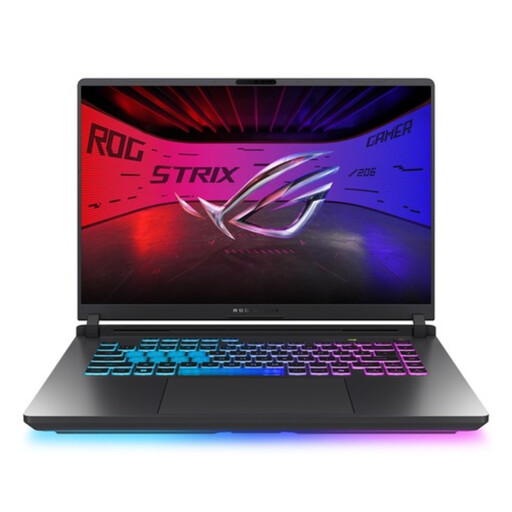 Image unavailable
ASUS ROG Strix G16 G615LR-S5396W
This 16-inch version is worth comparing if you want more physical screen space while editing.
- 16-inch screen
- Core Ultra 9
- RTX 5070 Ti
- QWERTY keyboard
Joybuy
 Image unavailable
HP OmniBook Ultra Next Gen AI 16-bk0001nd
This version is worth comparing if you’re looking for a 16-inch screen and the listed storage and memory configuration for editing work.
- 32 GB RAM and 1 TB SSD
- 3K OLED touchscreen, 120 Hz
- Windows 11 Pro
- QWERTY keyboard
Joybuy
 Image unavailable
Lenovo Yoga 9 16N1X11 83N70020MH
This 16-inch version is worth comparing if you want more physical screen space while editing.
- 32 GB RAM and 1 TB SSD
- 16-inch OLED touchscreen
- Windows 11 Home
- QWERTY keyboard
Joybuy
 Image unavailable
Lenovo Yoga Pro 9 15N1X11 83SR002XMH
This version is worth comparing if you want to weigh an OLED screen and the listed memory capacity against the storage space available for your project files.
- 32 GB RAM and 512 GB SSD
- 15.3-inch OLED screen
- Windows 11 Home
- QWERTY keyboard
Joybuy
Frequently asked questions
Do you always need to choose 32 GB RAM for this windmill film?
No, it depends on factors such as your software and source footage. For Premiere 26.x on Windows, Adobe recommends 16 GB for HD media and 32 GB or more for 4K and above. This isn’t a universal requirement for every editing programme or Mac.
How can you take a revised Premiere edit with you without losing any footage?
In Premiere, use the ‘Collect Files and Copy to New Location’ option to copy the footage used in selected sequences to one location and create a new project file that points to it. Check which sequences and files you’re taking with you, and keep a separate backup as well.
Can proxy files help if your footage is demanding?
For compatible video clips, Premiere can create lower-resolution proxy files for you to work with while editing. Adobe notes some limitations, including clips with captions and growing files; keep the originals available for the final output.
What warranty and cooling-off period do you get when buying online in the Netherlands?
For a consumer purchase, a product must meet the reasonable expectations you’d have when using it normally; a manufacturer’s warranty doesn’t replace your statutory rights. According to ACM ConsuWijzer, online purchases generally come with a 14-day cooling-off period from delivery, subject to legal exceptions. Also check who the seller is and what’s included with the exact laptop.
Can you use recognisable visitors and other people’s music in your film without permission?
Not necessarily. The Dutch Data Protection Authority notes that recognisable people in footage are identifiable personal data, so privacy rules may apply; the relevant legal basis depends, among other things, on how the footage is used. According to the Dutch government, you may not use copyright-protected music without the creator’s permission. These are considerations for filming and publishing, not laptop specifications.


