For schedules, communications and photo selections, a laptop with its built-in screen and one external monitor may be enough. Focus on the connections, portability and file storage. If you want to use two external monitors, check support for the exact model: Apple states that the MacBook Air M5 supports up to two external displays alongside its built-in screen, but having the right ports alone doesn’t guarantee that every monitor setup will work. Choose extra memory and storage based on the photo editing you do and the files you actually use.
Who is this choice relevant to?
Planner using a second screen
You want to view a schedule, communications or photo selections side by side while preparing. First decide whether you mean the laptop screen plus one monitor, or two external monitors. Apple and Lenovo’s specifications show why you need to check the setup for each model.
Photographer with a large image collection
You also import or edit photos, so storage for files, backups and the requirements of your own software all matter. Adobe explains that the Lightroom Classic catalogue stores information about photos separately from the original files.
On-site organiser
You take your laptop with you between locations, weighing up its size and weight against the connections and workspace you need. Your final choice will also depend on the monitor and peripherals you plan to take with you.
What should you look for when choosing?
First decide how many external monitors you want to connect. Then consider your files and workflow to work out how much storage and processing power you need.
| What to consider |
What should you check? |
Who is this important for? |
| Screen setup |
Distinguish between the built-in screen plus one monitor and two external monitors. Check the number of supported screens and the resolution you want for the exact model. |
If I want to view the schedule and photo selections at the same time, I want to know in advance how many external screens my setup needs. Around 33% of consumers make their screen setup their top buying priority. |
| Files and backups |
Work out how many photos and projects you’ll keep locally. For Lightroom Classic, plan to keep separate copies of the catalogue and original files. |
If I store a lot of images, I want to know where both the originals and the catalogue are kept, and how to copy them. Around 27% of consumers make file management their top buying priority. |
| Taking it to different locations |
Compare the weight and screen size of the exact model. Include your monitor, storage, card reader and charging needs when checking the required connections. |
If I travel between locations, I want to be able to carry my laptop and the equipment I need with ease. Around 20% of consumers make portability their top priority. |
| Photo editing |
Check the requirements of your own software and files. Also see whether the memory can be upgraded before choosing a configuration. |
If I edit large photos as well as organising, I want to match the specifications to that workload, not just to planning. Around 20% of consumers make photo editing their top buying priority. |
Common buying mistakes
-
Assuming every USB-C port supports every monitor setup
The number of screens and supported video signal vary by model and configuration. Check the specifications for the monitors and resolutions you want to use.
Also compare the connections on your laptop and monitor. You may need a suitable cable, adapter or dock to connect the equipment you have in mind.
-
Thinking a Lightroom Classic catalogue is a backup of all your photos
Adobe describes the catalogue as storing information such as where photos are located; the original files are separate. So a copy of the catalogue alone won’t automatically include all your original photos.
Decide in advance where the catalogue and original files are stored and how you’ll make a copy of each.
You may need separate storage for copies of your original files.
-
Choosing a creator laptop when your main focus is planning
Specifications for photo editing don’t automatically mean you need them for schedules, communications and file management. Adobe notes that performance requirements depend on factors including file type, file size and catalogue size.
First work out which photos and software you’ll use locally. Then compare the memory, storage and portability with your workflow.
Brands to consider
Apple
The MacBook Air M5 is a compact option to consider if you want to use the built-in screen alongside external displays.
- Apple states that it supports up to two external displays alongside the built-in screen.
- Apple lists two Thunderbolt 4 ports. Check whether your monitor, card reader, storage and charging needs can all be accommodated at once.
Lenovo
The ThinkPad T14 Gen 7 AMD is a Windows option to compare if built-in HDMI, USB-A and Thunderbolt 4 are relevant to you.
- Lenovo lists these connections and support for multiple independent displays.
- The screen setup you can use depends on the model and connected monitors. Also check that it supports the resolutions you want.
ASUS
The ProArt P16 H7606GP configuration is worth considering if you’ll be organising and editing photos.
- ASUS lists 32 GB of memory and a 1 TB SSD for this configuration.
- The memory in this model can’t be upgraded. A creator-focused positioning doesn’t mean you need these specifications for planning alone.
HP
The ZBook 8 G2a DV3M9EA#ABH is a workstation configuration to compare if you’re specifically looking for more memory and local storage.
- HP lists 48 GB of RAM and a 1 TB SSD for this model.
- Check the screen connections for your exact setup. Its workstation positioning doesn’t automatically make it the right choice for every organiser.
Joybuy laptops for planning and working with monitors
This selection features Windows laptops for planning and use with an external monitor, including models with specifications worth comparing if you also edit photos.
 Image unavailable
HP OmniBook 3 14-hy0058ndx
A 14-inch Windows laptop to consider for planning and use with a monitor.
AMD Ryzen 5 7520U, 8 GB RAM, 512 GB SSD and Windows 11 Home. HDMI 2.1 and USB-C are listed as connections.
The charger isn’t included and must be purchased separately.
View at Joybuy
 Image unavailable
ASUS ProArt P16 H7607BA-SE030X
A 16-inch Windows 11 Pro model to compare if you edit photos as well as organise.
The product description lists 64 GB RAM, a 1 TB SSD and an SD card reader. HDMI 2.1 and USB4 Type-C with DisplayPort are also listed; check that the exact model suits your monitor setup.
View at Joybuy
 Image unavailable
Lenovo ThinkBook 16 G8 IAL 21SK00EBMH
A 16-inch Windows laptop to compare for planning and working with multiple windows.
Intel Core Ultra 5 135H, 16 GB DDR5, 512 GB SSD and Windows 11 Pro. The description lists HDMI 2.1, two USB-C connections with DisplayPort and expandable storage.
View at Joybuy
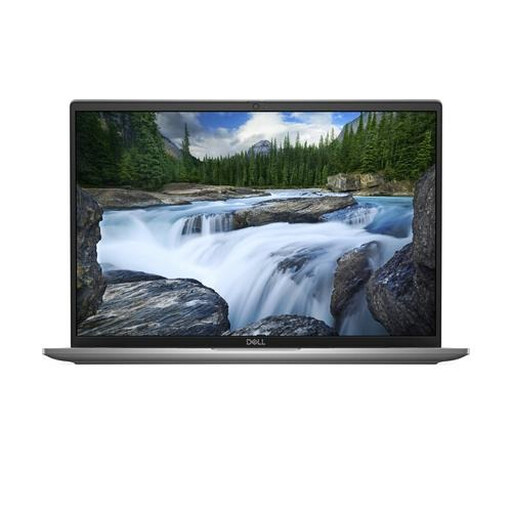 Image unavailable
Dell Latitude 7650
A 16-inch Windows 11 Pro laptop to consider for mobile productivity with a monitor.
Intel Core Ultra 7 155U, 16 GB LPDDR5x and 512 GB SSD. HDMI 2.1 and Thunderbolt 4 with DisplayPort are listed as video outputs.
The mains adapter must be purchased separately.
View at Joybuy
 Image unavailable
Samsung Galaxy Book4 15.6-inch NP750XGK-KG3NL
A Windows 11 Home laptop to consider for everyday productivity and working with multiple windows.
Intel Core 7 150U, 16 GB RAM and 512 GB SSD. HDMI and USB-C are listed as connections; check that they suit the monitor setup you want.
View at Joybuy
Frequently asked questions
Does using two screens mean using two external monitors?
No. Count the laptop’s built-in screen separately. Apple states that the MacBook Air M5 supports up to two external displays alongside its built-in screen. For another laptop, check the support for the exact model.
How do you set up an extra monitor in Windows?
Connect a compatible monitor, then use the Windows display settings to detect it and arrange the screens. First check that the laptop and connection support the video signal you want.
Does backing up a Lightroom Classic catalogue also copy your original photos?
No. According to Adobe, the catalogue stores information such as where photos are located and details about them; the original files are separate. So make a separate plan for copies of both the catalogue and the originals.
Does every laptop in the Netherlands come with exactly two years of statutory warranty?
No. The Dutch government states that the Netherlands has no fixed statutory warranty period. If a product is faulty, you may have statutory rights to a repair, replacement or refund; what’s appropriate depends on the circumstances.
Can I publish recognisable wedding photos without further consideration?
Not necessarily. According to the Dutch Data Protection Authority, you need a legal basis to publish photos and videos showing recognisable people. Consent may be one possible basis; the assessment depends on how the material is used.


