
Planner in a small room
You manage appointments and documents in a limited workspace and want to be able to take your laptop with you. Apple and Lenovo offer examples of laptop ranges with different screen sizes and compact models.


For schedules, appointments and communication from a student room, start by choosing a laptop with the right software, a comfortable screen and a size that suits your workspace and how often you travel with it. You only need to consider specific software requirements and configurations for memory, storage, screen and ports if you’ll be managing or editing large photo collections locally. Always arrange a separate backup for the original photos.
You manage appointments and documents in a limited workspace and want to be able to take your laptop with you. Apple and Lenovo offer examples of laptop ranges with different screen sizes and compact models.
You want to import, organise or edit photos on the same laptop. The software you use and the size of your files will determine which configuration is right for you. Adobe lists the system requirements for specific photo and video programmes.
You want to be able to find and keep your photos. As well as the laptop’s storage, make sure you have a separate backup of the original photos. Adobe distinguishes between a catalogue backup and the photo files themselves.
Start with the programmes and tasks you need for planning. Only factor in photo or video editing requirements if you’ll be doing that work yourself.
| What to consider | What should you check? | Who is this important for? |
|---|---|---|
| Planning in a small space | Compare the screen size and dimensions of the specific model, and check that your planning apps will run on it. | I want to manage schedules and appointments at a small desk and take my laptop with me; around 33% of consumers give planning and workspace their top priority. |
| Editing photos yourself | Check the requirements of your photo editor, along with the exact amount of memory and storage, the screen and the ports you need. | If I import, select or edit photos myself, I want to match my software and files to the configuration; around 25% of consumers make photo editing their top priority. |
| Taking it to another location | Compare the size and weight, and check which ports the specific model has for your camera, card reader or other equipment. | I want to take my laptop between my room and another location, so a portable size is useful; around 25% of consumers prioritise portability. |
| Keeping photos | Decide where you’ll keep your original photos and backups, and check that the laptop works with your chosen storage method. | If I want to find my photos later, I need to organise my files and backups properly; around 17% of consumers give file storage their top priority. |
A photo editor’s requirements apply when you use that editor; they aren’t automatically necessary for managing a schedule or appointments. A larger laptop can also take up more room on a small desk.
First, work out who will edit the photos and which software you’ll actually use.
Adobe says that a backup in Lightroom Classic only includes the catalogue file. It doesn’t automatically create a separate copy of the original photos.
Plan separately how you’ll store and back up the original photos.
Backing up your files separately requires a storage method of its own, in addition to the catalogue.
Specifications can vary between models in the same laptop range. So a port you need for a camera, card reader or other device may not be included as standard.
Check the full model number and the ports on the specific version. If necessary, see whether your workflow requires a separate card reader or adapter.
The MacBook Air is worth considering if you’re looking for a portable workspace with macOS. Compare the 13- and 15-inch models separately.
The Zenbook 14 OLED UX3405 is a Windows range to compare if you’re looking for a compact screen and a choice of port types.
The 14-inch IdeaPad Slim 5 Gen 9 is a compact Windows range for planning and working on the go.
The OmniBook 5 family includes 14- and 16-inch models, for anyone looking for a more compact or more spacious workspace.
These laptop picks are aimed at planning, communication and everyday study from a small workspace. Before you buy, check that the specific model suits the programmes and ports you need.
 No image available
This 14-inch model could suit planning in a limited workspace and offers several ways to use it.
14-inch OLED touchscreen, 16 GB memory, 512 GB SSD and a 360° hinge; the stated weight is 1,62 kg. A charger is not included; the description recommends a suitable USB-C charger of at least 45 W.
 No image available
A 14-inch model to consider for documents, appointments and online meetings in a compact workspace.
The stated configuration has 8 GB memory and a 512 GB SSD; the description lists USB-A, USB-C and HDMI. The stated weight is approximately 1,42 kg. A charger is not included.
 No image available
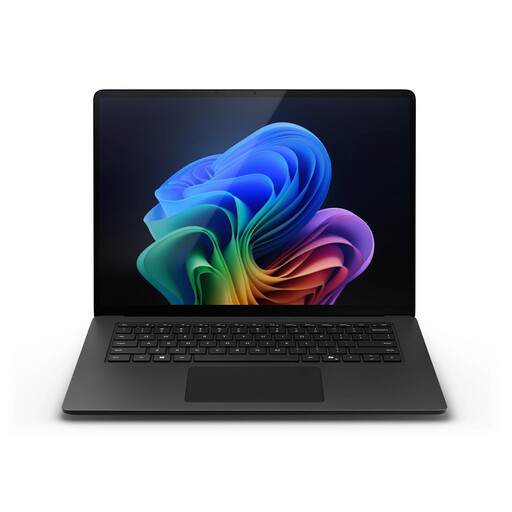
The compact screen size could suit planning and communication in a limited workspace.
The title lists a 13.8-inch touchscreen, Snapdragon X Plus, 16 GB memory and a 512 GB SSD. The stated weight is 1,34 kg.
 No image available
The listed ports may come in handy if you want to use a memory card or external screen while planning.
14-inch anti-glare screen, MicroSD card reader and HDMI; the stated configuration has 16 GB DDR4 and a 512 GB SSD. The stated weight is 1,40 kg.
 No image available
The stated 13-inch size could work well for planning in a small workspace and using your laptop on the go.
The product title lists an A18 Pro chip, 8 GB memory and a 512 GB SSD. The description mentions a built-in camera and microphones.
Not just because of the subject matter. Start by checking the programmes you need for planning and communication. Photo or video editing requirements only matter if you’ll be doing that work yourself.
Not if you expect it to keep the original photos safe: Adobe says that a Lightroom Classic catalogue backup only includes the catalogue file. Create a separate backup of the original photos.
When you buy as a consumer in the Netherlands, your statutory guarantee rights apply in addition to any manufacturer’s warranty. ACM ConsuWijzer says the seller must resolve a problem free of charge if a product breaks sooner than could reasonably be expected under normal use. This might mean repairing or replacing it. What’s reasonable depends on the circumstances, not just on the stated length of the manufacturer’s warranty.
Don’t assume that you can. The Dutch Data Protection Authority distinguishes between strictly personal use, shared with a very limited group, and wider publication or professional use. If the GDPR applies, you need an appropriate legal basis for processing. Consent is one possible example, but it isn’t the only legal basis.