What should you look for when choosing?
Start with the keyboard layout and the software you want to use for development and testing. Then consider how much screen space and portability your way of working calls for.
| What to consider |
What should you check? |
Who is this important for? |
| Keyboard layout and testing |
Check the keyboard language of the exact model. Then test navigation and forms on the website using only the keyboard. The W3C makes clear that keyboard operation relates to the site’s functions, not just the laptop keyboard. |
If I type a lot and want to test the site without a mouse, the keyboard layout needs to suit my work. Around 33% of consumers make keyboard operation their top buying priority. |
| Your development environment |
Check the operating system and the system requirements for your editor, local services and other tools. Microsoft’s requirements for Visual Studio Code apply to that editor; choose memory and storage to suit the rest of your workload too. |
If I need to run my development tools at the same time, I want to choose a configuration that suits those tools, rather than just my editor. Around 27% of consumers put their own development environment first. |
| Screen space |
Compare the screen size and resolution with your preferred window layout. The Lenovo ThinkPad E14 Gen 7 reviewed has a 14-inch WUXGA screen, according to Lenovo for this model. HP lists a 16-inch WUXGA screen for the HP ProBook 4 G1i 16 reviewed. |
If I want to view code and browser tests side by side, the built-in workspace matters a lot. Around 20% of consumers give screen space their top priority. |
| Portability and connections |
Check that the ports work with your peripherals and whether a power adapter is included. Apple lists two Thunderbolt 4 ports for the MacBook Air M5 reviewed; HP lists HDMI, Type-A and Type-C ports for the ProBook model reviewed. |
If I work in different locations, I want the laptop and its connections to suit my testing setup. Around 20% of consumers put working on the move first. |
Laptop picks at Joybuy
These laptops are suited to development work, screen space or working in different locations. You need to test keyboard operation on the website itself; a laptop model doesn’t prove that the site works without a mouse.
 No image available
HP OmniBook 7 AeroNGAI 13-bg1051nd NL Copilot+
This compact model could suit you if you work on your website in different locations and want QWERTY input.
13.3-inch IPS screen, 16 GB RAM, Ryzen AI 5 processor and 512 GB SSD.
The model described weighs 1.46 kg and has a QWERTY keyboard.
View at Joybuy
 No image available
Lenovo ThinkBook 16 G8 IAL 21SK00EBMH
The 16-inch screen could suit you if you want to view code and browser tests on a more spacious built-in workspace.
16-inch WUXGA screen, Intel Core Ultra 5 135H, 16 GB DDR5 and 512 GB SSD.
The description lists Windows 11 Pro, a QWERTY keyboard and Thunderbolt 4, USB-C, USB-A and HDMI connections.
View at Joybuy
 No image available
HP OmniBook Ultra Next Gen AI 16-bk0001nd
This model could suit you if you want a large built-in screen and enough memory for several local processes.
16-inch 3K OLED touchscreen with 120 Hz, 32 GB RAM and 1 TB SSD.
The description lists Windows 11 Pro and a backlit keyboard.
View at Joybuy
 No image available
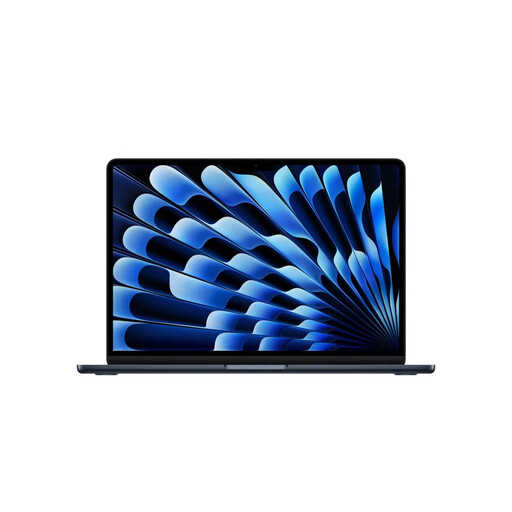
Apple MacBook Air 15-inch M5 16GB 512GB Midnight (2026) QWERTY
This macOS model could suit you if you use development software on macOS and want a larger built-in screen.
15.3-inch screen, M5 chip, 16 GB of memory and 512 GB of storage.
The description lists two Thunderbolt 4 ports. The power adapter is not included; the description specifies a USB-C adapter of at least 35 W.
View at Joybuy
 No image available
Lenovo IdeaPad Slim 5 15ARP10
The larger screen could suit you if you want to view your editor and browser tests on the same built-in workspace.
15.3-inch WUXGA screen, Ryzen 5 7535HS, 16 GB of memory and 512 GB SSD.
The description lists Windows 11 Home and a QWERTY keyboard. The power adapter is not included and must be bought separately.
View at Joybuy
Frequently asked questions
Will a good laptop keyboard automatically make my website keyboard-accessible?
No. Keyboard accessibility is about operating the website itself. Test whether all relevant features work without a mouse, and use built-in interactive HTML elements where appropriate. The W3C describes keyboard operation as a requirement for an accessible website to function.
Do I definitely need a laptop with 16 GB of memory for this website?
Not based on Visual Studio Code alone: Microsoft recommends 1 GB of RAM for that editor. Also choose your laptop configuration to suit your other development tools and the tasks you carry out at the same time.
What should I check when my laptop arrives, and what if it breaks too soon?
Check the keyboard layout, accessories and that everything works. For a consumer purchase made at a distance, you generally have a statutory 14-day cooling-off period after delivery. You’re also covered by the legal guarantee if, under normal use, the product doesn’t meet the standards you could reasonably expect. ACM ConsuWijzer explains these rights; a manufacturer’s warranty does not replace your statutory rights.
Does every lost-property website in the Netherlands have to publish an accessibility statement?
No, not simply because it’s a lost-property website. DigiToegankelijk explains that the requirement applies to websites and apps belonging to public bodies covered by the Digital Accessibility of Government Decree. Whether it applies to you depends on the organisation behind the site.
What should I consider when using report forms that ask for contact details?
If the site collects or stores personal data, such as email addresses or identifiable photographs, this counts as processing personal data according to the Dutch Data Protection Authority. Work out the privacy requirements for the specific way your site is set up; your laptop choice doesn’t determine those requirements.


