
Editor with limited desk space
You want to edit walking footage and spoken audio in one small workspace. Weigh up how much room the laptop takes against how much of the screen you need to see at once.


Start by considering what you edit: you won’t necessarily need a powerful graphics card for spoken audio, while 4K video requires more memory. Then compare the size and ports of the exact model with your workspace and recording equipment. A smaller screen takes up less space, but shows less of your video timeline.
You want to edit walking footage and spoken audio in one small workspace. Weigh up how much room the laptop takes against how much of the screen you need to see at once.
You work with 4K footage or more complex projects. Compare the memory and storage configuration, rather than focusing only on how thin or compact the laptop is.
You mainly edit spoken audio and don’t want to prioritise video hardware more than your workflow requires. Above all, check that your recording equipment and plug-ins work with your chosen laptop.
A good fit if: you mainly record, cut and edit narration, and only make light video edits at most.
Consider: there’s no evidence that you need an extra-powerful GPU for this audio work; do check your audio equipment, plug-ins and storage.
A good fit if: you regularly edit video and spoken audio together on one timeline, but have limited desk space.
Consider: a 13- or 14-inch laptop saves space, but gives you less of the timeline in view.
A good fit if: your projects use 4K source footage, lots of video layers or demanding effects.
Consider: Adobe recommends 32 GB RAM or more for 4K and above in Premiere. A compact screen still has its limits, and an external monitor needs extra space.
| Consideration | What to look for | Who is this most relevant to? |
|---|---|---|
| Size and timeline visibility | Check the dimensions, screen size and resolution of the exact model. Also check which port it has for a possible external monitor. | If you work at a small desk, you’ll want to save space without losing sight of your editing timeline. Around 33% of consumers put compactness first. |
| Performance for your video files | Match the processor, RAM and GPU to your editing software, version and source footage. Adobe recommends 16 GB RAM for HD media and 32 GB or more for 4K and above in Premiere. | If you actually edit video files, choosing the right configuration matters more than simply looking for a ‘creator’ label. Around 27% of consumers prioritise video performance. |
| Spoken-audio workflow | Check that your microphone or audio interface, plug-ins and storage location for active projects are supported and have the right connections. Audacity doesn’t specify a CPU or GPU requirement for Windows. | If you mainly record a voice-over for a walk and edit the audio, you’ll want to keep using your equipment and software without unnecessarily prioritising video editing. Around 20% of consumers put voice-over editing first. |
| Storage and ports | Work out how much source footage you’ll keep and which devices need to be connected at the same time. The Consumentenbond suggests 512 GB or more if you regularly use large photo and video files; check whether storage is upgradeable on each model. | If you want to transfer and store recordings and connect equipment, you’ll want to avoid a workflow held back by too little storage or too few ports. Around 20% of consumers prioritise storage and ports. |
With some Dell configurations and models in the ASUS UX3405 family, for example, the screen, storage and other components can vary between configurations. Compare the full model number before assuming that features from one version apply to another.
Before buying, check the full model number, RAM, storage, screen and included accessories.
Adobe offers native support for Windows on ARM in Premiere 26.0 and later on the specified Snapdragon X systems, but also lists missing features and incompatible plug-ins. Audacity also notes limitations for plug-ins on ARM.
Before choosing an ARM configuration, check support for your specific software version, plug-ins, file formats and audio drivers.
Your recording equipment, power supply and preferred screen space all help determine whether you’ll need additional accessories.
Before buying, work out what equipment you’ll connect and how much room you have for a possible external monitor.
Depending on the configuration you choose, you may need a suitable charger, adapter, extra storage or an external monitor.
The MacBook Air M5 range includes a 13.6-inch model for a small workspace, if your editing software and peripherals work with macOS.
Yoga Pro 7 models around 14.5 inches are worth considering if you want to compare compact dimensions with configurations for video work.
The Netherlands’ OmniBook Ultra 14-kd0674nd is a specific 14-inch Windows configuration to compare for its screen, memory and accessories.
The configurable Dell 14 Plus DB14250 is a 14-inch Windows option where it’s worth paying attention to your chosen screen, storage and port configuration.
The Zenbook 14 OLED UX3405 family includes compact Intel Windows models; the full model suffix matters when comparing them.
These laptops are suited to compact workspaces where you edit walking footage and voice-over. We’ve also included two 16-inch options if you’d like more screen space and have room for them.
 No image available
A 14-inch model to consider for a small workspace and editing walking footage with voice-over.
The product description lists a 14-inch 1920 × 1200 OLED touchscreen, 16 GB RAM, a 512 GB SSD, HDMI and USB-C with DisplayPort. Adobe recommends 16 GB RAM for Premiere with HD media; this isn’t a guarantee of performance for every editing task.
A charger isn’t included; the description says you’ll need to buy a compatible USB-C charger rated at least 45 W separately.
 No image available
A 14-inch option to consider if you edit walking footage and need room to connect equipment.
The product details list a 14.2-inch XDR display, 24 GB memory, 1 TB storage, an SDXC card slot, HDMI and a headphone socket. Support for up to two external displays is also listed.
 No image available
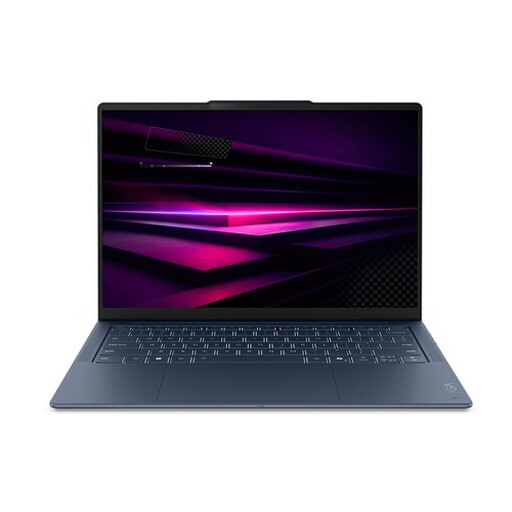
A 14-inch option for a small workspace and editing walking footage with voice-over.
The product details list a 14-inch WUXGA OLED screen, 16 GB memory, a 512 GB SSD, three USB4 ports and a headphone/microphone socket. The stated weight is 1.17 kg.
Check that your editing software, plug-ins and audio equipment work with this specific processor architecture.
 No image available
A larger screen can give you more room to edit, if your desk has enough space.
The product details list a 16-inch WUXGA screen, 16 GB memory, a 512 GB SSD and two USB4 ports. A 16-inch model takes up more desk space than a 13- or 14-inch one.
 No image available
An option to consider for more demanding video projects if you have room for a 16-inch laptop.
The product details list 32 GB memory, a 1 TB SSD and a 16-inch 2.8K OLED screen with 120 Hz. Adobe recommends 32 GB RAM or more for 4K and above in Premiere; that recommendation alone doesn’t tell you how a complete configuration will perform.
A 16-inch model takes up more desk space than a 13- or 14-inch one.
Not for audio editing alone: Audacity doesn’t specify a CPU or GPU requirement for its Windows version. If you also edit video, check the requirements of your video software and source files separately.
Check the exact software and drivers before choosing. Adobe has offered native support for Premiere on certain Snapdragon X systems since version 26.0, but lists missing features and incompatible Intel plug-ins. Audacity says its Windows on ARM version doesn’t support plug-ins.
Audacity recommends fast, uninterrupted access to a hard drive or SSD for active work. Its documentation warns that network storage, basic external hard drives and USB sticks may not be reliable for active projects; decide separately how to store completed recordings.
For a consumer purchase, the seller must provide a product that meets reasonable expectations, according to ACM ConsuWijzer. For distance purchases, a 14-day cooling-off period applies in many cases, according to the Dutch government; conditions and exceptions may apply. A manufacturer’s warranty doesn’t replace your statutory rights.
Don’t use copyright-protected music without permission or another valid legal basis for using it. The Dutch government makes clear that using it for yourself doesn’t automatically give you permission to publish it. If passers-by are recognisable in your footage, privacy laws may be relevant. Whether you can publish it depends on the specific footage and how you publish it.