
Viewing drawings around a table
You look at large drawings with fellow students and want to be able to read the details without taking up unnecessary table space.


For viewing drawings together, focus on a screen size and resolution that work well around a shared table. A workstation is only relevant if your course requires you to run CAD or modelling software locally. A 2-in-1 with pen support may suit you for taking notes, but check whether the pen and keyboard are included and whether the software you need works with the device’s processor architecture.
You look at large drawings with fellow students and want to be able to read the details without taking up unnecessary table space.
You open or edit drawings and possibly models locally. The software required by your course and the size of your projects will determine which configuration is right for you.
You make handwritten annotations during discussions and want to know whether a pen, keyboard and the software you need are available with the configuration you choose.
Choose this option if: you mainly read drawings, compare them with other sources and discuss them around a table.
Bear in mind: a smaller screen takes up less space, but gives you less room to view a large drawing alongside your notes.
Choose this option if: your course requires you to run AutoCAD, Revit or other drawing and modelling software locally.
Bear in mind: the required configuration depends on the software version and project size. You won’t necessarily need extra memory or a dedicated GPU just to view drawings.
Choose this option if: writing directly on digital drawings during discussions is important to you.
Bear in mind: with the Surface Pro we looked at, the pen and keyboard are optional extras. The Snapdragon model isn’t an obvious choice for running local Autodesk installations on Windows on Arm.
| What to consider | What should you check before buying? | Which shoppers value this most? |
|---|---|---|
| Drawing detail and screen space | Check the resolution and screen size of the exact configuration, and whether you can read the details from your usual viewing distance. | When I’m looking at a drawing with others, I want to be able to read the details without taking up the whole table with my laptop. Around 33% of shoppers put readability and shared screen space first. |
| Local CAD and modelling software | Find out which programme and version you need, which operating system it requires and how large your projects are. Then compare the exact configuration with the requirements for that software version. | When my course requires me to run drawing or modelling software locally, I want to know before buying whether it will work on the laptop. Around 27% of shoppers put local CAD compatibility first. |
| Portability and power | Compare the weight of the exact configuration and check which charger is included. Consider battery life for the way you’ll use it; a quoted test time doesn’t indicate battery life during CAD work. | If I take my laptop with me often and don’t always have access to a power socket, I want to weigh up portability and charging against screen size. Around 27% of shoppers give mobility top priority. |
| Pen annotations and typing | Check pen support, which accessories are included and whether the software you need works on the device. | During discussions, I want to write directly on a digital drawing and know that I can type comfortably afterwards too. Around 13% of shoppers prioritise pen annotations. |
Requirements vary by application and workload. Simply viewing bridge drawings doesn’t mean you need to run AutoCAD or Revit locally.
First, find out which files, software versions and project sizes your course actually uses.
Autodesk describes installation issues with its programmes on Windows devices with an ARM processor. The Surface Pro we looked at has a Snapdragon processor.
Check the processor architecture and software requirements before making pen input a deciding factor. Also ask your course whether it uses a supported web-based or remote working environment.
For locally installed Autodesk software required by your course, you may need a different computer or working environment.
With the Surface Pro we looked at, the pen and keyboard are optional extras. Apple doesn’t list a mains adapter as included with the MacBook configuration we looked at.
Check what comes in the box with the exact configuration and which accessories you’ll need.
Colours and keyboard layouts may differ. The MacBook Air configuration we looked at is silver with a Dutch keyboard; a Joybuy listing we found is in Midnight with a QWERTY keyboard.
Compare the full model number, colour, keyboard layout and SKU before choosing a configuration.
The ThinkPad P14s Gen 6 (AMD) configuration we looked at is a compact Windows option for local drawing work.
The ZBook 8 G1i 14 configuration we looked at is a Windows workstation option if you need a dedicated GPU and plenty of memory.
The MacBook Air with M5 is a compact laptop option if you mainly view and discuss drawings and do general study work.
The Surface Pro offers a 2-in-1 option if adding pen annotations to drawings is important to you.
These Joybuy laptops are aimed at viewing bridge drawings around a table. For local CAD work, check your course requirements and the requirements for the software version you’ll be using.
 No image available
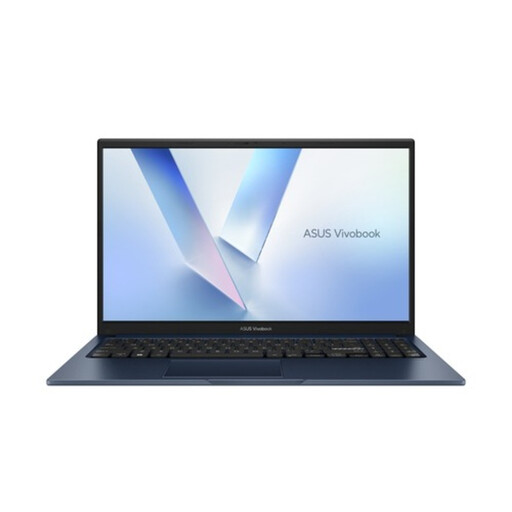
An option for viewing drawings around a table if you’re looking for a 15.6-inch screen.
The product description lists a Full HD screen and Windows 11 Home; the title lists 8 GB RAM and a 256 GB SSD.
 No image available
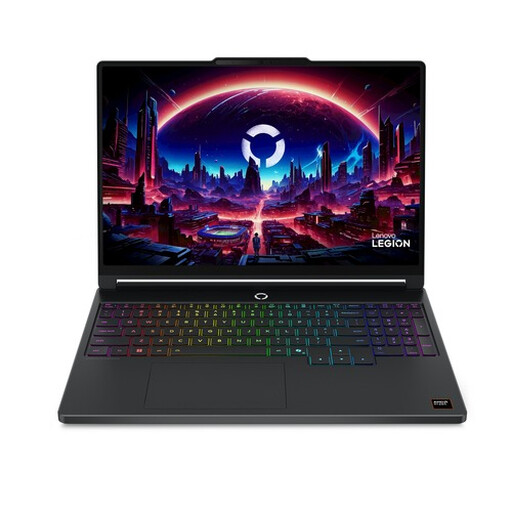
Consider this Windows laptop for local drawing work only after comparing the exact configuration with your software and project requirements.
The title lists a 15.3-inch WQXGA OLED screen with a resolution of 2560 × 1600, 165 Hz, an RTX 5060, 16 GB DDR5 and a 512 GB SSD. Windows 11 Home is also listed.
 No image available
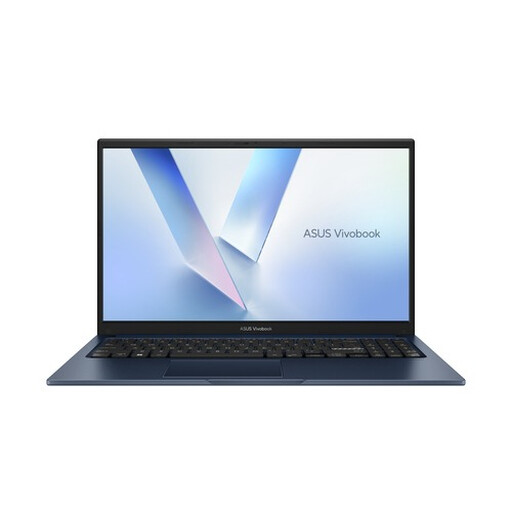
An option for viewing and discussing drawings around a table if you want a 15.6-inch screen.
The product description lists a Full HD anti-glare screen, Windows 11 Home and a hinge that folds flat. The title lists 8 GB RAM and a 256 GB SSD.
 No image available
If you want to do CAD work locally, first check that the exact configuration meets the requirements of the software your course specifies.
The title lists a 16-inch QHD+ OLED screen with a resolution of 2560 × 1600, an RTX 5060, 32 GB DDR5 and a 1 TB SSD. Windows 11 Home, HDMI 2.1 and Thunderbolt 4 are also listed.
 No image available
An option for viewing drawings on a 16-inch screen. Check the ports if you also want to connect an external display.
The product description lists an OLED screen with a 16:10 aspect ratio and an HDMI output. The title lists 16 GB RAM and a 512 GB SSD.
No, not simply because they’re bridge drawings. First decide whether you’ll only be reading the files or also editing them locally in CAD or modelling software. If it’s the latter, match the configuration to the software version and project size.
Don’t assume a local installation will work without checking first: Autodesk describes installation issues with its programmes on Windows devices with an ARM processor. Ask your course whether it uses a supported web-based or remote working environment.
Check the video output on the exact laptop configuration and make sure it matches the connection on the display available. Also check whether you’ll need an adapter to connect them.
According to the Dutch government, you should contact the seller for a solution under the statutory guarantee, not the manufacturer. The Netherlands doesn’t have one fixed statutory guarantee period that applies to every product; an additional guarantee doesn’t replace your statutory rights.
According to the Dutch government, purchases made remotely from a business usually come with a 14-day cooling-off period. Check the applicable terms and conditions; distance-selling rules don’t apply in the same way when you buy online from a private individual.