What should you look for?
First, consider how demanding your projects are and which editing software and plug-ins you use. Then compare the exact memory, storage and screen configuration. This helps you avoid treating guidance for demanding 4K editing as a requirement for every holiday video.
| What to consider |
What should you check? |
Who is this important for? |
| Smooth editing |
Match the processor and RAM to your editing software, source footage and project size; compare the exact specification. |
If I mainly edit short clips, I don’t want to pay for capacity for projects I never make. Around 31% of consumers prioritise light editing. |
| Complex 4K projects |
Check your editing software’s requirements and compare the memory, storage and graphics capabilities of the exact model. |
For larger 4K projects and more intensive effects, I want enough space and capacity for the way I work. Around 25% of consumers prioritise this type of editing. |
| Storage for video files |
Estimate how much source footage and how many projects you’ll keep; check SSD capacity, upgrade options and ports for external storage. |
As my travel archive grows, I want to know in advance which files will stay on my laptop and which I’ll store elsewhere. Around 19% of consumers make storage their top priority. |
| Screen and workspace |
Decide whether you’ll edit on the laptop screen or an external monitor, and check the screen specification and available video outputs. |
When I edit at home on the built-in screen, I want a clear view of both the timeline and the footage. Around 13% of consumers prioritise the editing screen. |
| Software compatibility |
Make a note of your editing software, version, plug-ins and camera files. For Windows on ARM, also check the relevant system requirements and feature limitations. |
If I want to keep using my existing editing software and plug-ins, the laptop needs to suit my workflow. Around 12% of consumers make software compatibility their deciding priority. |
The percentages show how the buying priorities mentioned here are distributed across different scenarios; they are not measured market shares. The Consumentenbond recommends 32 GB RAM and 1 TB storage for demanding use, including 4K video. This is a guide, not a minimum requirement for every short edit. For the MacBook Pro 14-inch with M5, Apple lists an SDXC slot, HDMI and three Thunderbolt 4 ports, among other features. These ports vary by model, so always check the specific configuration you’re considering.
Memory and storage vary by configuration for the MacBook Pro with M5. For Premiere on Windows on ARM, Adobe reports native support from version 26.0, but also lists system requirements, missing features and limitations for plug-ins compiled for Intel. So check your software and the features you need before choosing this option.
Joybuy laptops for video editing
This selection of Joybuy laptops includes options for short edits and larger projects, with a range of screen sizes, memory and storage configurations. For your editing software, also check compatibility and the ports on the exact model.
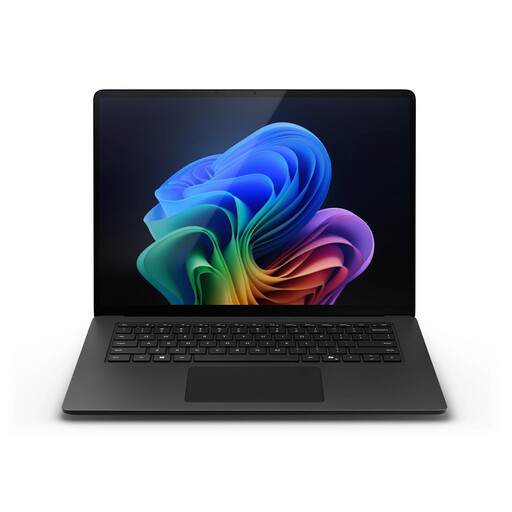 Image unavailable
Microsoft Surface Laptop 7, 15-inch, Snapdragon X Elite, 32 GB, 1 TB
An option to compare if larger projects and locally stored source footage matter to you. First check that your editing software and plug-ins work on Windows on ARM.
15-inch screen with 2496 × 1664 resolution; 32 GB memory and 1 TB SSD storage. Supports USB4. Adobe lists limitations for Intel plug-ins in Premiere on ARM.
Joybuy
 Image unavailable
MSI Titan 18 HX AI A2XWJG-492NL
A high-capacity option to compare if you work on large projects and do a lot of editing on the built-in screen. Consider whether that level of capacity suits the way you work.
18-inch UHD+ Mini LED screen; 64 GB memory, 6 TB storage and NVIDIA GeForce RTX 5090. The product information lists HDMI 2.1 and two Thunderbolt 5 ports.
Joybuy
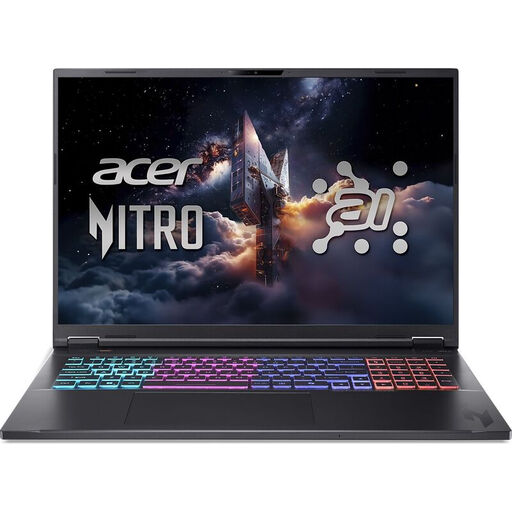 Image unavailable
Acer Nitro 18 AI AN18-61-R25V
An 18-inch option to compare if you want to edit at a desk on the built-in screen. Match the configuration to your editing software’s requirements.
18-inch WQXGA screen; 16 GB memory, 1 TB SSD storage and GeForce RTX 5060. The product information lists an HDMI port.
Joybuy
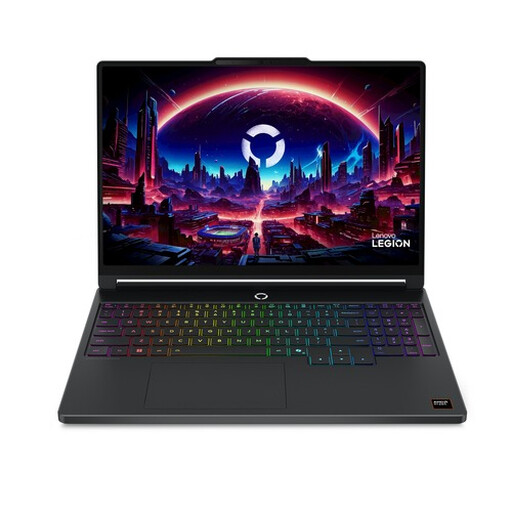 Image unavailable
Lenovo Legion 5 15AHP11
A 15.3-inch model to compare if you’re weighing up a built-in OLED screen and dedicated graphics against your other editing requirements.
15.3-inch WQXGA OLED screen with 100% DCI-P3; Ryzen 7, GeForce RTX 5060, 16 GB memory and 512 GB SSD storage. The product information lists two USB4 ports and memory expandable to 32 GB.
Joybuy
 Image unavailable
MSI Stealth 16 AI+ B3WF-011NL
A 16-inch configuration to compare if local storage and a built-in screen for editing are important to you. Also check the requirements of your specific software.
16-inch QHD+ OLED screen with 100% DCI-P3; 32 GB memory, 1 TB SSD storage and GeForce RTX 5060. The product information lists Thunderbolt 4 and HDMI 2.1.
Joybuy
Frequently asked questions
Does my laptop need 32 GB RAM for every holiday video?
No, you don’t automatically need 32 GB RAM for every holiday video. The Consumentenbond recommends 16 GB as a guide for creative work and 32 GB for demanding use, including 4K video editing. You should also match your choice to your projects and your editing software’s requirements.
How can I plan storage for editing videos at home?
First, estimate how much space your source videos and projects will take up, and which files you need regularly. The Consumentenbond recommends local storage for files you use frequently and need to access quickly, and external or online storage for other files. Also check that the laptop has the ports you need.
Does Premiere work on a laptop with Snapdragon X?
According to Adobe, Premiere has supported Windows on ARM on Snapdragon X since version 26.0, provided the relevant system requirements are met. Adobe lists Windows 11 24H2, 16 GB RAM and a suitable Adreno driver among the minimum requirements, and notes missing features and limitations for Intel plug-ins. Check your own version and workflow.
What cooling-off period applies when buying a laptop online in the Netherlands?
For eligible distance purchases from a business, the Dutch Government says there is generally a 14-day cooling-off period. An online purchase from a private seller isn’t automatically covered by this rule.
Is the legal guarantee in the Netherlands always exactly two years?
No. According to the Dutch Government, the Netherlands doesn’t have a fixed legal guarantee period of exactly two years. You’re entitled to a product that works properly for a period based on what you could reasonably expect; if there’s a problem, contact the seller.


