Who is this choice relevant to?

Creator working with multiple edits

You keep several versions of the narration and want to be able to find the video and audio files that go with them, too. Project files are different from original media; Adobe explains how to collect the media used in a Premiere project separately.

4K editor

You work with 4K footage or a more demanding timeline, so you choose memory and graphics capabilities to suit your editing software. For Premiere on Windows, Adobe recommends 32 GB RAM or more for 4K and higher resolutions.

Editor on the move

You take your laptop along the canal or between locations, weighing portability against screen space and connectivity. Apple lists the 13-inch MacBook Air as weighing 1.23 kg; the right choice also depends on where you edit.

What should you look for?

What to consider What to look for Who should pay particular attention?
Storage and project versions Estimate how much space you’ll need for original video, audio and exports; check the SSD capacity and your backup process. If I want to revisit earlier edits, I also need to keep the media that goes with them. An estimated 31% of consumers prioritise storage and the ability to restore files.
Performance for your footage Compare the software, operating system and resolution. For Premiere on Windows, Adobe recommends 16 GB RAM for HD and 32 GB or more for 4K and above. If you mainly want a laptop that suits your software and footage resolution, you may need more memory or graphics capability. An estimated 31% of consumers prioritise editing performance.
Portability and workspace Compare screen size and weight with how often you take your laptop with you and where you view the timeline. If I often edit on location, I weigh up a lighter device against the space available for the timeline and preview. An estimated 23% of consumers prioritise portability.
Display, audio and ports Check the display specifications, a suitable headphone socket and ports for your camera or external storage. If you want to review footage and narration on your laptop, it helps to have a display and connections that suit your equipment. An estimated 15% of consumers prioritise checking picture, sound and connectivity.

Common buying mistakes

  • Assuming project versions are a complete backup

    A saved project version is not the same as a copy of the original video and audio. If those media files are missing, an older edit cannot restore all the recordings on its own.

    Keep the media you need alongside your project files, and make a separate copy of anything important. Adobe explains both automatic project versions and how to collect used media in Premiere.

  • Applying a 4K recommendation to every edit

    The recommended specification depends on your software and the type of footage you’re working with. A recommendation for 4K isn’t automatically necessary for a simpler edit.

    First, work out your source resolution, editing software and workflow. Then compare the specification with the recommendations for that specific software and operating system.

  • Looking only at the product range

    Memory, storage, display and included accessories can vary between configurations. For example, a Joybuy listing for a MacBook Air M5 with 24 GB memory and a 1 TB SSD stated that no charger was included.

    Before buying, check the box contents, charging requirements and ports for the exact configuration.

Brands to compare

Apple

The MacBook Air and MacBook Pro offer different display and connectivity options; compare the configuration that suits your editing needs.

  • Apple lists the 13-inch MacBook Air with 16 GB unified memory as standard, configurable to 24 or 32 GB, and 512 GB of base storage.
  • The Air specifications mentioned include two Thunderbolt 4 ports; check whether you need extra connections for a camera, card reader or storage.

Lenovo

The Legion 5 is a Windows option to compare if you’re looking for a configuration for more demanding editing work.

  • For configuration 83F1CTO1WWNL4, Lenovo lists a Ryzen AI 7 350, 32 GB RAM, a 1 TB SSD and an RTX 5060 with 8 GB graphics memory.
  • The display on this specific configuration is described as glossy. These specifications don’t automatically apply to other Legion 5 models.

ASUS

The ProArt P16 is a creator-focused range to compare if a larger display and reviewing footage are important to you.

  • For the ProArt P16 H7606WX-SE002X, ASUS lists a 16-inch 4K OLED touchscreen and a 2 TB SSD.
  • These are specifications for that configuration, not an independent assessment of colour reproduction or a description of every ProArt P16 variant.

HP

The OMEN 16 is another Windows configuration to compare side by side for memory, storage, display and GPU.

  • For the OMEN 16-am0640nd, HP lists 32 GB RAM, a 1 TB SSD and an RTX 5070 with 8 GB graphics memory.
  • These features apply to the exact OMEN 16-am0640nd configuration and don’t automatically apply to other OMEN models.

Joybuy laptops for editing

These Joybuy laptops offer a range of screen sizes and storage configurations to weigh up against your editing software, footage and need to keep project files locally.
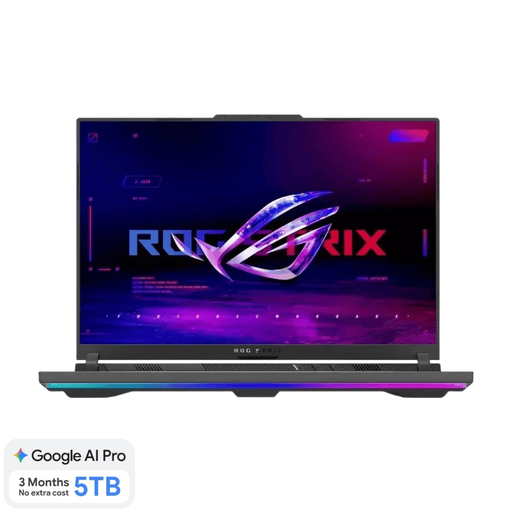
ASUS ROG Strix G16 G614FR-S5252W 16-inch laptop

ASUS ROG Strix G16 G614FR-S5252W

This 16-inch configuration could suit you if you’re looking for a larger built-in display and local storage for editing files.

16 inch; RTX 5070 Ti; 16 GB memory; 1 TB SSD. The charger must be purchased separately.

View at Joybuy

ASUS ROG Strix G18 G814PM-S9012W 18-inch laptop

ASUS ROG Strix G18 G814PM-S9012W

This 18-inch configuration is worth comparing if screen space matters more to you than a more compact size.

18 inch; RTX 5060; 16 GB memory; 1 TB SSD. The charger must be purchased separately.

View at Joybuy

ASUS V16 FX3607VP-RP061W 16-inch laptop

ASUS V16 FX3607VP-RP061W

This 16-inch laptop is worth comparing if you’re looking for a larger display and local storage space for project files.

Intel Core 7 240H; RTX 5070 with 8 GB; 16 GB DDR5; 1 TB SSD; WUXGA 144 Hz. The stated weight is approximately 1.95 kg.

View at Joybuy

Thunderobot 16-inch laptop with Intel Core i7-14700HX

Thunderobot 16-inch laptop i7-14700HX

The listed configuration combines 32 GB memory and a 1 TB SSD, giving you a useful option to compare if you need that capacity for your editing work.

Intel Core i7-14700HX; RTX 5070; 32 GB memory; 1 TB SSD; 16-inch QHD display, 2560 × 1600 and 240 Hz.

View at Joybuy

ASUS Vivobook S16 S3607QA-SH109W 16-inch WUXGA OLED laptop

ASUS Vivobook S16 S3607QA-SH109W

This configuration pairs a 16-inch display with a stated weight of approximately 1.70 kg, making it easy to take with you while still giving you a larger built-in screen to work on.

WUXGA OLED; Snapdragon X; 16 GB LPDDR5X; 512 GB SSD.

View at Joybuy

Frequently asked questions

How can you stop an older edit from losing its footage?

Keep the original media you need, not just the project file. According to Adobe, Premiere automatically saves project versions by default, and Project Manager can collect the media used in a project. Check your settings and also make a separate copy of anything important. These are Premiere features, not features of every laptop.

Do you always need 32 GB RAM for video editing?

No. For Premiere on Windows, Adobe recommends 16 GB RAM for HD media and 32 GB or more for 4K and above. Choose a laptop to suit the current requirements of your own software and workflow; don’t apply these recommendations automatically to other software or operating systems.

What warranty and cooling-off period apply to online purchases in the Netherlands?

According to the Dutch government, there is no fixed statutory warranty period in the Netherlands. If a product is faulty, contact the seller; what you could reasonably expect from the product also matters. For online purchases from a business, a 14-day cooling-off period applies in many cases. Check the terms and any exceptions that apply to your order.

Can you publish identifiable passers-by in a canal-side walking tour?

Not automatically: the Dutch Data Protection Authority considers identifiable people in images to be personal data. The personal-use exemption may apply if the footage remains private or is shared with a very limited circle. It doesn’t apply to wider publication or commercial use, which requires a lawful basis under the GDPR. Assess the recording and publication separately; choosing a laptop doesn’t give you permission to publish.
