Choose a laptop that suits your editing software and camera files, and allow enough fast storage for source footage, project versions and cache. For demanding 4K timelines or effects, memory and graphics capabilities matter more; for lighter editing or frequent travel, a proxy workflow or portability may be more important than the highest specifications.
Who is this choice for?
Editors working with lots of project versions
You regularly switch between edits or move source footage, and want to avoid missing media and confusion between project versions. Adobe describes storage and relinking workflows for these kinds of changes.
Editors working with demanding footage
You may be editing 4K footage, multiple video layers or effects, and need to match your setup to your editing software and files. Adobe distinguishes between its recommendations for HD and for 4K and above.
Editors who are often on the move
You take your laptop with you regularly and weigh screen space and connectivity against portability. Editing outdoors may also be a consideration, but it doesn't have to be part of your workflow.
What should you look for?
Start by considering how you manage projects and media. Then compare the editing performance, screen and configuration you need for the way you work.
| What to consider |
What to look for when buying |
Who is this most important for? |
| Project versions and storage |
Check the SSD capacity, connections for external storage, and where you keep originals, project copies and cache. Adobe recommends fast external drives for media and cache. |
If I often move files or switch between versions, I want to keep my media and projects organised. Around 36% of consumers say managing versions and media is their top priority. |
| Playback and export |
Match the configuration to your resolution, codec, effects and software. For Premiere on Windows, Adobe recommends 32 GB RAM or more for 4K and above, and lists 8 GB of GPU memory as a recommended specification. These aren't universal requirements for every editor. |
Anyone working with demanding footage or effects wants to edit their own files smoothly. Around 29% of consumers prioritise editing performance. |
| Screen and portability |
Compare screen size, weight, dimensions and the card or display connections your workflow requires. The Consumers' Association notes that laptops with larger screens are bigger and heavier. |
If I want to review footage in different places, I need enough screen space without carrying more than necessary. Around 21% of consumers say reviewing footage on the move is their top priority. |
| Configuration and service |
Compare the exact memory and storage configuration, any accessories you need, and the terms for any additional service. |
Anyone weighing up the total cost and support will want to know what's included with the chosen configuration. Around 14% of consumers prioritise package costs and service. |
Pitfalls to avoid
-
Assuming a project file is a complete, transferable edit
After you move files, Premiere may treat media as offline. You also need to allow for the storage space required when archiving.
Test your transfer and archiving process with a small project first. Stick to a consistent folder structure and check how much space your project and its required media will need.
Collecting or relinking media can take extra time and require plenty of storage space.
-
Choosing the most powerful graphics configuration without checking your workflow
The performance you need depends on your resolution, codec, effects and editing software. A configuration more powerful than your workflow requires could mean unnecessary expense.
Check the system requirements for your software and files. Also consider whether proxies for suitable clips would work with your workflow.
-
Assuming every model in a product range has the same configuration
Memory, storage, GPU and connections can vary between configurations. The name of a laptop family doesn't tell you exactly which configuration you're buying.
Compare the full model identifier and the configuration of the specific model, including what's included and any service terms.
Relevant brands to consider
Apple
MacBook Pro configurations are worth considering if you use macOS and want to compare codec support across specific models.
- Apple lists Media Engine support for formats including H.264, HEVC and ProRes on the MacBook Pro.
- Screen size, chip, memory and storage configuration vary by model. Codec support doesn't guarantee that every camera setting or edit will run equally quickly.
ASUS
The ProArt P16 range is a Windows option to compare if you're looking for a creator laptop with a dedicated NVIDIA GPU.
- According to ASUS, a Dutch P16 configuration reviewed has an RTX 5070 Laptop GPU, 32 GB of integrated RAM and a 1 TB SSD.
- The memory in that configuration can't be upgraded. Other P16 configurations may have different specifications.
Lenovo
The Yoga Pro 9i range is a Windows option for anyone looking to compare a 16-inch creator display and the possibility of NVIDIA graphics.
- Lenovo lists video editing and multitasking among the uses for the product range reviewed.
- Check the GPU, memory and ports on the exact model; specifications aren't the same across all configurations.
HP
The ZBook X G1i is a workstation option to compare if both video editing and specific service terms matter to you.
- HP lists video editing as a use. For the reviewed configuration with RTX PRO 2000, HP specifies three years of on-site support.
- This service term applies to the configuration reviewed and doesn't mean every ZBook offers the same service or faster editing performance.
Joybuy product picks
This Joybuy selection includes laptops with Windows 11 and 16- or 18-inch screens. Compare the specific configuration with your editing software, files and travel needs.
 No image available
ASUS Vivobook S16 S3607QA-SH109W
If you want to store projects locally, the stated SSD capacity is a useful point of comparison. Check whether it's enough for your source footage and project versions.
16-inch WUXGA OLED screen, Snapdragon X, 16 GB LPDDR5X, 512 GB SSD and Windows 11 Home.
Joybuy
 No image available
MSI Titan 18 HX AI A2XWJG-492NL
The stated storage and graphics configuration are useful points of comparison if you work with a lot of media and demanding files. Check that they suit your software and workflow.
18-inch UHD+ Mini LED screen, Intel Core Ultra 9 285HX, 64 GB DDR5, 6 TB SSD and NVIDIA GeForce RTX 5090 Laptop GPU with 24 GB memory.
At the stated weight of 3.6 kg, this laptop is less practical if you take it with you often.
Joybuy
 No image available
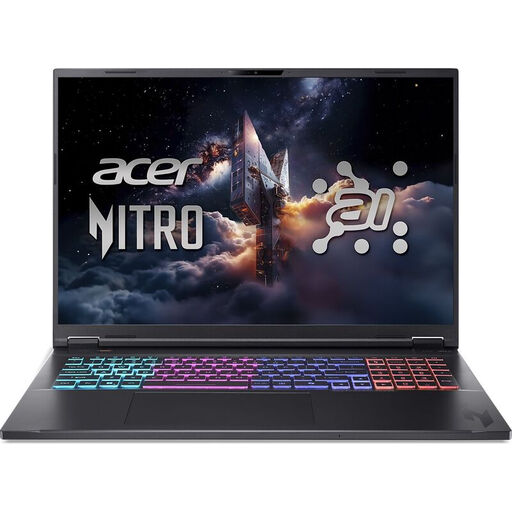
Acer Nitro 18 AI AN18-61-R25V
If you want to edit on the built-in screen, the stated 18-inch size gives you a larger workspace. Bear in mind that its size makes it less compact for frequent travel.
AMD Ryzen AI 7 350, NVIDIA GeForce RTX 5060 with 8 GB GDDR7, 18-inch WQXGA screen, 16 GB DDR5, 1 TB SSD and Windows 11 Home.
Joybuy
 No image available
ASUS ProArt P16 H7607BA-SE030X
If you want to store project and media files internally, compare the stated storage with the space your workflow needs.
16-inch screen, NVIDIA RTX Spark N1X, 64 GB RAM, 1 TB SSD and Windows 11 Pro.
Joybuy
 No image available
HP OmniBook Ultra Next Gen AI 16-bk0002nd
The stated SSD capacity may be useful for comparison if you want to store lots of project and media files locally. Check how much space your own files need.
16-inch 3K OLED touchscreen with 120 Hz, NVIDIA RTX Spark N1X 675, integrated NVIDIA graphics, 64 GB RAM, 2 TB SSD and Windows 11 Pro.
Joybuy
Frequently asked questions
Do I need a specific amount of RAM or a particular GPU for this film?
Not without knowing your editing software and video format. For Premiere on Windows, Adobe recommends 32 GB RAM or more for 4K and above, and lists 8 GB of GPU memory as a recommended specification. Those figures aren't automatically requirements for every editor or film.
How can I avoid missing clips after changing drives or project folders?
Keep to a consistent folder structure and use your editing software's features to relink media or collect a project with the files it needs. Adobe describes both workflows for Premiere. Check how much disk space you'll need before archiving, too.
Can proxies make a less powerful laptop more usable?
For suitable large video files, lower-resolution copies can make editing in Premiere easier. Adobe's proxy feature is designed for suitable video clips without captions and requires you to manage additional files. You should still assess export and effects with your own workflow.
Is a larger screen more practical if I take my laptop with me?
A larger screen gives you more workspace, but a laptop with a larger screen is generally bigger and heavier, too. The Consumers' Association explains this trade-off, so compare the screen size with the weight and dimensions of the exact model.


