
Creator working to a tight editing deadline
You want to finish your cooking tutorial before the presentation. Choose a laptop that suits your editing software, source footage and export workflow.


Start by choosing a laptop that suits your editing software, source resolution and file format. Then work out how much memory, storage and screen space you need. For demanding 4K editing, a more powerful configuration is likely to be a better fit than a lightweight model for HD. But portability and compatibility with the presentation screen matter too. Adobe’s memory recommendations apply to Premiere; they aren’t universal requirements for every editing app.
You want to finish your cooking tutorial before the presentation. Choose a laptop that suits your editing software, source footage and export workflow.
You work with larger files, so compare the memory, graphics hardware and fast storage of the exact configuration you’re considering.
You edit on the move or show the finished video from the same laptop. Screen size, portability and compatibility with the presentation screen all come into play.
A good fit if: you use Premiere on Windows and regularly edit 4K footage or work with more demanding effects. Compare the configuration with Adobe’s recommendations for Premiere.
Keep in mind: check expandability, storage, ports and the included power adapter for the exact configuration you’re considering; specifications vary by model.
A good fit if: your editing software and client files work with macOS and you want to take a 14-inch laptop with you. Apple lists hardware acceleration for H.264, HEVC and ProRes on MacBook Pro models with M5.
Keep in mind: codec support doesn’t show how every project will perform. Check software compatibility, memory, storage and connection to the presentation screen.
A good fit if: your tutorial is mainly in HD and you don’t use demanding effects. For Premiere on Windows, Adobe recommends 16 GB RAM for HD media.
Keep in mind: Adobe recommends 32 GB RAM or more for 4K. Also check whether changing the configuration affects other specifications.
Start with your editing software, project resolution and effects. Then check whether the laptop can connect at your presentation venue. For Premiere on Windows, Adobe recommends 16 GB RAM for HD and 32 GB or more for 4K. Adobe also recommends fast storage for media and cache.
| What to consider | What should you check? | Who should prioritise this? |
|---|---|---|
| Editing performance for your project | Check the editing software, operating system, resolution and effects. For Premiere on Windows, Adobe recommends 16 GB RAM for HD and 32 GB or more for 4K. Also check the graphics hardware in the configuration you’ve chosen. | If I still need to edit and export before the client presentation, I want to know whether my configuration can handle the timeline. Editing performance is the top priority for around 36% of consumers. |
| Presenting from the same laptop | Ask which connection is available at the venue, check the ports on the configuration you’ve chosen and find out whether you’ll need an adapter. | When I take my laptop with me and show the video on it, I want to know in advance whether I can connect it to the client’s screen. Presenting and portability are the top priority for around 29% of consumers. |
| Reviewing footage while editing | Compare the screen resolution and stated colour gamut of the exact configuration. Also review a test export on the screen you’ll use for the presentation. | If detail and colour matter in my cooking video, I want to review the footage carefully without treating a screen specification as a real-world test. Image quality is the most important consideration for around 21% of consumers. |
| Space for files and cache | Allow space for source footage, project versions, cache and exports. Adobe recommends fast storage for media and cache; check whether an external drive suits your workflow. | When I want to keep my source files and project versions locally, I want to know in advance how much space I’ll need. Storage is the top priority for around 14% of consumers. |
Memory, graphics hardware and storage can vary between configurations. Dell also notes that changing options may affect other specifications.
Before you order, compare the full model and selected components with the requirements of your editing software.
Source footage, media cache, project versions and exports all need storage space, as well as the software itself.
Work out how much space your files and workflow require before choosing the internal storage capacity. Adobe recommends fast storage for media and cache.
For the ASUS ProArt P16 H7606GP offer mentioned here, the manufacturer states that the power adapter isn’t included. This doesn’t automatically apply to other configurations or offers.
Check what’s included with the exact offer and which compatible adapter is suitable.
The ProArt P16 H7606GP-SR010X is a Windows configuration worth comparing for more demanding video editing.
The MacBook Pro is worth comparing if your editing software and files suit a macOS workflow.
The 16-inch Yoga Pro 9i Gen 10 Aura Edition is a Windows alternative for anyone looking for a larger creative workspace.
The XPS 16 DA16260 shows how a Windows laptop for a lighter project can be configured to suit your needs.
This selection includes Windows laptops for video editing, from configurations suited mainly to HD through to models with discrete graphics hardware. Compare each model’s memory, storage, ports and portability with your project and presentation venue.
 No image available
A Windows configuration worth comparing for editing with discrete graphics hardware; check that the specifications suit your editing software and project.
16-inch IPS screen, 2560 × 1600, 100% DCI-P3, HDMI 2.1 and Thunderbolt 5. The product information states that the power adapter must be purchased separately.
The title specifies a UK QWERTY keyboard.
 No image available
A Windows configuration worth comparing for a lighter HD project; for Premiere on Windows, Adobe recommends 16 GB RAM for HD media.
18.4-inch screen with a resolution of 1920 × 1200, 100% sRGB and HDMI 2.1. This configuration has 16 GB memory and a 512 GB NVMe SSD.
The product information states that the power adapter isn’t included and that a compatible 45–65 W USB-C Power Delivery charger is required. For Premiere on Windows, Adobe recommends 32 GB RAM or more for 4K; this configuration has 16 GB.
Blue, with a QWERTY keyboard.
 No image available
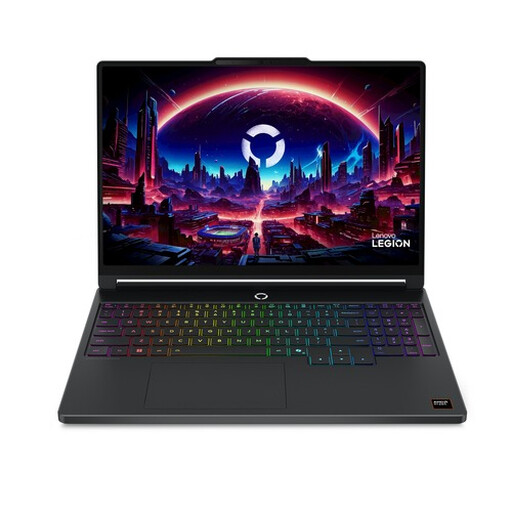
A Windows laptop with a discrete RTX 5060 Laptop GPU; compare the configuration with the requirements of your video project.
15.3-inch WQXGA OLED screen with a resolution of 2560 × 1600 and 100% DCI-P3, 16 GB DDR5, 512 GB SSD and 8 GB GPU memory. The product information lists two USB4 ports.
For Premiere on Windows, Adobe recommends 32 GB RAM or more for 4K; this configuration has 16 GB. The product name specifies a Belgian AZERTY keyboard.
 No image available
A Windows AI workstation configuration worth comparing if you’re looking for plenty of memory and a screen for reviewing images.
The title lists 64 GB RAM and a 1 TB SSD. The product information specifies a 16-inch 4K OLED screen with 100% DCI-P3, HDMI 2.1 and USB4.
Check the full configuration and its compatibility with your presentation screen before choosing.
 No image available
A Windows configuration with discrete graphics hardware and a large screen; bear its size in mind if you plan to take the laptop with you.
18-inch screen with a resolution of 2560 × 1600 and 100% DCI-P3, 16 GB memory, 1 TB SSD and HDMI 2.1. The stated weight is approximately 3 kg.
For Premiere on Windows, Adobe recommends 32 GB RAM or more for 4K; this configuration has 16 GB. The product information states that the charger is sold separately.
No, it depends on factors such as your editing software and project. For Premiere on Windows, Adobe recommends 16 GB RAM for HD media and 32 GB or more for 4K and higher resolutions. Check the requirements for your editing software, version and project.
Allow space for source files, project versions, cache and exports, as well as the software itself. Adobe recommends fast storage for media and cache; check how much space your own files take up and whether an external drive suits your workflow.
Check what’s included with the exact offer, including the power adapter, and whether you can connect the laptop to the presentation screen. For the ASUS ProArt P16 H7606GP offer mentioned here, the manufacturer states that a power adapter isn’t included.
No. The Dutch government describes the legal guarantee for consumers as the right to receive a product that works as it should, with no fixed statutory guarantee period in the Netherlands. A manufacturer’s or seller’s guarantee is in addition to this; if there’s a problem, contact the seller. If you’re buying on behalf of a business, don’t assume that consumer rights apply.
For eligible consumer purchases made at a distance, the Dutch government says you’ll often have a 14-day cooling-off period. Check whether your purchase meets the relevant conditions, especially if you’re ordering on behalf of a business. For example, buying online from a private seller isn’t the same as buying at a distance from a business.