
Curator of a large image archive
You collect interviews, scans and video files, and want to allow enough space for source footage, project files and cache. Adobe recommends fast SSD or NVMe storage for video editing.


Start by considering the space you’ll need for original footage, project files and cache, then check whether you can use fast internal or external SSD storage. For demanding editing, memory and graphics capabilities matter more; if you’re editing on location or using proxy files, portability may be more important than the most powerful configuration. Before you buy, check the exact laptop configuration and the requirements of your editing software.
You collect interviews, scans and video files, and want to allow enough space for source footage, project files and cache. Adobe recommends fast SSD or NVMe storage for video editing.
You work with high-quality footage, multiple editing tracks or effects, so you compare memory and graphics capabilities for each configuration. Adobe treats the processor, memory and GPU as separate parts of the Premiere workflow.
You take your laptop to residents or an archive, and weigh portability against screen space and connectivity. For example, Apple lists ports such as Thunderbolt 4 and an SDXC slot on the 14-inch MacBook Pro with M5.
| What to consider | What should you check? | Who is this important for? |
|---|---|---|
| Space for source files | Add up the size of your footage and working files; check SSD capacity and fast connections for external storage. Adobe recommends fast SSD or NVMe storage. | If I want to keep interviews, scans and large video files together, I need space for originals, project media and cache. Around 36% of consumers prioritise storage and archive management. |
| Editing performance | Compare the processor, RAM and GPU with your software’s requirements. For Premiere on Windows and Intel Mac systems, Adobe recommends 32 GB RAM or more. | For complex effects or multiple editing tracks, I want to choose components that suit my software and source footage. Around 29% of consumers put editing performance first. |
| Working on location | Check the screen size and ports on the exact configuration against your camera, card reader and external SSD. | If I’m importing and editing footage at residents’ homes or in an archive, a portable size and useful connections are important. Around 21% of consumers prioritise mobility. |
| Screen for reviewing footage | Compare the screen size and specifications of the exact configuration; a screen specification alone doesn’t guarantee colour accuracy. | When I want to review footage on the laptop itself, I want to know how much workspace the screen offers and whether I’ll need an external display. Around 14% of consumers make the screen and editing setup their main priority. |
Source footage, project media and cache all take up space. Adobe describes them as separate parts of a video-editing workflow.
Work out how much space your files will need and check the connections for any external storage you might use.
A fast external drive may be necessary if the internal storage isn’t enough.
Adobe treats the processor, memory, GPU and storage as separate parts of the Premiere workflow.
Compare the specifications of the exact laptop configuration with your software’s requirements and the way you edit.
Adobe describes proxies as separate copies used for editing; you use the original footage for the final export.
Allow space for both proxy files and originals, and check that your clips are compatible with your software’s proxy feature.
According to the Government of the Netherlands, there is no fixed statutory warranty period in the Netherlands; the seller remains responsible for putting things right if a product is faulty.
Read any additional warranty terms separately and check what cover they provide alongside your legal rights.
For anyone considering a compact MacBook Pro and a macOS editing setup.
The ProArt P16 is a creative Windows range for anyone comparing models with a larger built-in screen and dedicated NVIDIA graphics.
The Yoga Pro 9i is a creative Windows laptop; the ThinkPad P1 Gen 8 is worth comparing if workstation features matter to you.
The Pro Max 16 is a configurable Windows workstation range for anyone who wants to weigh up component choices and support.
The Katana 15 HX is a gaming-focused Windows range that’s also marketed for creative work.
This selection focuses on laptops for video editing with plenty of source footage: Windows creator models with dedicated graphics capabilities and a compact MacBook Pro.
 No image available
Worth comparing if you’re looking for a Windows creator laptop with plenty of memory and internal storage for your editing work.
The product title lists 64 GB RAM, a 1 TB SSD and NVIDIA RTX Spark N1X. The product description mentions a 16-inch 4K OLED screen, an SD card reader and USB4 ports.
 No image available
Worth comparing for a Windows editing setup if you’re weighing up a dedicated GPU and internal storage against the laptop’s size.
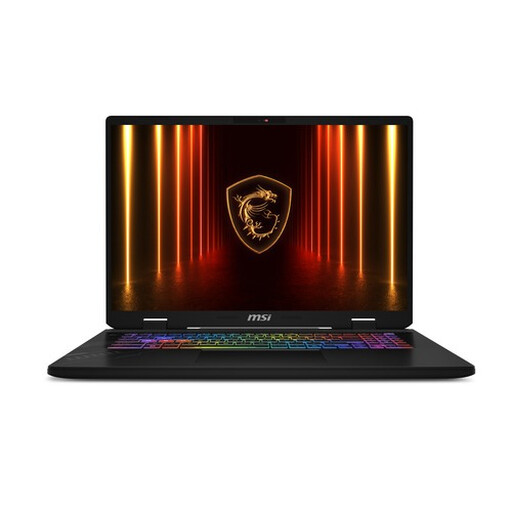
This configuration lists an Intel Core Ultra 7 255HX, NVIDIA GeForce RTX 5060 with 8 GB, 32 GB DDR5 and a 1 TB SSD. The screen is 17-inch QHD+ with a 240 Hz refresh rate; the operating system is Windows 11 Home.
 No image available
A compact Windows creator laptop to consider if you want plenty of memory in a laptop you can take with you.
The product title lists 128 GB RAM and a 1 TB SSD. The product description mentions a 14-inch screen, a weight of 1.48 kg and an SD card reader.
No image available
A 16-inch Windows creator laptop to compare if plenty of memory and a larger built-in screen are important to you.
The product title lists 128 GB RAM, a 1 TB SSD and an NVIDIA Blackwell RTX GPU. The product description mentions USB4 ports and an SD card reader.
 No image available
A compact macOS option to compare if you’re looking for a mobile editing setup with internal SSD storage.
This configuration lists 24 GB memory and a 1 TB SSD. The product description mentions an XDR screen, an SDXC card slot, HDMI and Thunderbolt ports.
Not necessarily. First, check whether your software can create proxies from your clips. Adobe describes proxies as lower-resolution copies you can edit with before switching back to the originals for the final export. Proxy files need extra storage, and Adobe notes that the proxy feature has limitations.
Adobe recommends fast SSD or NVMe storage for video editing. Work out the capacity you need based on your own source files and project media; fast external storage may be an option if the internal space isn’t enough.
Not automatically. The Government of the Netherlands states that there is no fixed statutory warranty period in the Netherlands and that the seller remains responsible for putting things right if a product is faulty. Read the additional warranty terms to see what cover they provide alongside your legal rights.
First, consider the privacy and copyright rules that apply to the material and its publication. The Dutch Data Protection Authority explains that identifiable people are considered personal data and that the GDPR may apply. According to Auteursrecht.nl, you generally need permission in advance to use other people’s protected photographs, music and films, subject to any applicable exceptions.