Choose a laptop based on your editing software, the resolution and codec of your footage, and how much storage you’ll need for source files and project versions. For Premiere on Windows, Adobe recommends 32 GB of memory or more for 4K and above. Fast external storage and proxy files can help, but make sure you also check the requirements of your own software.
Who is this guide for?
Editor working with multiple video versions
You keep footage, exports and several edits of the same workshop video, and want to keep your project files organised. Adobe Premiere automatically saves project versions to your hard drive by default; make sure you also have enough storage for your source files.
Editor working with demanding 4K footage
You work with 4K footage or demanding effects and want to move smoothly through the timeline. Adobe recommends 32 GB of memory or more for Premiere on Windows at 4K and above; your own software’s requirements and the use of proxy files also matter.
Editor on the move
You want to select and edit footage in different locations, and are weighing a more compact screen against extra workspace. Apple Support in the Netherlands lists 14-inch and 16-inch MacBook Pro models; screen size alone doesn’t tell you how long you can edit on battery power.
What should you look for when buying?
Start by noting your editing software, resolution and codec. Then decide where to store your footage, cache and project versions.
| What to consider |
What should you check? |
Who is this important for? |
| Smooth editing |
Check your editing software’s requirements for the exact resolution, codec and effects you use. For Premiere on Windows, Adobe recommends 32 GB of memory or more for 4K and above; proxy files are one way to work with demanding footage. |
If I work with 4K footage or demanding effects, I want my timeline to remain usable. Around 29% of consumers put editing performance first. |
| Storage and versions |
Plan where to store footage, cache, project files and exports. Adobe lists fast external drives as an option if internal storage is limited; check the connections too. |
If I want to keep different edits and the source footage, I need to be able to organise files logically. Around 29% of consumers prioritise version control and storage. |
| Screen space |
Compare screen size and the display specifications of the exact model; consider whether you usually work with an external monitor. |
If I mainly edit on the laptop screen, I want enough room to review footage and the timeline. Around 24% of consumers prioritise screen space and reviewing footage. |
| Working in different locations |
Compare screen size, dimensions and the charger you’ll need to carry. Don’t use a video-streaming battery life figure to predict how long you can edit. |
If I want to edit both on location and at my usual workspace, I weigh portability against a larger built-in screen. Around 18% of consumers prioritise working on the move. |
Common buying mistakes
-
Looking only at SSD capacity
Source files, cache, project files and exports all use storage space. Capacity and storage speed are different things.
Plan where each file type will be stored and check the connections before choosing a configuration.
-
Assuming automatically saved project versions are a full backup
According to Adobe, Premiere automatically saves a project file every five minutes by default and keeps the last twenty versions on your hard drive. This isn’t a separate copy of all your source footage.
Keep important footage and project files in a separate backup location too.
-
Assuming every model has the top specifications in its product range
GPU, memory and availability can vary by model code and region.
Compare the full model code and specifications of the exact model you’re considering.
Brands to compare
Apple
MacBook Pro models for anyone who wants to use macOS or Final Cut Pro, available with different screen sizes.
- Apple says the M5 Pro has a media engine that supports H.264, HEVC and ProRes.
- Memory and storage vary by configuration. The stated battery life for video streaming isn’t a measure of editing performance.
ASUS
The ProArt P16 H7606 range is a Windows option to compare if you’re looking for a creator laptop with a dedicated GPU.
- The range includes several models, so you can compare their specifications with your software requirements.
- Check the full model code, GPU, memory and Dutch-market model for each version.
Lenovo
The Legion Pro 5 16IAX10H range is a Windows option with a 16-inch screen and configurable dedicated GPU.
- Lenovo lists configurations in this range with up to a GeForce RTX 5070 Ti and up to 32 GB of memory.
- Lenovo warns that some configurations aren’t available in every region, so check the exact model.
Laptops at Joybuy
This selection includes laptops with a range of screen sizes and memory configurations for video editing. Compare the specifications of each model with your editing software, and make a separate plan for storing source footage and project versions.
 Image unavailable
ASUS ProArt P16 H7607BA-SE030X, 16-inch, 64 GB, 1 TB SSD
The listed 64 GB of memory is relevant if you use Premiere on Windows for 4K editing; Adobe recommends 32 GB or more.
16-inch 4K OLED screen; Windows 11 Pro.
View at Joybuy
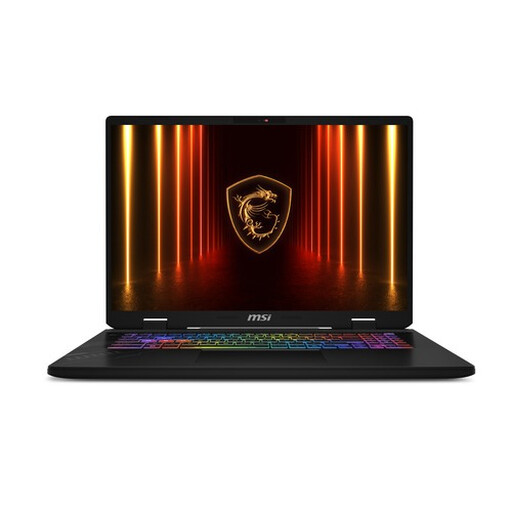 Image unavailable
MSI Crosshair 17 HX AI D2XWFKG-071NL, 32 GB, 1 TB SSD
The listed 32 GB of memory matches Adobe’s recommendation for Premiere on Windows at 4K and above; check the requirements for your effects and footage too.
17-inch QHD+ screen, 240 Hz; NVIDIA GeForce RTX 5060 8 GB; Windows 11 Home.
View at Joybuy
 Image unavailable
ASUS ProArt P14 H7407BA-SM078X, 14-inch, 128 GB, 1 TB SSD
This 14-inch model has a smaller built-in screen than the 16-inch options, so bear that in mind if you edit without an external monitor.
3K OLED screen; Windows 11 Pro. Adobe recommends 32 GB of memory or more for Premiere on Windows at 4K and above.
View at Joybuy
 Image unavailable
HP OmniBook Ultra Next Gen AI 16-bk0001nd, 32 GB, 3K OLED touchscreen
The listed 32 GB of memory matches Adobe’s recommendation for Premiere on Windows at 4K and above; compare it with the requirements of your own project too.
16-inch 3K OLED touchscreen, 120 Hz; Windows 11 Pro.
View at Joybuy
 Image unavailable
Lenovo Yoga Pro 9 15N1X11 83SR0032MH, 64 GB, 1 TB SSD
This 15.3-inch model has a built-in screen for editing; compare its memory configuration with the requirements of your software and footage.
OLED screen with a resolution of 2560 × 1600.
View at Joybuy
Frequently asked questions
Is 16 GB of memory enough for my workshop video?
It depends on your editing software and footage. For Premiere on Windows, Adobe recommends 16 GB for HD and 32 GB or more for 4K and above. Check the requirements for your version of the software; proxy files can help with demanding footage.
How can I avoid losing earlier edits?
Keep project files and important footage in a separate backup location too. According to Adobe, Premiere automatically saves a project file every five minutes by default and keeps the last twenty versions on your hard drive; these local versions don’t replace a separate backup.
Does all my footage need to be on the internal SSD?
No, not necessarily. Adobe lists fast external drives as an option if internal storage is limited. Check the connections in advance and plan space for source footage, cache, project versions and exports.
What are my rights when buying a laptop online in the Netherlands?
For many eligible online purchases made by consumers, a 14-day cooling-off period applies, according to the Dutch government. Consumers also have rights if a product is faulty. The Dutch government doesn’t specify a fixed statutory warranty period and advises consumers to contact the seller. Check who the seller is, and bear in mind that consumer rules don’t necessarily apply to business purchases.


