Start with the amount of source footage and the editing software you use. Allow space for original files, projects and temporary files, and choose memory and a GPU to suit your resolution and effects. For Premiere on Windows, Adobe recommends 16 GB RAM for HD and 32 GB or more for 4K and above; this recommendation does not automatically apply to every editor or laptop. Then choose between a more compact laptop for working on the move and a larger configuration, according to your workflow. Check the ports and included power supply for the exact model.
Who is this guide for?
Editor with lots of source footage
You want to store and move your recordings, project files and temporary files in an organised way. The Dutch Consumers' Association recommends 512 GB or more for laptops used regularly with large photo and video files; Puget Systems discusses the importance of storage configuration for video editing.
4K editor working with effects
High resolutions, effects and intensive timeline playback place greater demands on memory and the GPU. The right configuration depends on your software and source footage; for Premiere on Windows, Adobe recommends 32 GB or more for 4K and above.
Editor working on location
You want to edit away from your usual workspace too, so you’re weighing screen size against portability and local storage. Compare the exact model and check that your files will be available when you’re on the move.
Which choices matter most?
| Consideration |
What to look for when buying |
Who is this important for? |
| Space for source and editing files |
Allow for original files, projects and temporary files. The Dutch Consumers' Association recommends 512 GB or more for large photo and video files; also decide where you’ll keep active projects and backups. |
If I want to keep a lot of source footage locally, I need room for both original and editing files. Consumers who prioritise storage make up around 36% of those looking for a laptop for this type of editing. |
| Memory and GPU for editing |
Check your software, resolution, codec and GPU support. For Premiere on Windows, Adobe recommends 16 GB RAM for HD and 32 GB or more for 4K and above. |
When I work with high resolutions or effects, I want the memory and GPU to suit my software and footage. Around 29% of consumers looking for a laptop for this type of editing prioritise editing performance. |
| Screen for reviewing footage |
Compare the screen specifications for the exact model. Don’t assume you’ll get accurate colour reproduction just because a screen is described as OLED. |
If I review footage on my laptop screen, screen space and the specific panel specifications matter. Consumers who prioritise reviewing footage on screen make up around 21% of those looking for a laptop for this type of editing. |
| Taking your laptop to another workspace |
Check the screen size, ports and power requirements. Also decide whether your source files need to be available locally or externally. |
When I want to edit away from my usual workspace, I want to know whether the size and storage will suit that setup. Around 14% of consumers looking for a laptop for this type of editing give portability top priority. |
Pitfalls when choosing an editing laptop
-
Looking only at SSD capacity
Your storage workflow needs to accommodate original files, project files and temporary files side by side. A large SSD alone doesn’t tell you whether there’s enough space for an active project and your other files.
Plan ahead for active projects and backups. If you want to use external storage, check the ports on the exact laptop too.
An external storage workflow may require an extra storage device and a dedicated place for active files.
-
Assuming a more powerful GPU is the only solution
Playback settings also depend on your media and workflow. A different GPU configuration isn’t automatically the only way to work with large source files.
Check the codec and software. Adobe describes using proxy files in Premiere: lower-resolution copies that you can use while editing high-resolution footage.
-
Assuming a charger is included
The Joybuy listing for the 14-inch MacBook Pro M5 Pro explicitly states that no charger is included. This doesn’t automatically apply to other models or offers.
Check the specific offer to see what’s in the box and what power supply you’ll need.
If the required power supply isn’t included, you’ll need to arrange one separately before use.
Brands to consider as a guide
Apple
Apple lists 14- and 16-inch MacBook Pro models with M5, M5 Pro or M5 Max. This range may be worth considering if macOS and its supported media codecs suit your workflow.
- Apple lists hardware acceleration for H.264, HEVC and ProRes, among other formats.
- Memory and storage vary by model; check the specifications for the exact model.
ASUS
ASUS targets creators with its ProArt P16 range. One listed model has a 16-inch OLED screen, 64 GB memory, 2 TB SSD and RTX 5090 Laptop GPU.
- According to ASUS, this configuration offers generous local storage and memory.
- ASUS’s claims about colour accuracy and creative performance are manufacturer claims; these features don’t automatically apply to every P16.
Lenovo
Lenovo positions the Legion Pro 7i Gen 10 primarily as a gaming range. One Dutch configuration has 32 GB memory, 1 TB SSD and an RTX 5070 Ti Laptop GPU.
- Lenovo lists a dedicated GPU and a 16-inch screen for this configuration.
- Its gaming focus doesn’t prove a specific advantage in editing software; 1 TB storage may not be enough if you keep a lot of source footage locally.
Laptops for video editing at Joybuy
This Joybuy selection focuses on laptops for video editing, with configurations suited to local project files, screen work and editing on the move.
 No image available
ASUS ProArt P16 H7607BA-SE030X, 64 GB RAM, 1 TB SSD
Suitable if you’re looking for a creator laptop with plenty of memory and a built-in screen for editing.
Joybuy’s product information lists 64 GB RAM and 1 TB SSD. The description specifies a 16-inch 4K OLED screen with 100% DCI-P3.
Joybuy
 No image available
ASUS ProArt P14 H7407BA-SM078X, 128 GB RAM, 1 TB SSD
Suitable if you’re looking for a more compact creator laptop with plenty of memory.
Joybuy’s product information lists 128 GB RAM and 1 TB SSD. The description specifies a 14-inch 3K OLED screen with 100% DCI-P3 and an SD card reader.
According to the product information, the charger isn’t included; arrange a compatible power adapter separately.
Joybuy
 No image available
Apple MacBook Air 15-inch M5, 16 GB RAM, 512 GB SSD
Suitable if editing on the move matters to you and you want to keep files on your laptop.
The Joybuy product name lists 16 GB memory and 512 GB SSD. The product description says this M5 model can be used for video editing, including 4K video.
Joybuy
 No image available
Apple MacBook Pro 14-inch M5 Pro, 24 GB RAM, 1 TB SSD
Suitable if you’re looking for a more compact editing setup and work with media codecs for which Apple lists hardware acceleration.
The Joybuy product name lists 24 GB memory and 1 TB SSD. Apple lists hardware acceleration for H.264, HEVC and ProRes, among other formats.
The Joybuy listing for this model states that no charger is included.
Joybuy
 No image available
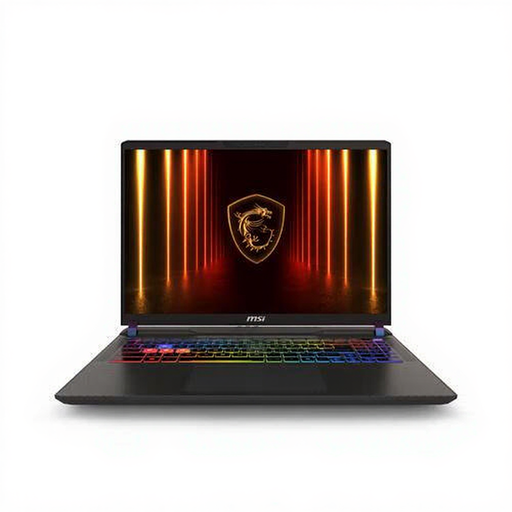
MSI Vector A16 HX A8WIG-025NL, Ryzen 9 8940HX, 16 GB RAM, 1 TB SSD
Suitable if you’re looking for a 16-inch screen and a configuration with a dedicated GPU to assess for your editing workflow.
The product information lists an RTX 5080 and a 16-inch QHD+ screen. It also says that the power adapter must be purchased separately.
Joybuy
Frequently asked questions
Do you always need to choose 32 GB memory for this film?
No. For Premiere on Windows, Adobe recommends 16 GB RAM for HD and 32 GB or more for 4K and above. First, consider your software, source format and resolution; this isn’t a general minimum for all laptops.
What can you do if large source files are difficult to play back while editing?
In Premiere, you can use proxy files: lower-resolution copies for editing high-resolution footage. Make sure your storage plan also leaves room for project and temporary files.
What should you check before placing an order?
Check the SSD capacity, ports and what’s included with the specific offer. The Joybuy listing for the 14-inch MacBook Pro M5 Pro states that no charger is included; don’t assume the same applies to other offers.
What rights do you have when buying online in the Netherlands?
According to the Government of the Netherlands, when buying at a distance you can withdraw from the purchase within 14 days in many cases; check whether these rules apply to your purchase. If a product breaks or doesn’t meet the terms of the agreement, the seller must provide a solution, according to the Government of the Netherlands.


