
Video editor creating walking stories
You combine walking footage with narration. For Premiere on Windows, Adobe recommends 16 GB of memory for HD and 32 GB or more for 4K and above. Check the resolution, software and editing steps you use yourself.


First, choose a laptop suited to the resolution of your walking video, your editing software and the complexity of your project. Then check that its connections work with the monitor, storage and other equipment at your shared workspace. For Premiere on Windows, Adobe recommends 16 GB of memory for HD and 32 GB or more for 4K and above. The right choice also depends on your workflow: for a shared Premiere setup, Adobe recommends keeping the media cache locally, and specifies 10 Gbit/s for a shared 4K network workflow.
You combine walking footage with narration. For Premiere on Windows, Adobe recommends 16 GB of memory for HD and 32 GB or more for 4K and above. Check the resolution, software and editing steps you use yourself.
You switch between your laptop and shared equipment. Check its connections against the monitor, dock, storage and network connection already in place, rather than assuming a port will automatically work with the whole setup.
You take your laptop with you and want to be able to work on location, while also connecting to a shared workstation. Compare the size and connections of the specific model with what you need there.
| What to consider | What should you check? | Who is this important for? |
|---|---|---|
| Editing performance | Compare the memory, storage and graphics configuration with your software requirements and footage resolution. For Premiere on Windows, Adobe recommends 16 GB for HD and 32 GB or more for 4K and above. | If you want to edit your own walking footage and narration without interruptions, prioritise the performance you need for your projects. Around 36% of consumers put editing performance first. |
| Compatibility with your workspace | Make a note of the connections and display requirements for the dock and monitor. Also check whether you edit files over a network or have storage available locally. | If you connect your laptop to a shared monitor, dock or storage, you’ll want to know in advance whether your whole workflow will work. Around 29% of consumers prioritise compatibility with their workspace. |
| Portability and screen space | Compare the size and weight of the specific model, and check that it supports the external display you use. | If you take your laptop between filming locations and your workspace, you’ll want it to be practical to carry without compromising on the setup you need. Around 21% of consumers prioritise portability. |
| Complete setup | Check what comes with the laptop and which adapters, cables, dock or storage you already have at your workspace. | If you want to put together a practical setup using equipment you already own, you’ll want to know in advance which components you still need. Around 14% of consumers prioritise the total cost of a suitable setup. |
Minimum requirements and recommended specifications aren’t the same. Adobe distinguishes between HD and 4K or above for Premiere, so a setup that’s sufficient for one project may not suit a more demanding workflow.
Before choosing a specific memory and graphics configuration, compare it with the recommended requirements for your resolution and software version.
A USB-C connection alone doesn’t confirm that the laptop will work with your existing dock, monitor and other devices.
Before deciding whether you need an adapter or dock, check the laptop’s exact connections and the requirements of your monitor and dock.
You may need a suitable adapter, cable or dock if the laptop and shared equipment can’t connect directly.
What’s included can vary between models, so a laptop won’t necessarily be ready to use at a shared workspace straight away.
Check the contents of the exact model and compare them with the power supply and connections you already have. For the OmniBook Ultra 14-kd0672nd reviewed, HP states that the recommended USB-C adapter is sold separately.
The MacBook Air M5 reviewed is a portable macOS option if your editing software and workspace are compatible with that system.
The ThinkPad P14s Gen 7 configuration reviewed is a Windows option to compare if you’re considering more intensive editing.
The OmniBook Ultra 14-kd0672nd reviewed is a compact Windows configuration to consider for lighter editing.
The Surface Laptop range is a Windows option to compare if support for external displays is a key requirement.
These Windows laptops are worth comparing for editing workflows where memory, storage and compatibility with a shared workspace may matter. For each model, check that the specifications and connections suit your software, files and equipment.
 No image available
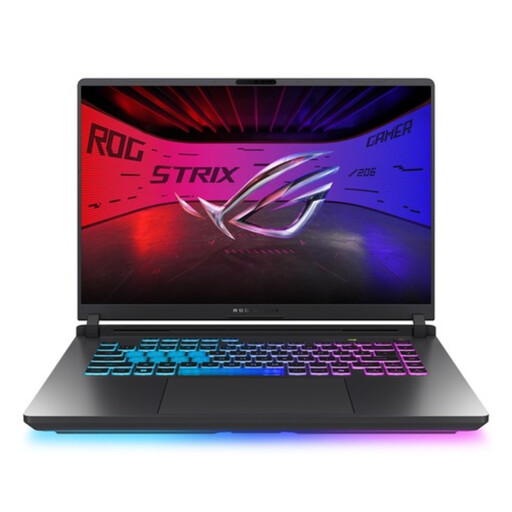
Worth comparing if you’re considering a Windows laptop with 32 GB of memory for editing. Check that the gaming configuration and 16-inch size suit your workspace.
The product information lists 32 GB DDR5, a 1 TB SSD, a 16-inch WQXGA screen, an Intel Core Ultra 9 processor and an RTX 5070 Ti.
For Premiere on Windows, Adobe recommends 32 GB or more for 4K and above. Also check compatibility with your monitor and dock.
 No image available
A large Windows laptop to compare if you need plenty of memory and storage and its size suits the way you work.
The product information lists 64 GB DDR5, a 6 TB SSD, an 18-inch UHD+ Mini LED screen and a weight of 3.6 kg.
The listed connections include two Thunderbolt 5 ports, HDMI 2.1 and an SD card reader. Check that they match your shared equipment; the stated weight may matter if you take the laptop with you often.
 No image available
Worth comparing if you’re looking for a Windows laptop for creative work and plenty of memory is important to you. Check the exact configuration and software compatibility.
The product information lists 128 GB RAM, a 1 TB SSD and a 16-inch screen.
The listed connections include USB4 Type-C with DisplayPort and HDMI 2.1. Check that they’re compatible with your monitor and dock.
 No image available
Worth comparing if you’re looking for a Windows laptop with 32 GB RAM for editing at a shared workspace.
The product information lists 32 GB RAM, a 1 TB SSD and a 16-inch 3K OLED touchscreen.
The listed USB-C/USB4 connection supports DisplayPort and Power Delivery. Check that it’s compatible with your dock and monitor. For Premiere on Windows, Adobe recommends 32 GB or more for 4K and above.
 No image available
Worth comparing if you’re looking for a Windows laptop with generous memory and storage. Check which capabilities your editing workflow actually requires.
The product information lists 128 GB RAM, a 2 TB SSD and a 16-inch 3K OLED touchscreen.
The listed USB-C/USB4 connection supports DisplayPort. Check compatibility with your external display and dock.
It depends on the resolution and your operating system. For Premiere on Windows, Adobe recommends 16 GB for HD and 32 GB or more for 4K and above. Also check the requirements for your software version and project.
For a shared Premiere workflow, Adobe recommends keeping the media cache locally. For a shared 4K network workflow, Adobe specifies 10 Gbit/s. First check whether you’re actually working with network storage like this and how the files are edited.
According to the Government of the Netherlands, the seller—not the manufacturer—must provide a solution if a product is faulty. The Netherlands has no fixed statutory guarantee period for every product; what you can reasonably expect depends, among other things, on the product and the sales information.
According to the Government of the Netherlands, online purchases from a business generally come with a 14-day cooling-off period. Check whether your purchase qualifies as a distance sale and which terms and conditions apply.
Not automatically: the Dutch Data Protection Authority treats identifiable people in footage as personal data. The household exemption may apply to private use within a very limited circle. It doesn’t apply to wider publication or business use, where processing requires a lawful basis. The assessment depends on what you record and how you use the footage.